Kahua 2026 Q2 Release Notes
The Kahua 2026 Q2 release will be deployed to our Production environments on May 8, 2026. A preview of this functionality can be accessed at https://earlyaccesslaunch.kahua.com beginning on April 25, 2026. Please click here for more information on the Early Access program.
Note Please note that major releases are now performed on the Friday of a release weekend instead of Saturday.
The release notes below are subject to change. For any changes to these notes, please see the change log at the bottom of the article.
In addition to various bug fixes, performance improvements, and minor UI updates, this release includes the updates described below in the following functional areas:
 General
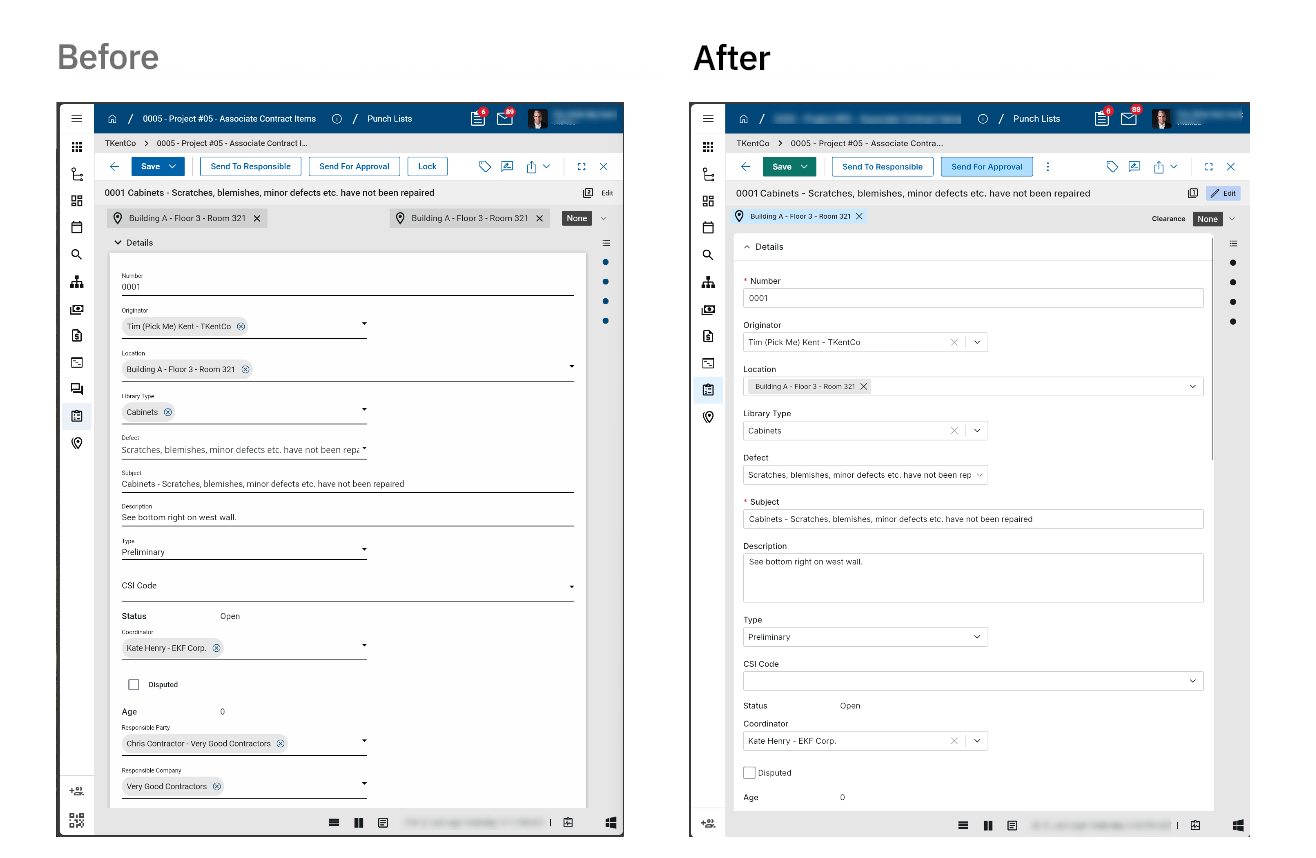
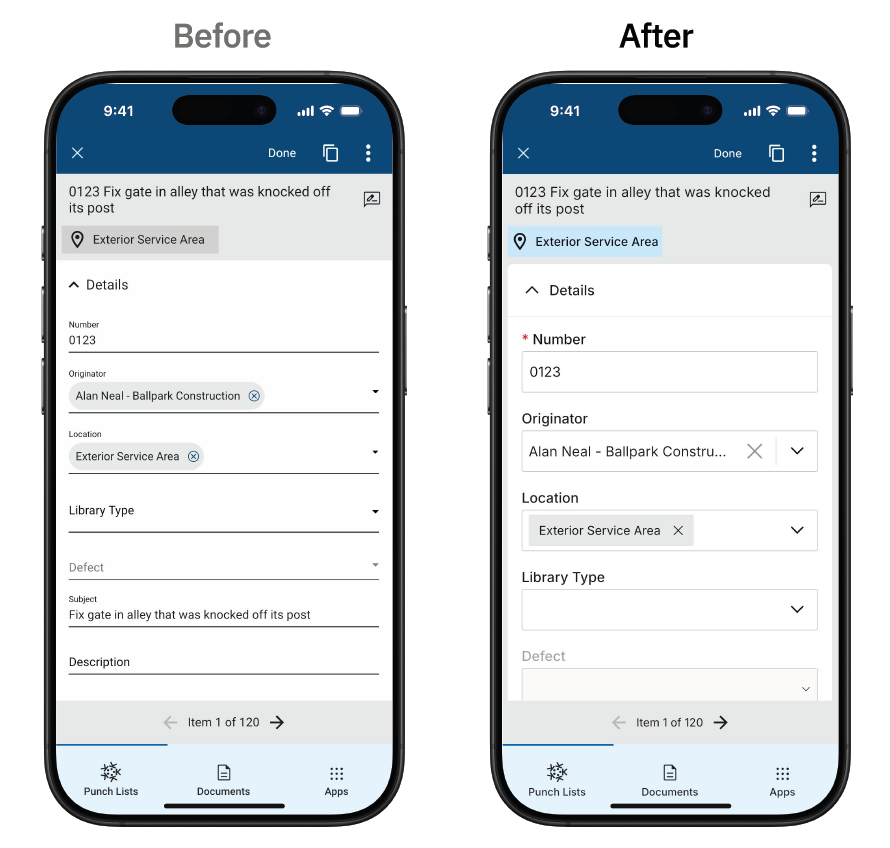
Improved data entry styling
We have updated and improved the styling of the pages and grids where you enter data into Kahua. This update applies to form fields across the platform and is designed to improve readability and usability, especially in information-dense forms, by keeping labels clearer and more consistent, supporting wrapped labels instead of truncated text, and making fields easier to scan across desktop, web, and mobile experiences.
While the functionality and placement of fields and buttons remain the same, you will notice an improvement in readability and usability, making it easier to work efficiently across all your devices and input methods.
Home Page – Added Domain Homepage Announcements
We added a new homepage announcement feature in Domain Settings so you can publish messages to all users in your domain. This helps you share important updates, reminders, or links in a prominent location at the top of the Kahua homepage.
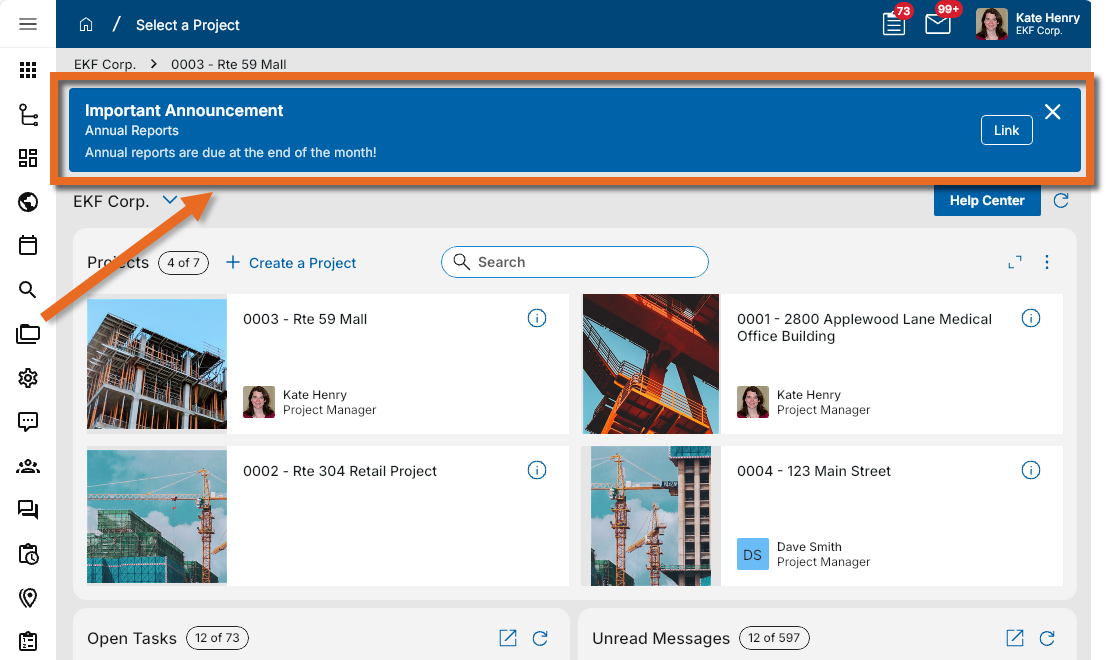
To set up an announcement, go to Domain Settings and open the Home Page Settings. Select Publish Announcement, then enter the announcement Title, Subtitle, and Body. You can also add an expiration date and include multiple links. After the announcement is published, it appears at the top of the domain homepage for all users until you unpublish it or the expiration date is reached.
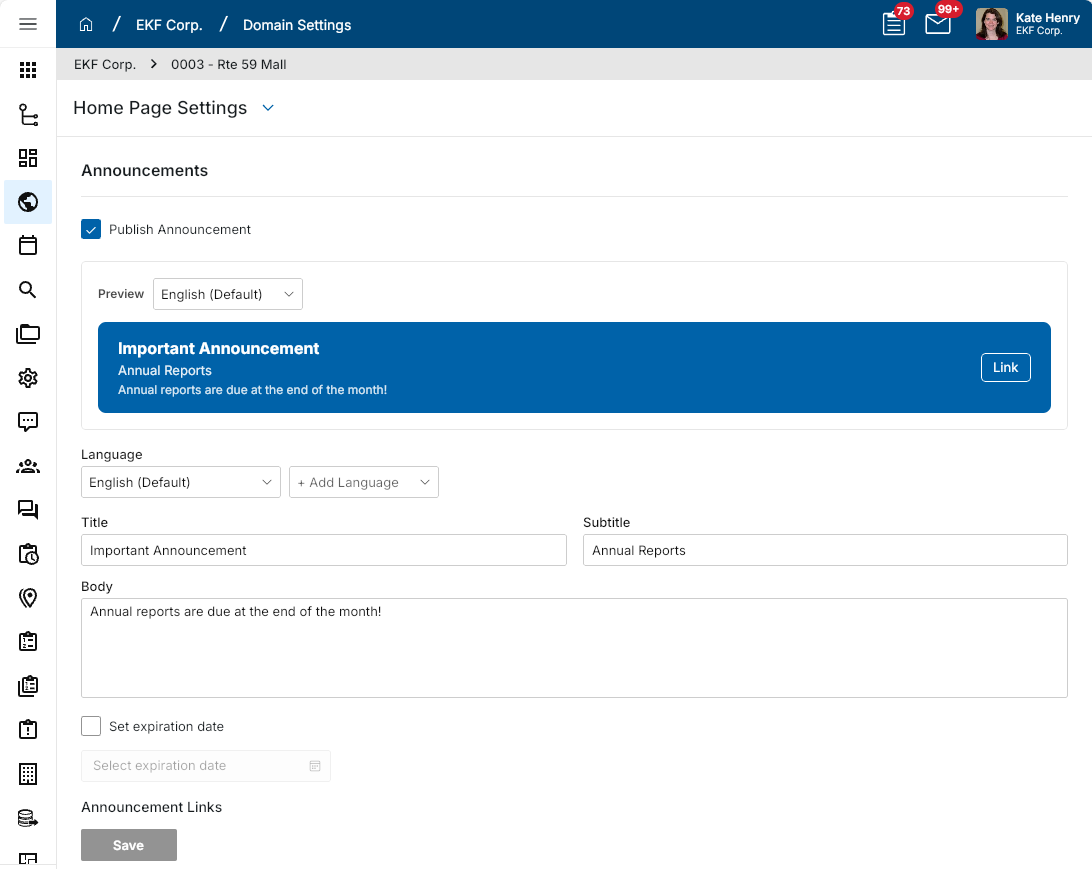
Published announcements appear on the desktop host, web host, and mobile host. You can configure homepage announcements on the desktop host or web host.
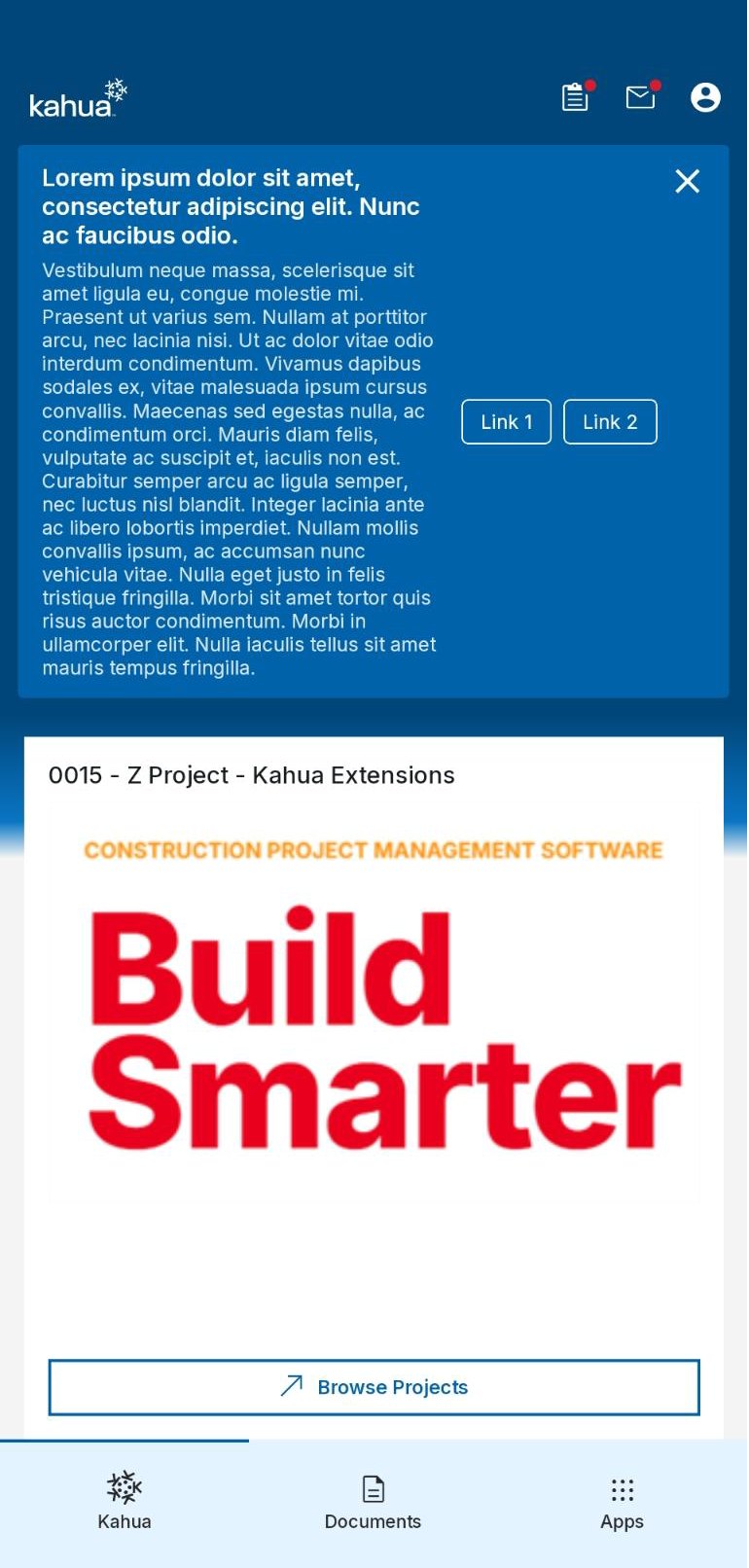
For more information, refer to Home Page Settings.
Dashboards – Added live video stream widgets
This feature is only available in the Kahua Commercial Network (KCN). It is not available in the Kahua Government Network (KGN).
You can now add live video stream widgets to dashboards by using supported streams from OxBlue or EarthCam. This update lets you bring live site video directly into your dashboards, so you can monitor activity on the project site without leaving Kahua.
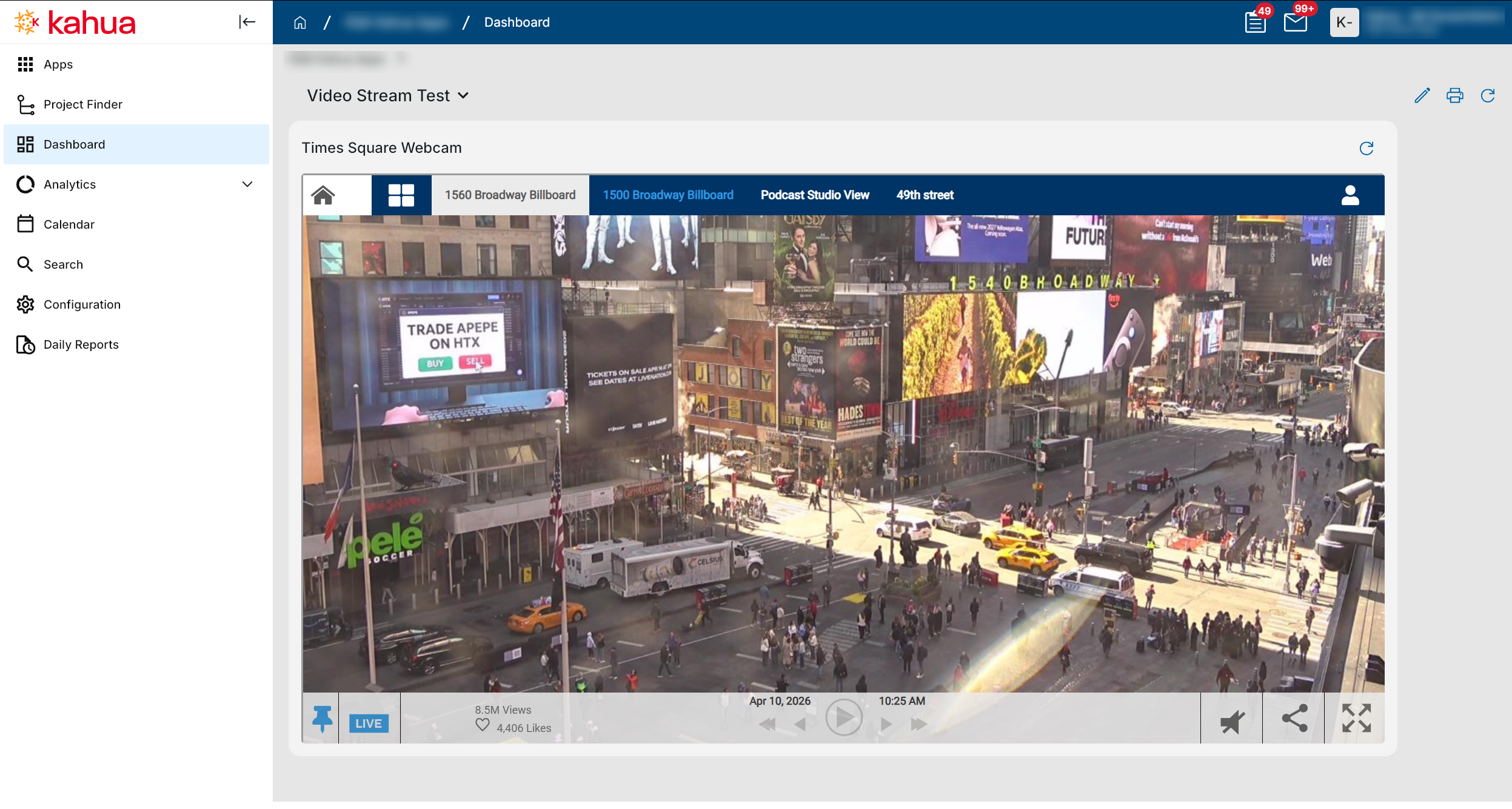
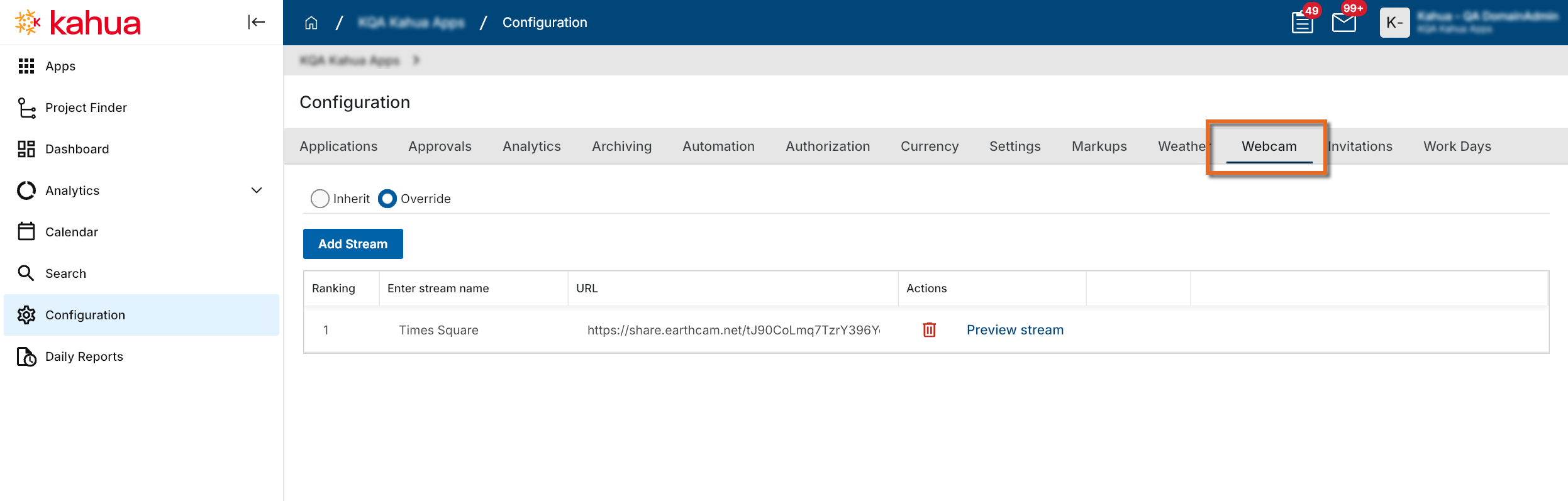
To use this feature, first set up your live streams on the new Webcam tab in configuration. On that tab, enter a stream name, provide the stream URL, and preview the stream to confirm that it is working correctly. The ranking shown in the leftmost column determines inheritance behavior when a dashboard is overridden on a subproject.
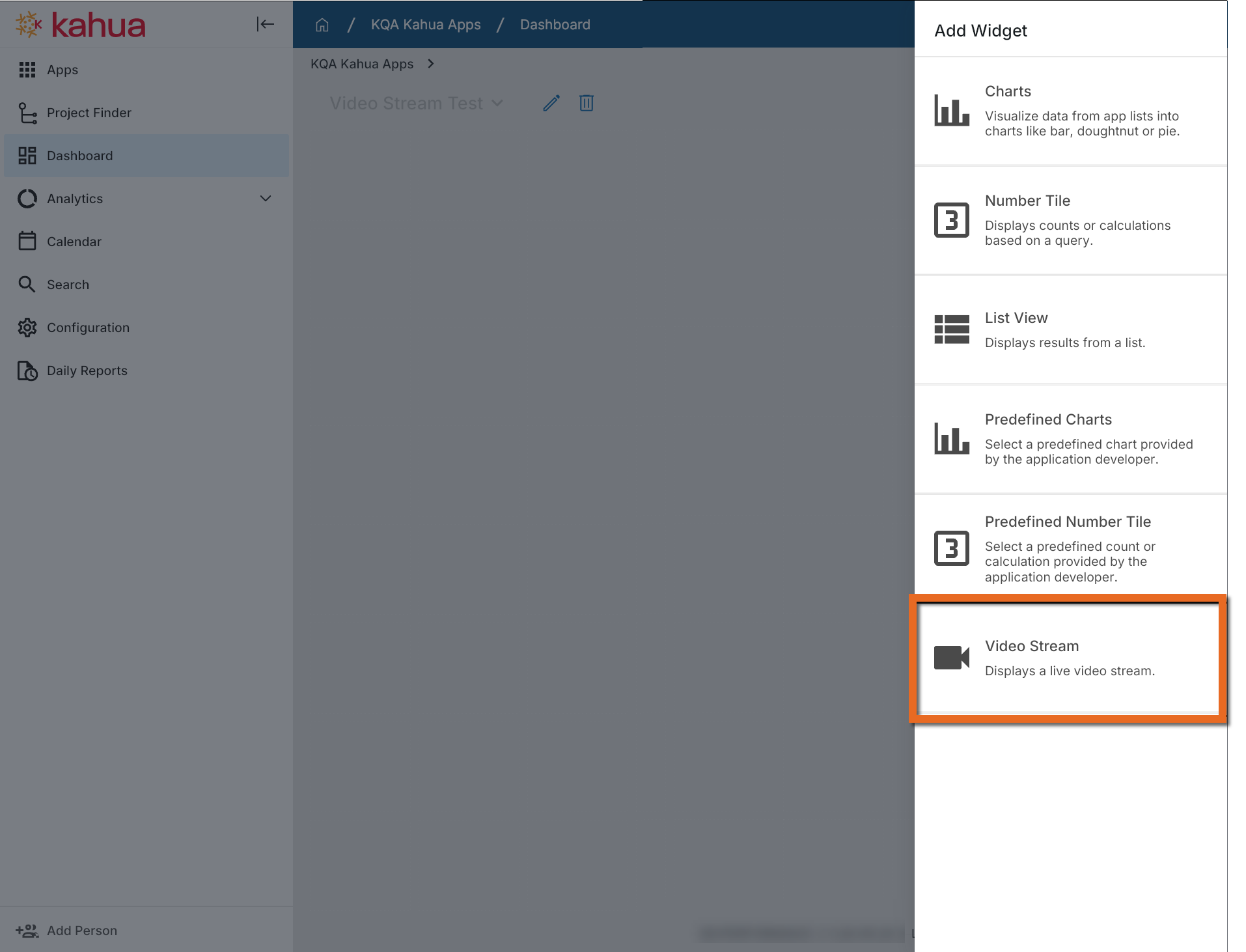
After your webcam streams are configured, in the Dashboards app you can add a new Video Stream widget to any dashboard. In the widget configuration, select one of your configured video streams as the source for that widget.
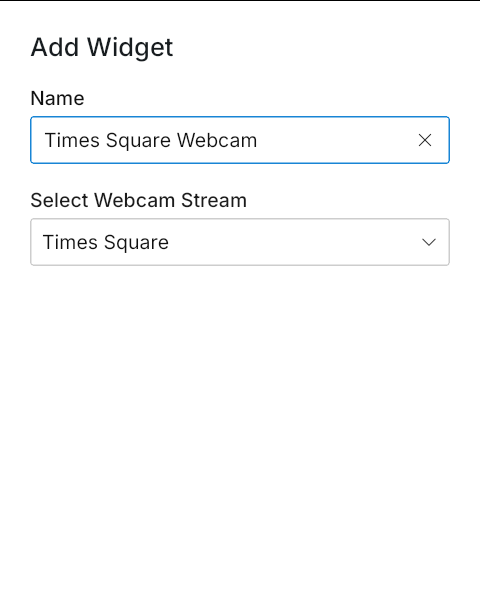
If your dashboard is used across multiple projects, you can override the webcam configuration at the project level to show a different live stream in the same dashboard. For example, if Site A and Site B each have different webcam links configured on their Webcam configuration pages, you can still use one shared dashboard across both projects. Kahua matches the stream shown in each widget based on the ranking of the configured webcam link for the current project, so the same dashboard can display the appropriate live stream for each project.
For more information, refer to Webcam.
File Viewer – Improved file viewer toolbars
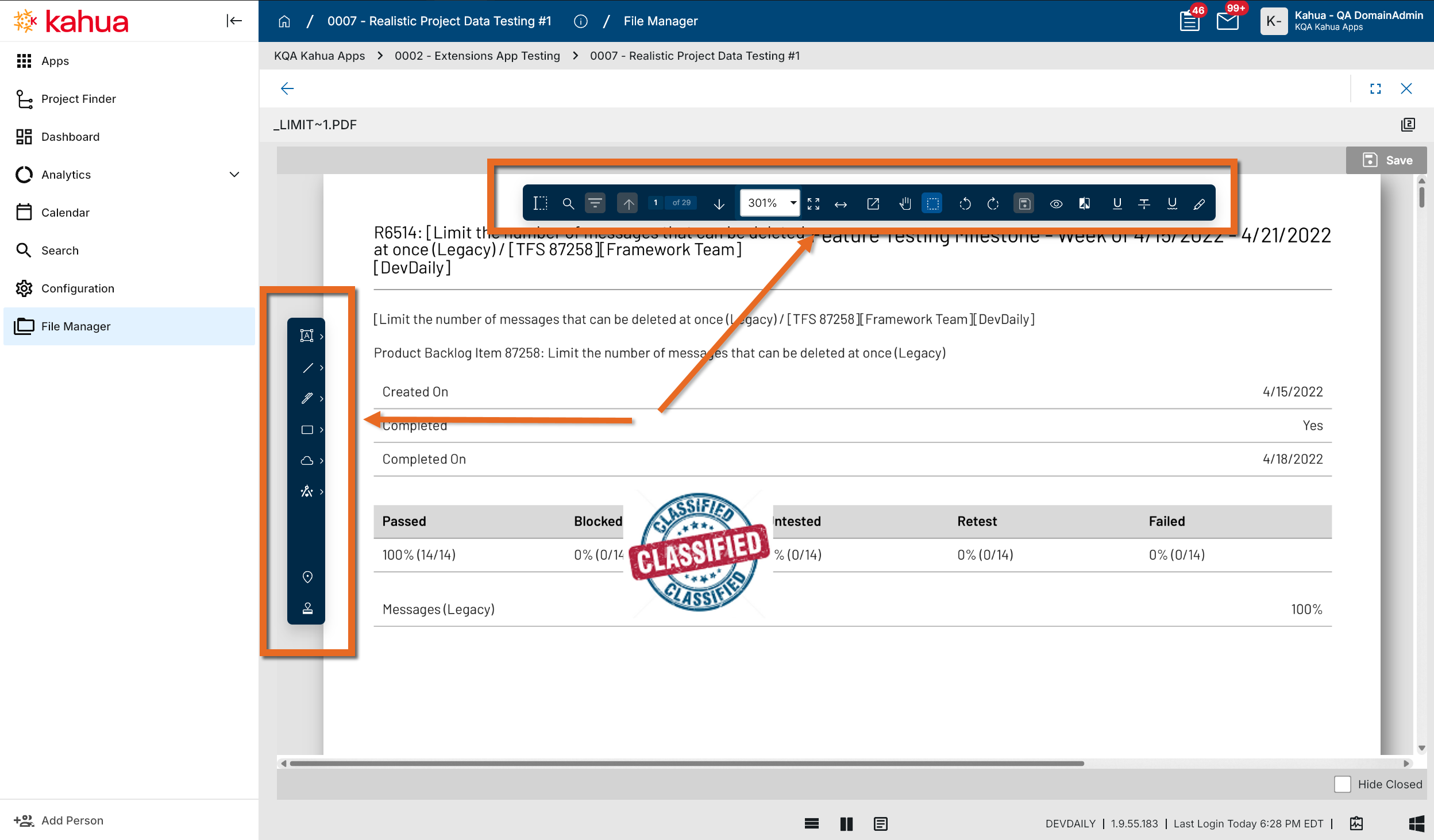
We have updated the file viewer toolbars to a new user interface to make them easier to use. These new toolbars contain all the same functionality as the previous file viewer toolbars - zoom, pan, go to page number, markup, etc.
This update is initially available on desktop and web. Support for mobile will be added in a future update.
File Viewer – Updated pan mode
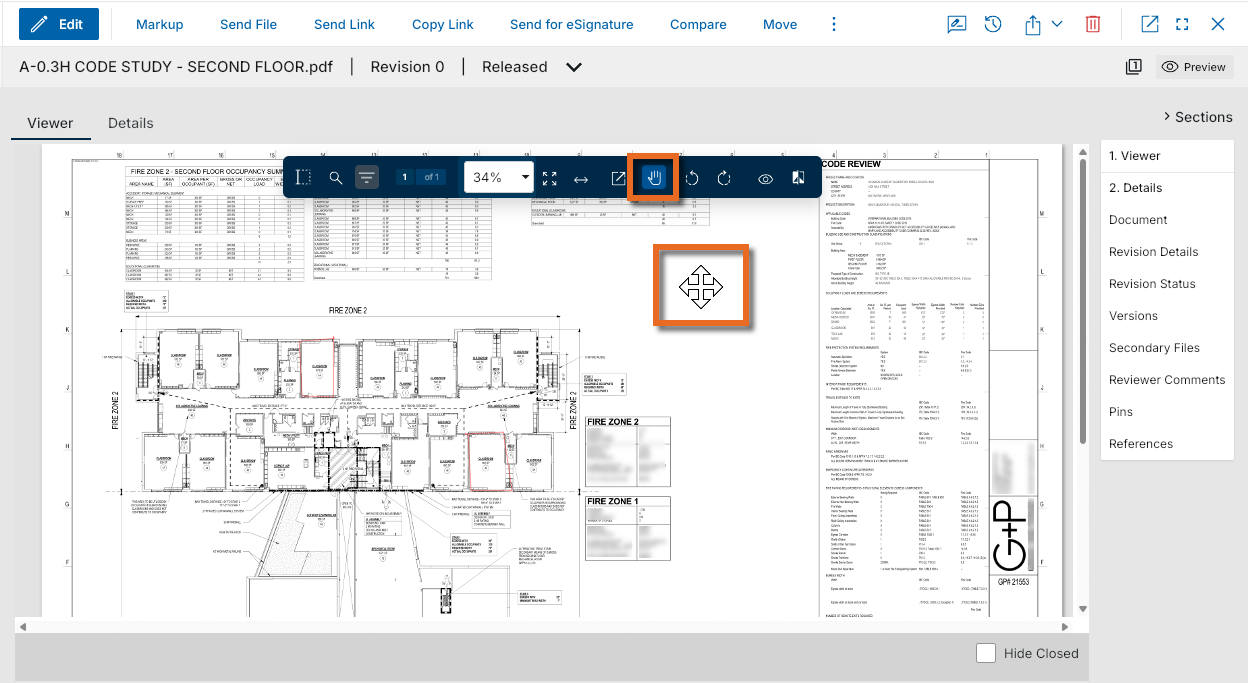
When entering edit mode in any file viewer in Kahua, pan mode will now be on by default. While in pan mode on desktop and web, your cursor will now appear as a four-way cross arrow symbol  , making it easier to discern when you are in pan mode.
Global Search – Changed Default Multi-Word Search Behavior
Based on customer feedback and in alignment with current best practices for search tools, we have changed the way our global search behaves when a search term contains multiple words with no explicit operator between them.
Previously, if you searched for multiple words without adding an operator, Kahua treated the search as an OR search. With this release, Kahua treats a search for multiple words as an AND search by default, which better matches common search behavior and user expectations.
For example, previously a search for the term First Floor returned all records that contained either First or Floor. Now, only records that contain both the words First and Floor will be returned in the results.
For more information, refer to Search app.
QR Codes - Added QR Codes for Navigation links
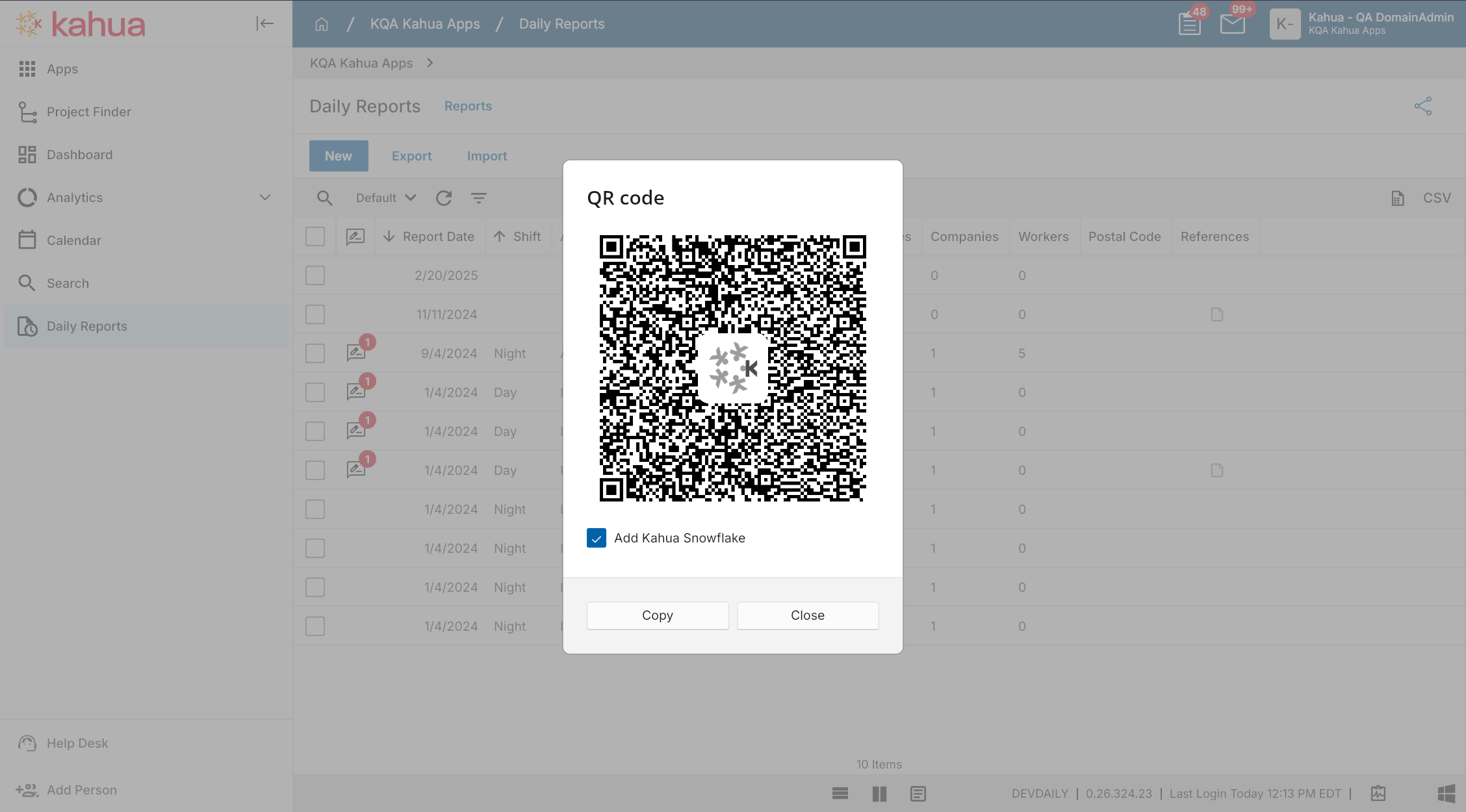
You can now generate a link or QR code that takes you or a user you send it to directly to a specific app within a project. This makes it faster to share and open the exact location you need without searching. We have also added the ability to generate a QR code to a specific record.
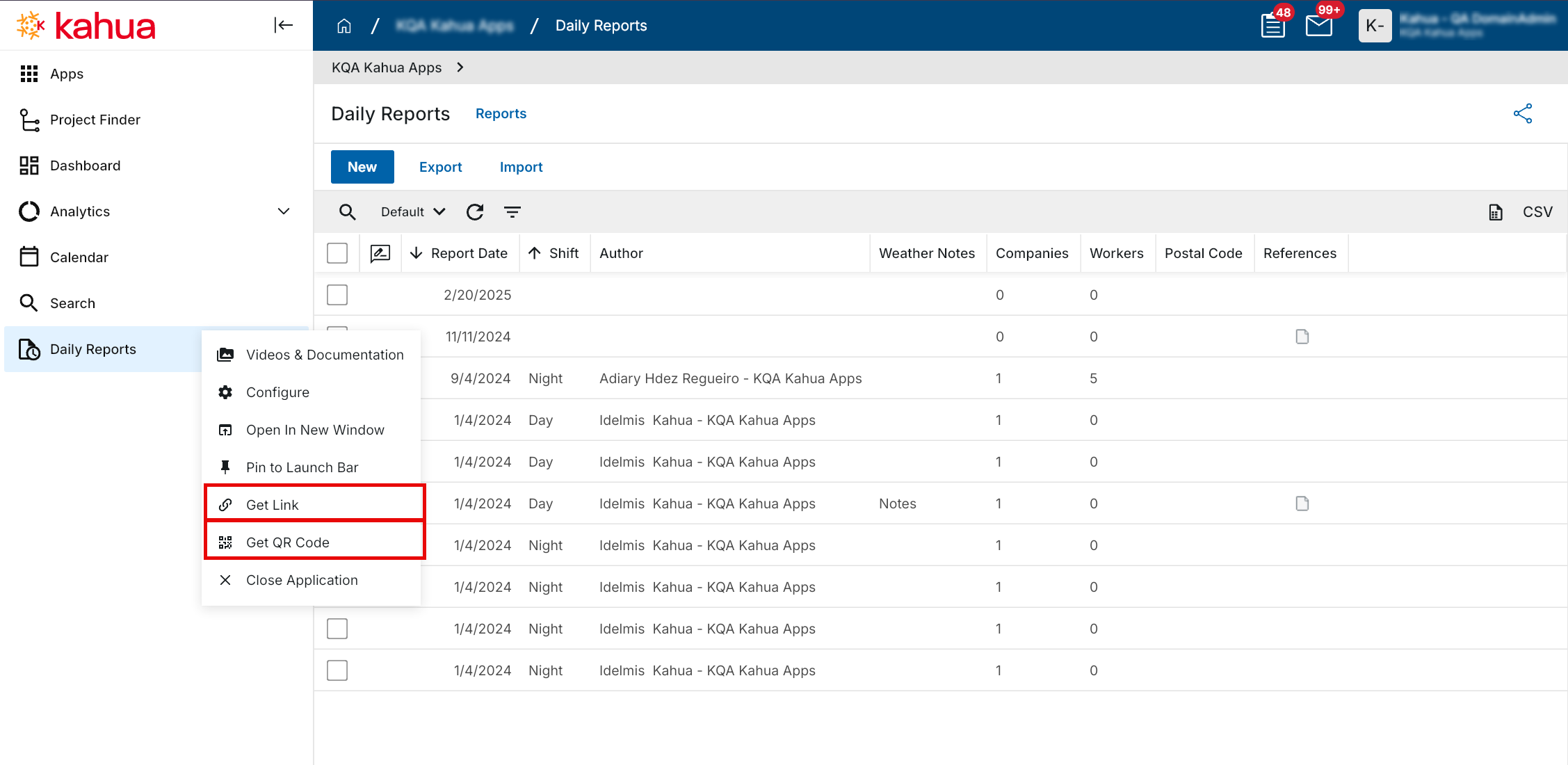
To get a link or QR code for a combination of app and project, with that app and project open, click on the app name in the launch bar and select either Get Link or Get QR Code to copy it to your clipboard.
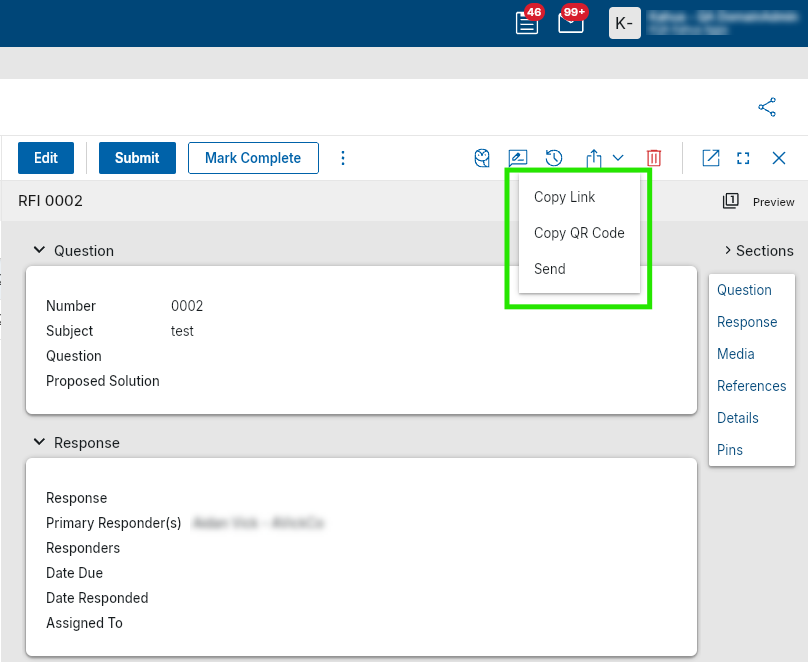
To generate a QR code for a record, click on the Send icon  and select Copy QR Code to copy it to your clipboard. You can share or scan the code to directly open the record.
References and Media sections – Added Camera Capture
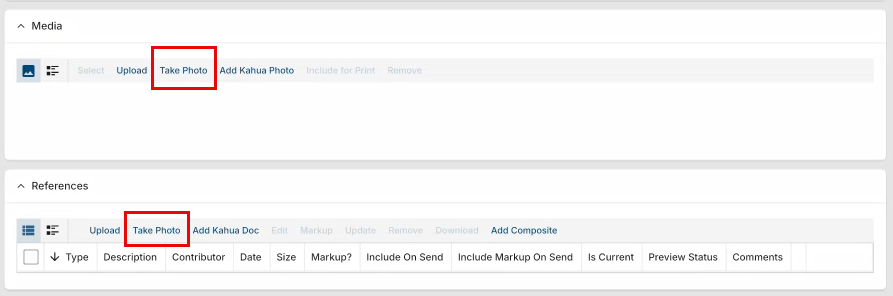
You can now take a photo directly within Kahua from your desktop without leaving the application. We've added a Take Photo action to the Media and References controls across all record types, available on both Kahua web and the native Windows desktop app.
Select Take Photo to open a live camera preview, capture your image, and attach it directly to the record — no external saving or uploading required. If multiple cameras are detected, you can select your preferred device before capturing. Select Retake to try again, Use Photo to confirm, or Cancel to exit.
Camera permissions are managed by your browser or Windows privacy settings. If access is denied, you'll see guidance on how to re-enable it. If no camera is available, Upload remains available as usual.
Sharing - Sharing Configuration Forms Updates
Sharing is a powerful capability within the Kahua platform, allowing one organization to securely grant access to selected logs with other Kahua-enabled companies. This is all done while each company remains within its own Kahua site (domain) — eliminating the need to log into external domains and maintaining a seamless, secure user experience.
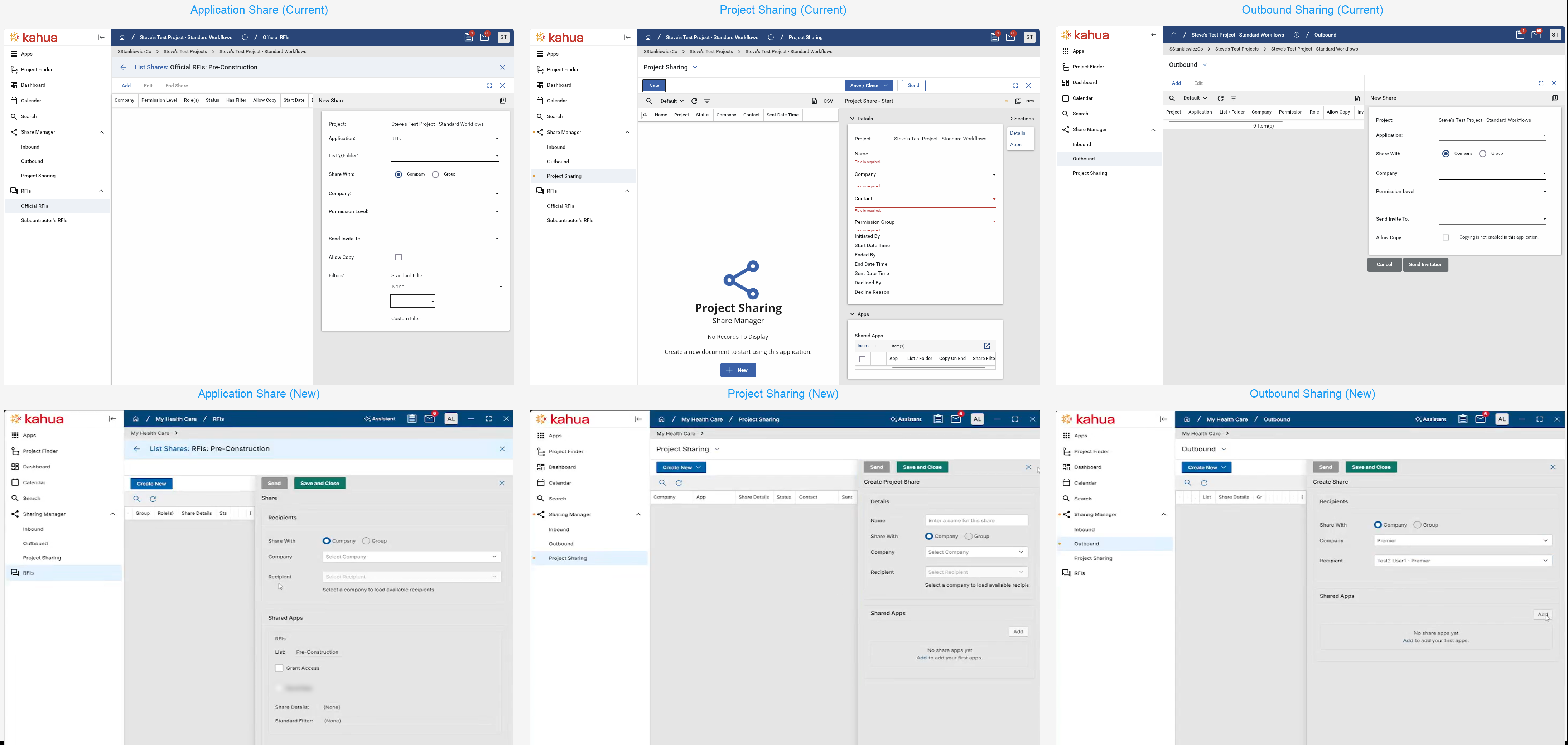
Kahua Shares can be configured across multiple areas of the platform, including Application Sharing, Project Sharing, and Outbound Sharing. Each of these options offers slightly different capabilities and user experiences tailored to specific collaboration needs.
To improve usability and prepare for more advanced sharing capabilities in the future, we’ve updated the Sharing configuration forms. These enhancements create a more consistent experience across the platform and lay the groundwork for exciting new features coming soon.
See below for a comparison of the previous and updated Sharing configuration forms.
UDFs - Added User-Defined Fields in Supported Applications
You can now add and manage user-defined fields (UDFs) directly in supported Kahua applications. This enhancement gives Domain Administrators more flexibility to capture domain-specific information without requiring application customization. The changes apply across all projects in the domain.
After UDFs are enabled for your domain, you can add new fields directly in the UI, including text, number, date, lookup, contact, and company fields. Where supported, you can drag fields into position on forms and configure properties such as the field label, required status, and lookup values. You can also use Multi Edit to update multiple records at once, including copying a value across selected records.
Once you add a UDF, it behaves like a standard field. It is available in Configuration as DataTag_[FieldName] and can be added manually to custom log views. It is available in the data store and reporting after a rebuild. If no data exists for the field on any record, you can delete it, and the field is then removed from forms, views, and log views across the domain.
To use this functionality, contact your Customer Success representative and identify which application or applications should have UDFs enabled. This feature is available to Domain Administrators only.
Note UDFs are supported only in Kahua-built, non-customized applications. Some applications do not support UDFs, including Users, Contacts, Companies, and File Manager.
For more information, refer to the User Guide.
Administration
Approvals – Added Automatic Approval Threshold
You can now configure an amount threshold that automatically approves a document when its value falls at or below the defined limit, bypassing the need for any manual review steps. This saves time on low-value transactions by eliminating unnecessary approval workflows.
When configuring an approval, you can enable the Automatic Approval Amount option at the top level of the approval configuration. If the document amount meets the threshold criteria, all configured approval steps are bypassed and the approval is completed automatically.
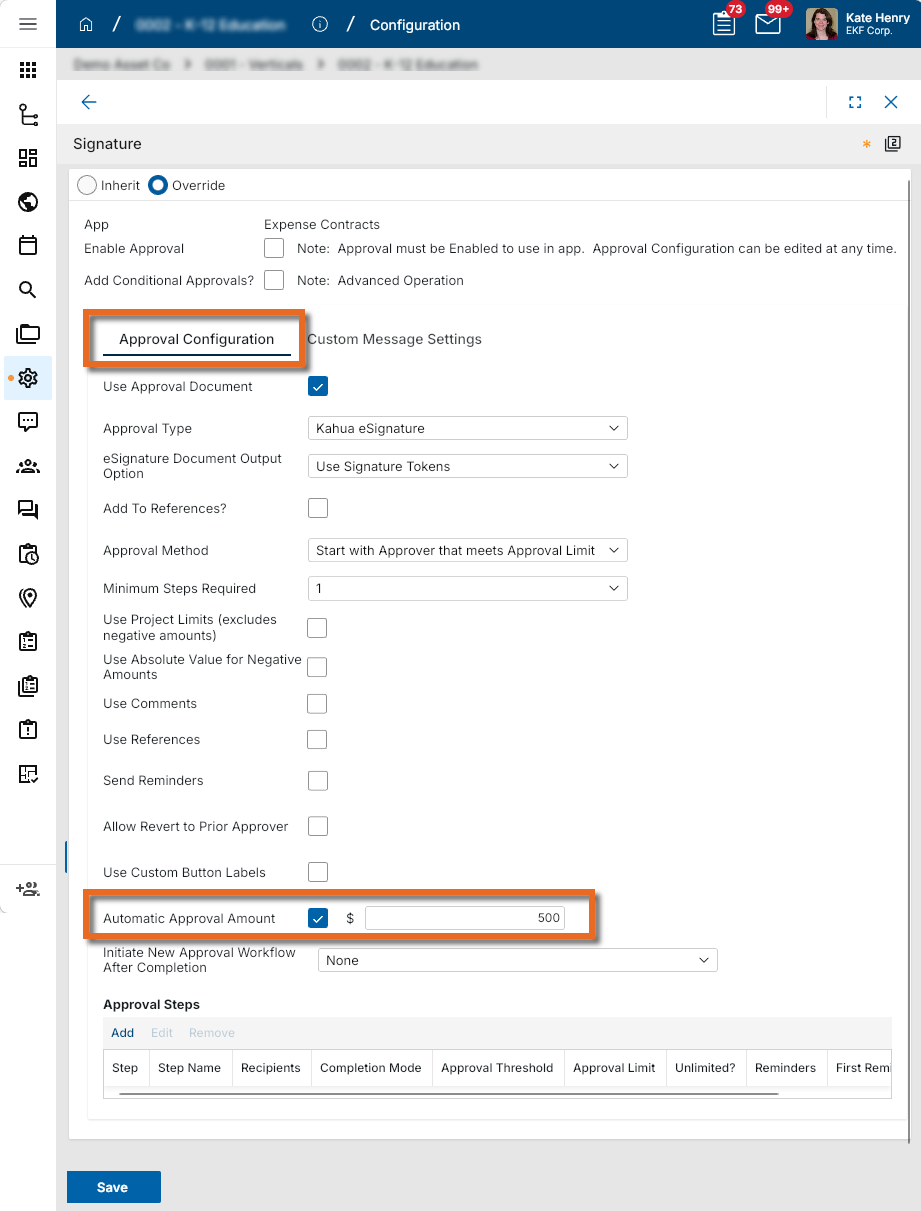
Once a document is automaticlly approved, the originator of the approval request receives a notification confirming the record has been approved. The record's history is updated to reflect that approval occurred automatically, and the automatica approval status is visible on the record preview wherever approval steps are displayed.
This option is available for all approval types that include an amount field.
Note Only basic amount-based auto-approval is supported. Conditional logic or other customizations are not available for this threshold option. If a custom completion message is configured on the approval, that message is sent instead of the auto-approval notification. Only one message will be sent.
For more information, refer to Approval configuration.
Approvals - Added option to initiate a new Approval Workflow after completion
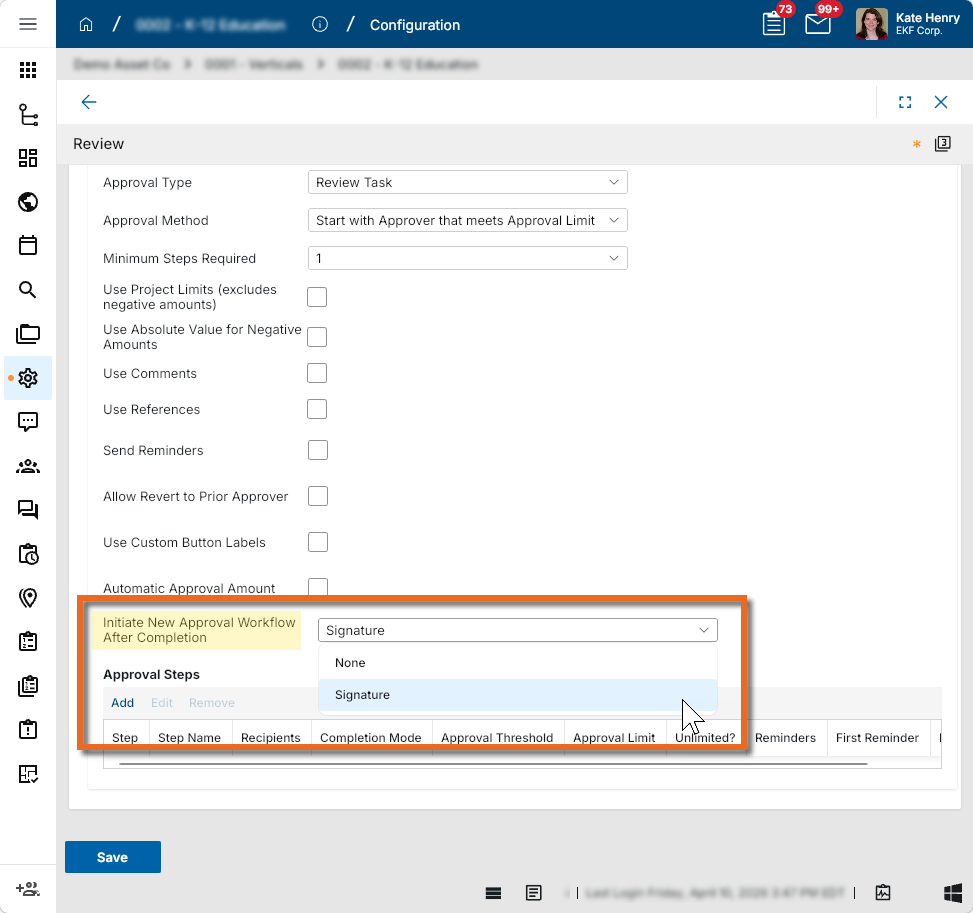
You can now configure an approval workflow to automatically initiate another approval workflow upon its completion, such as having a Signature workflow automatically triggered when a Review workflow is completed. This eliminates the need to manually monitor a record and trigger the next approval step yourself, saving time and reducing the risk of delays in your approval process.
To configure the initiation of a second workflow when the first is complete, open the first approval workflow in Configuration. In the new Initiate New Approval Workflow After Completion field, select the appropriate second workflow. Only enabled workflows for the same application appear in the dropdown list. When the first approval workflow is complete, the selected workflow will be initiated.
If no second workflow is selected, the behavior remains unchanged.
For more information, refer to Approval configuration.
Approvals - Added tabular navigation to Approval Configuration page
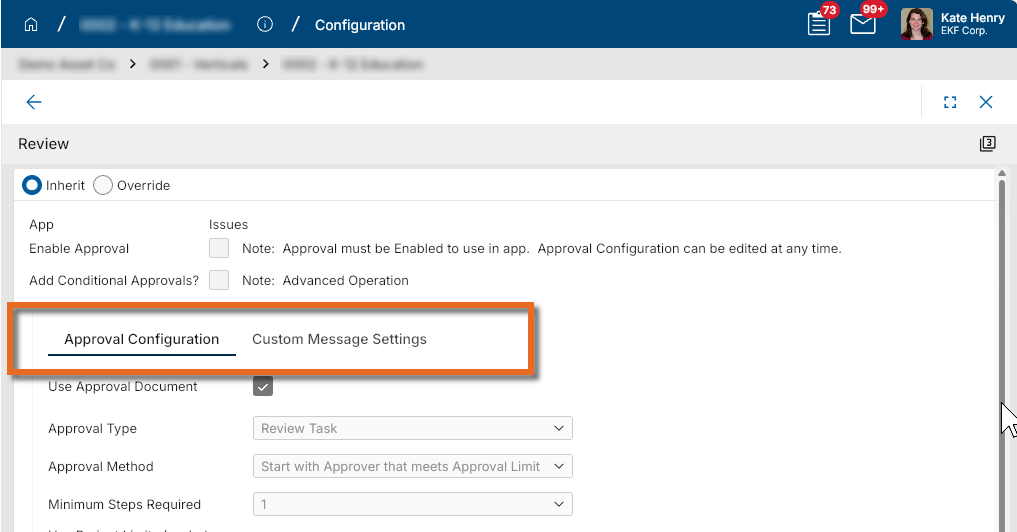
With the addition of new approval configuration settings, we have added tabular navigation to the approval configuration page to help you find and manage settings more efficiently.
The majority of the approval settings are available on the Approval Configuration tab. Fields related to the Custom Message options are available on the new Custom Message Settings tab. If custom messages are not available for the approval type, the Custom Message Settings tab does not appear.
For more information, refer to Approval configuration.
Extracts app - Added Domain Administrator group changes to the Group Audit History report
The Group Audit History extract report now includes activity from the Domain Administrator Group, providing you with a more complete view of group-related changes across your environment.
Invitations – Added Expiration Setting for Pending Invitations
You can now configure unaccepted invitations sent to external users to expire automatically after a set number of days. This helps ensure that pending invites don't remain valid after project conditions or access requirements have changed.
Upon release, this setting will be enabled for all domains with a default of 14 days. To modify it, navigate to Domain Settings > Authentication > Expire invitations after # days and enter a value between 1 and 30.
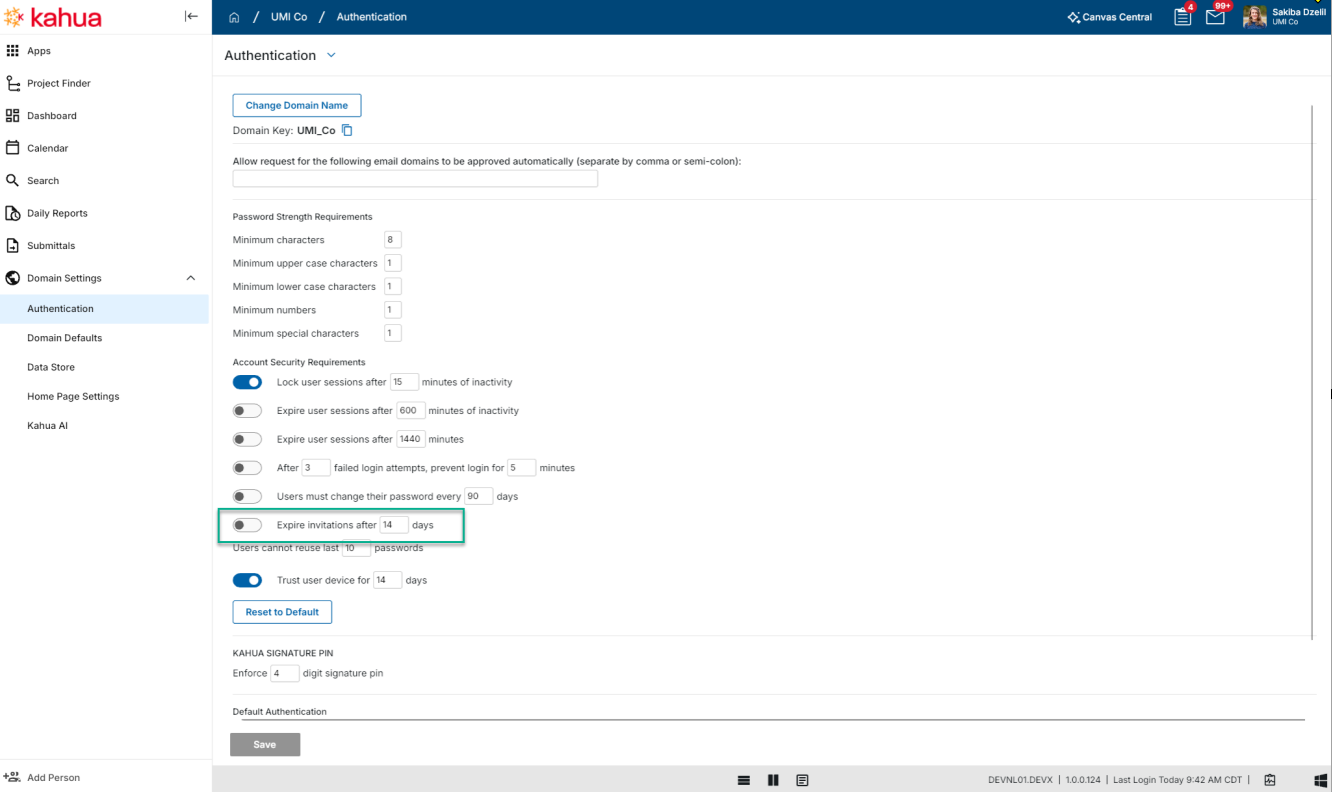
Any pending invitations to external users that exceed the threshold will expire immediately. Expired invitations appear with an "Expired" status in the Invites app, where you can filter and resend them individually or in bulk. The clock resets each time an invite is resent.
At this time, the setting can be disabled. If disabled, any expired invitations will remain expired. In our next release, this setting will become required and you will no longer be able to disable it.
For more information, refer to Account Security Requirements.
Locations app - Added the ability to import Geocode Boundaries
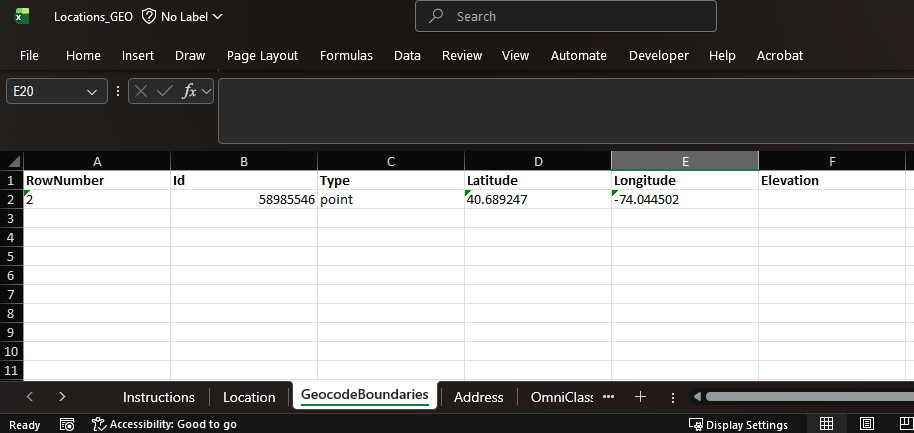
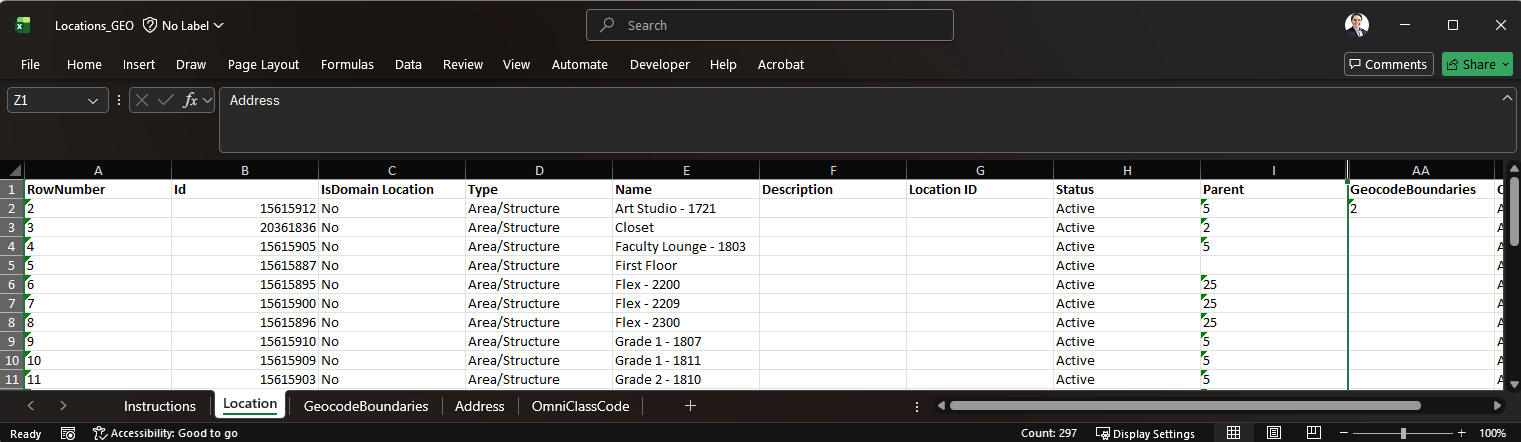
You can now import geocode boundary data when creating or updating locations through Kahua's import functionality in the Locations app by using Kahua’s import functionality. This update makes it easier to manage location boundary data as part of your import and export process.
The import template now includes a GeocodeBoundaries sheet where you define the geocode boundary type, latitude, longitude, and elevation. The new GeocodeBoundaries column on the Location sheet lets you reference those boundary records using a pipe-delimited list. During import, you can associate a location with multiple geocode boundary rows. During export, Kahua includes the related geocode boundary records using the same pipe-delimited reference format.
Project Snapshots – Added new Project Snapshots application
We added the Project Snapshots application under Administration so you can create, run, and review project snapshots from a dedicated location. This gives you a more consistent way to capture and archive project data for record keeping throughout the life of a project. Previously, snapshots were started from the status menu in the lower-right corner of the UI.
In the Project Snapshots app, you can define the snapshot title and description, choose which applications to include, and optionally limit the exported content by applying filters. You can also control which reference file types are included and whether voided references are captured.
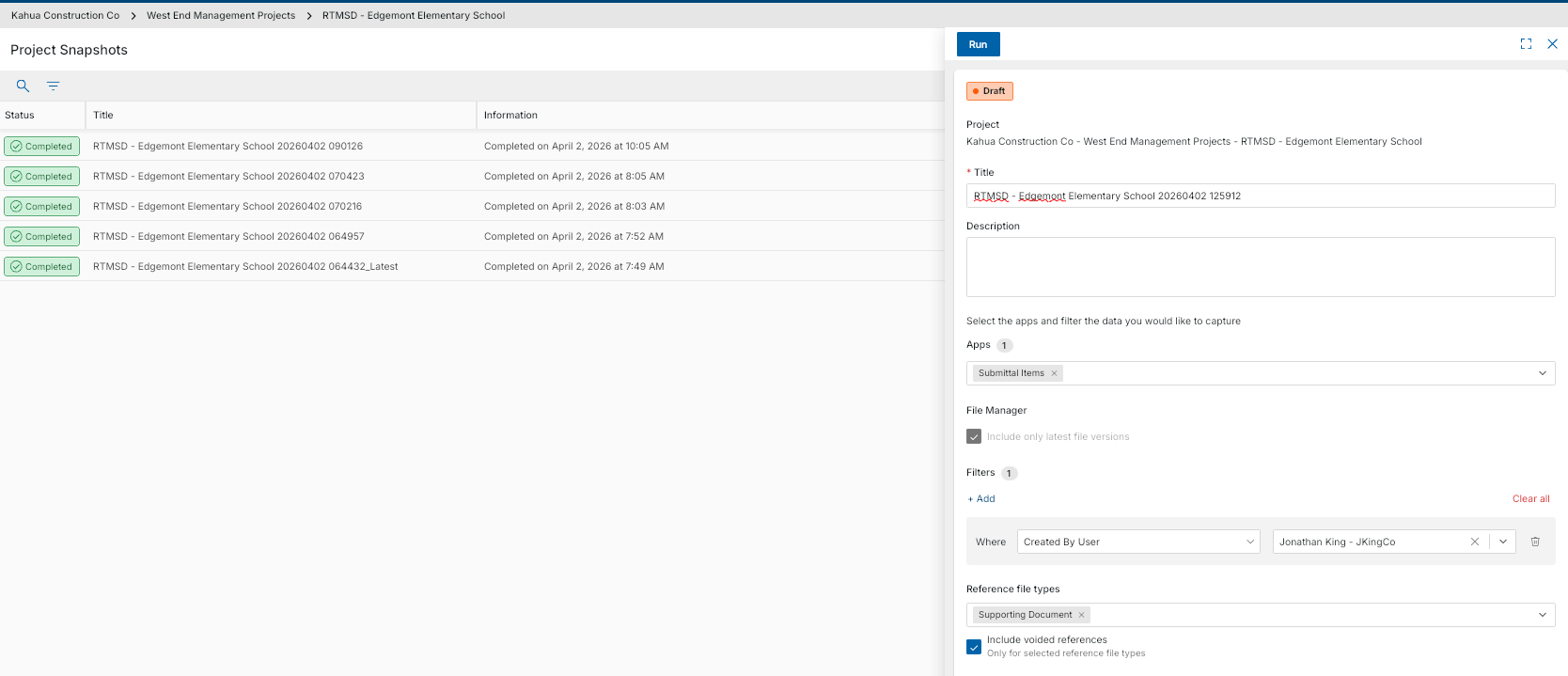
After you run a snapshot, you can monitor its progress and review previous runs in the log view. The log shows snapshot status, basic details, and completion information so you can quickly understand whether a snapshot is queued, running, failed, or completed. You can also open a snapshot to review its settings and results in a read-only detail view.

For completed or failed snapshots, you can use Duplicate to create a new draft snapshot based on an earlier one. This makes it easier to rerun a similar export without rebuilding the configuration from scratch.
The existing Exclude JSON configuration option remains available and continues to work with the new Project Snapshots application.
Recycle Bin – Configurable Data Retention Policy
As a domain administrator, you can now configure how long deleted records are kept in the Recycle Bin before they are permanently and automatically purged. This gives your domain more control over data retention while ensuring Recycle Bin records remain recoverable for the period you need.
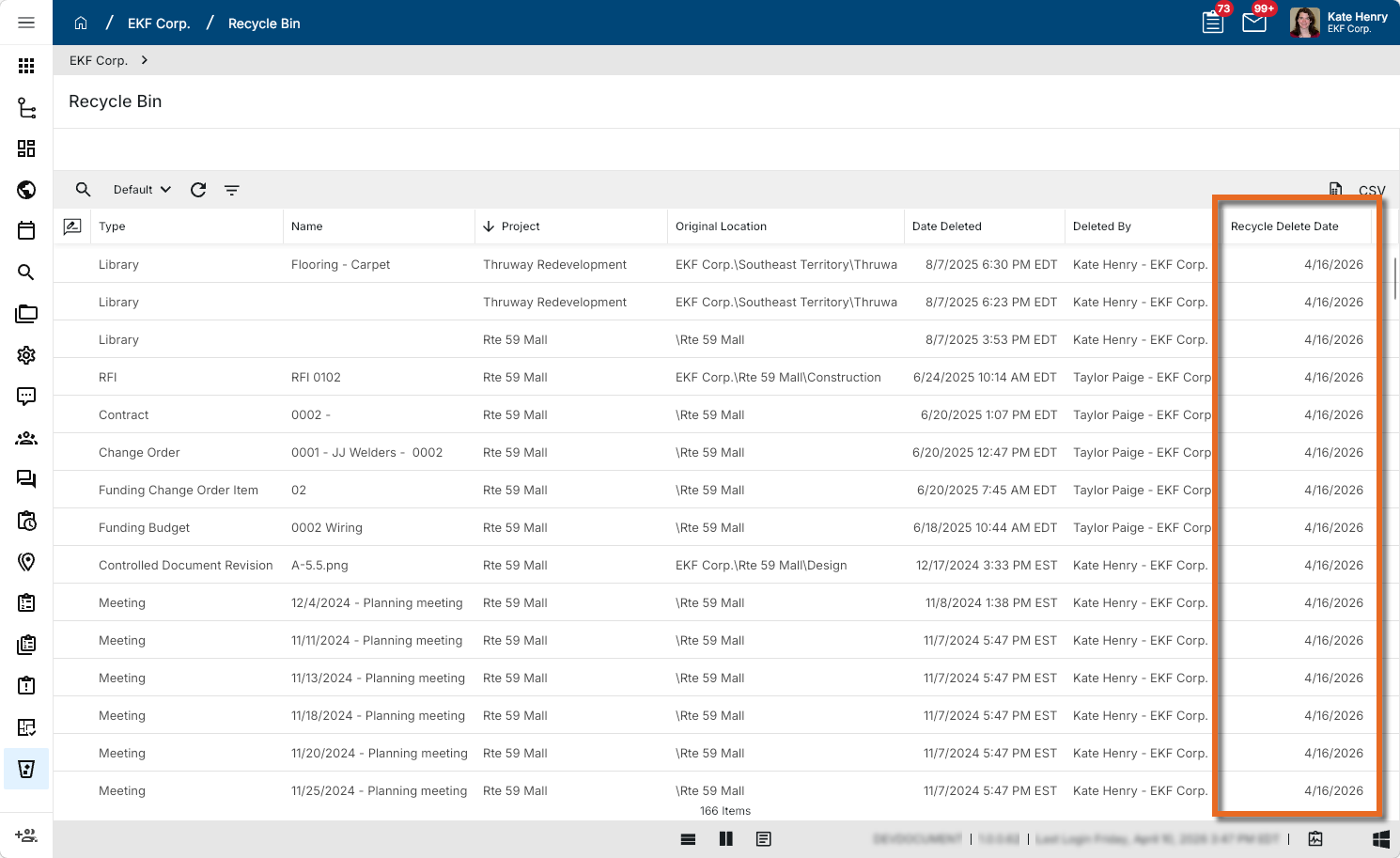
With these updates, a configurable retention period is enforced automatically. When a record is deleted, a Recycle Delete Date is calculated based on the date of deletion and your domain's retention setting. The record remains recoverable until that date. You can restore any deleted record within that window by opening the Recycle Bin app and selecting Restore from the menu.
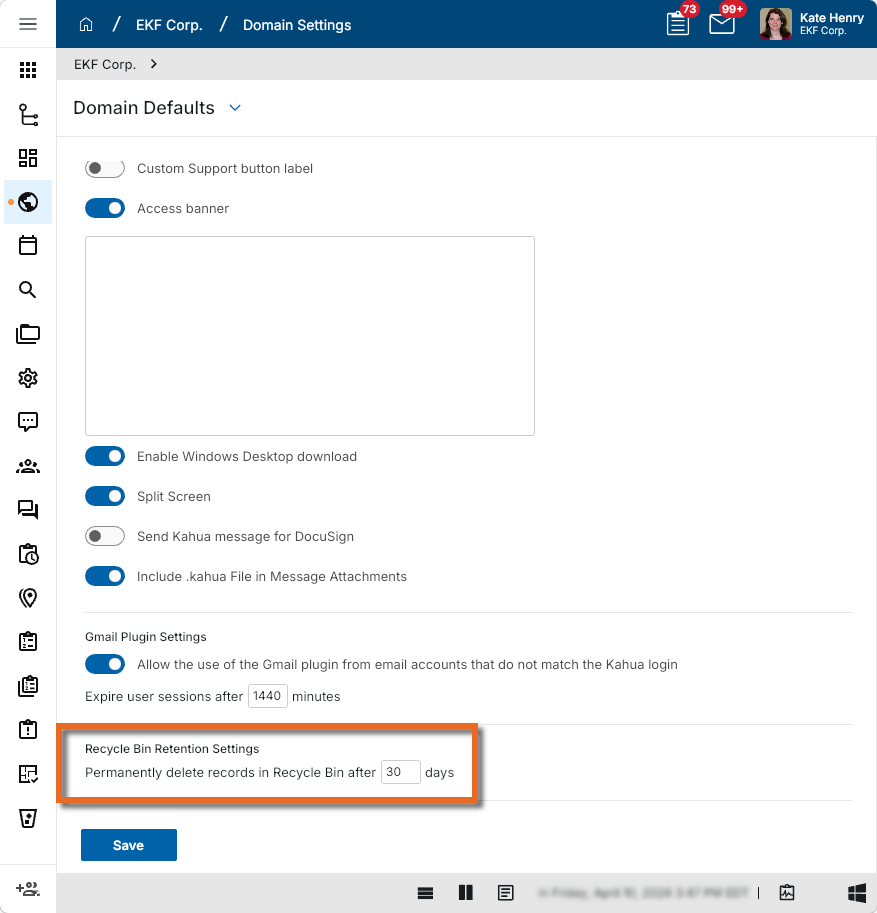
To configure the retention period, navigate to Domain Settings > Defaults and locate the new Recycle Bin Retention Settings section. Set the number of days in the Permanently delete records in Recycle Bin after # days field. The default value is 30 days and applies to all existing and new domains.
To permanently delete a record before its Recycle Delete Date, select it and choose Permanently Delete from the menu. A confirmation will appear before the deletion is finalized. If a record is not manually deleted earlier, the system automatically and permanently purges the record when the Recycle Delete Date is reached.
The Recycle Bin log view now includes the Recycle Delete Date column, which is auto-populated at the time of deletion so you can easily see when each record is scheduled for permanent purge.
For more information, refer to Recycle Bin Retention Settings.
Users - Added ability for domain administrators to unlock user accounts
Kahua Domain Administrators can now help users who are locked out of their accounts due to repeated incorrect password attempts to regain access to their accounts. Domain administrators can now directly unlock accounts so users no longer have to wait for the timeout period to expire.
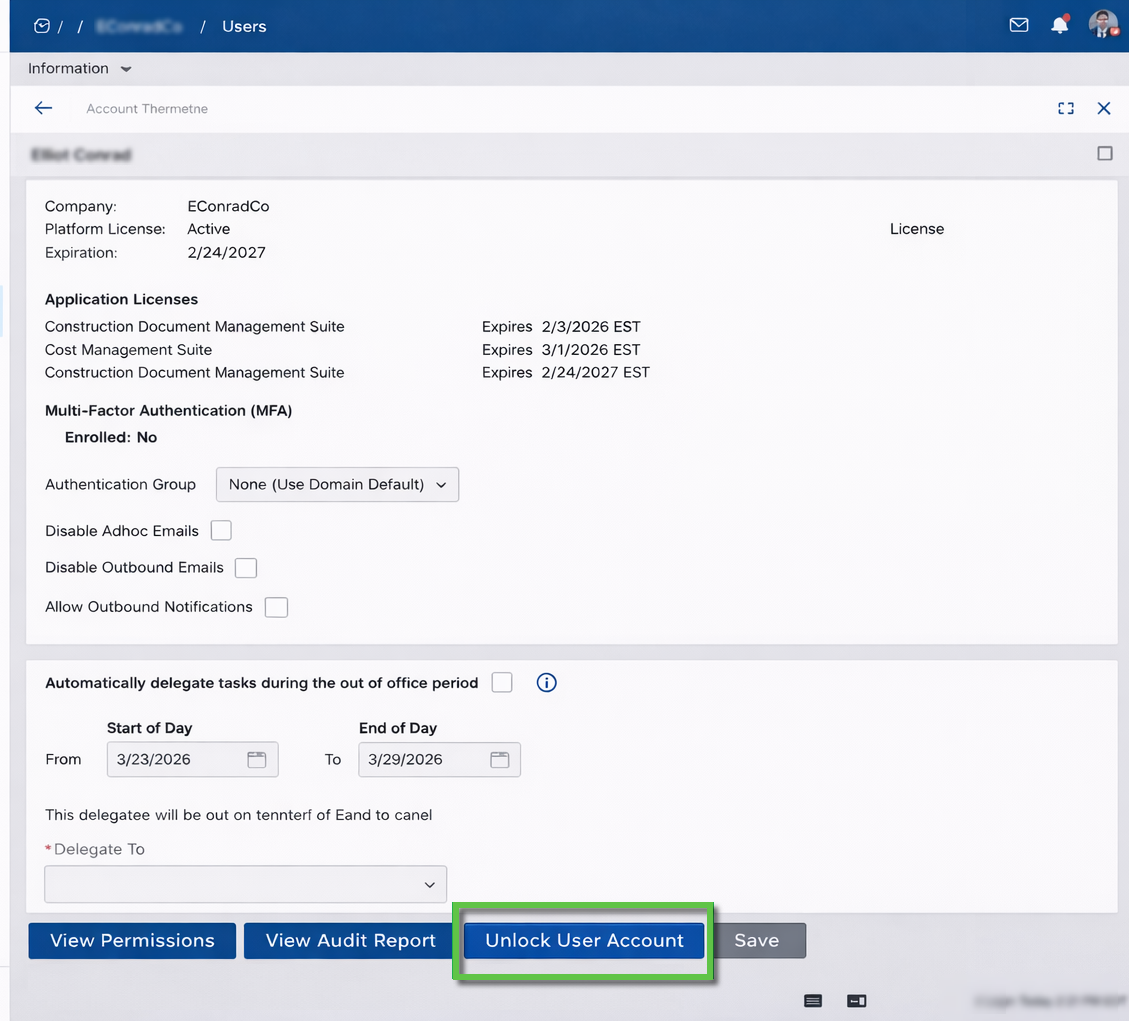
When a user is locked out, the message they receive now directs them to contact a Kahua Domain Administrator for assistance. You as a Kahua domain administrator can then navigate to the Users application, open the impacted user’s profile, and select Unlock User Account to immediately restore their access. The Unlock User Account option only appears for Kahua Domain Administrators.
For more information, refer to Unlock a user account.
Word Portable Views – Added Flexible Control of Table Grouping and Total Layout
You can now control where group totals and grand totals appear within tables in Word Portable View templates. This gives you greater flexibility to present data exactly the way you need it, whether that means showing a grand total at the top for quick reference or placing group subtotals above or below their data rows.
Previously, the table layout was rigid — group rows could only follow their raw data rows, and a grand total could only appear after all other data. Now, you can position group totals and grand totals in any order within your Word Template item table setup.
Supported configurations include:
-
Grand total as the top row
-
Grand total as the bottom row
-
Grouping (sub) total above data rows
-
Group (sub) total below data rows
Users with access to the Kahua Wiki can reference this page for additional technical details.
Reporting
Reports – Added the ability to save and re-use Filters
You can now save filter conditions directly within each report, so you no longer need to recreate filters every time you run a report. Saved filters are also available in scheduled reports, giving you a more consistent and efficient reporting experience.
You can now create a filter, add a name, and save it for future use directly from the report view. The filter section is collapsible and displays the filter name in the header so you can easily see which filter is currently applied.
To create and manage saved filters, complete the following steps:
-
In the report view, select Add Filter.
-
Build the filter using the appropriate criteria.
-
Click Save to save the filter and assign a name.
-
To use a saved filter, click on the Filter menu and choose a filter from the list.
Saved filters are report-specific, so a filter saved for one report is not available in other reports.
Saved filters can be used in scheduled reports. Note that while saved filters can be applied to scheduled reports, they cannot be created or edited from that view.
All users can create and manage their own personal saved filters. Additionally, administrators can create domain-wide saved filters that are available to all users.
For more information, refer to Work with filters.
Reports - Added the ability to search reports and select favorites
We have made it easier to find and manage your favorite reports by adding the ability to search for reports by name and to select your favorites from the reports list.
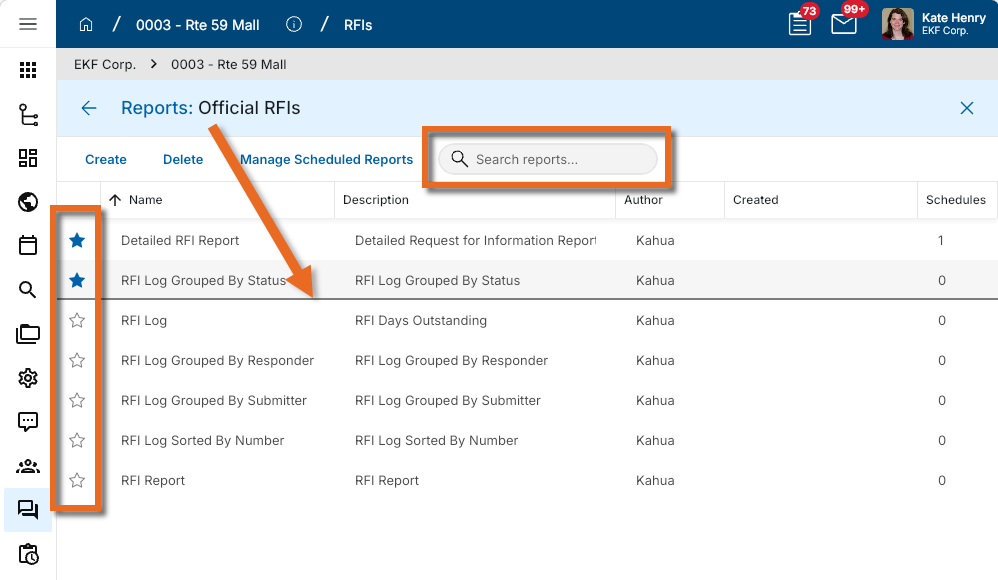
A search field now appears at the top of the reports list. Enter the name of the report you are looking for and the list is filtered as you type.
To favorite a report, select the Favorite icon  next to the report name. Favorited reports appear at the top of the reports list, separated from other reports by a divider so you can clearly distinguish them at a glance.
Favorites are saved on a per-user, per-domain basis. Once selected, they are available to you on all your projects within the same domain. They will not be applied when working in a different domain.
For more information, refer to Viewing Reports.
Scheduled Reports – Added File Naming Configuration Options
We have added the ability to customize the filename of the resulting files from scheduled reports. This gives you greater control over how report files are named, making it easier to organize and identify reports over time.
In the Scheduled Report dialog, a new File Naming Configuration section has been added with the following options:
-
Specify Explicit Filename - You can select this option and enter a name to be used for the scheduled report output. If no value is entered, the report name will be used.
-
Append Current Date - You can select this option to append the date the report was run to the filename in your desired date format. The date appended to the filename is based on the time zone configured in Domain Settings.
A filename preview field allows you to review the results of your selections.
For more information, refer to Scheduling Reports.
Document Management
Drawings app - Introduction
You can now manage and access construction drawings in a dedicated Drawings application within Kahua. We built this app to give your entire project team immediate access to the plans they need — whether in the office or out in the field. The Drawings app streamlines workflows for Issued for Construction drawing sets, improves communication and collaboration across project stakeholders, and reduces project risk.
The new Drawings app focuses on your construction team members and the construction phase of the project. The more detailed Design Review feature is unchanged and may still be appropriate for earlier design team processes.
Some of the key features and benefits of this new solution include:
-
Simplified and streamlined workflow for managing "Issued for Construction" drawing sets.
-
Automatic splitting of multi-page documents into individual sheets.
-
Automatic extraction of title block information utilizing templates.
-
Performance improvements for loading and navigating between drawings.
-
Updates to the mobile user experience to improve navigation to and within the drawing files.
-
Offline Markup support with automatic syncing of changes when connection is re-established.
Access to the Drawings application is controlled by project permissions configured in your Kahua environment. Drawing set syncing and offline markup support require a mobile connection to be established at least once prior to going offline.
With Kahua Drawings, your organization and other project stakeholders can take control of the construction process by providing immediate access to plans, improving communication and collaboration, and reducing project risk.
For more information, refer to Drawings app.
Specifications app - Introduction
The new Specifications application contains parallel functionality to the Drawings application within Kahua. This app helps your team manage, navigate and markup specification documents without having to navigate complex folder structures.
Some of the key features and benefits of this new solution include:
-
Simplified and streamlined workflow for managing "Issued for Construction" specifications.
-
Extraction of section numbers and titles from filenames.
-
Track revision history of each section, with clear designation of current vs superseded status.
-
Hyperlink navigation between specification sections.
-
Offline Markup support with automatic syncing of changes when connection is re-established.
Access to the Specifications application is controlled by project permissions configured in your Kahua environment. Document syncing and offline markup support require a mobile connection to be established at least once prior to going offline.
With Kahua Specifiations, your project team is assured to always have the current design documentation at their fingertips.
File Manager - Added drag and drop functionality to folders within the log view
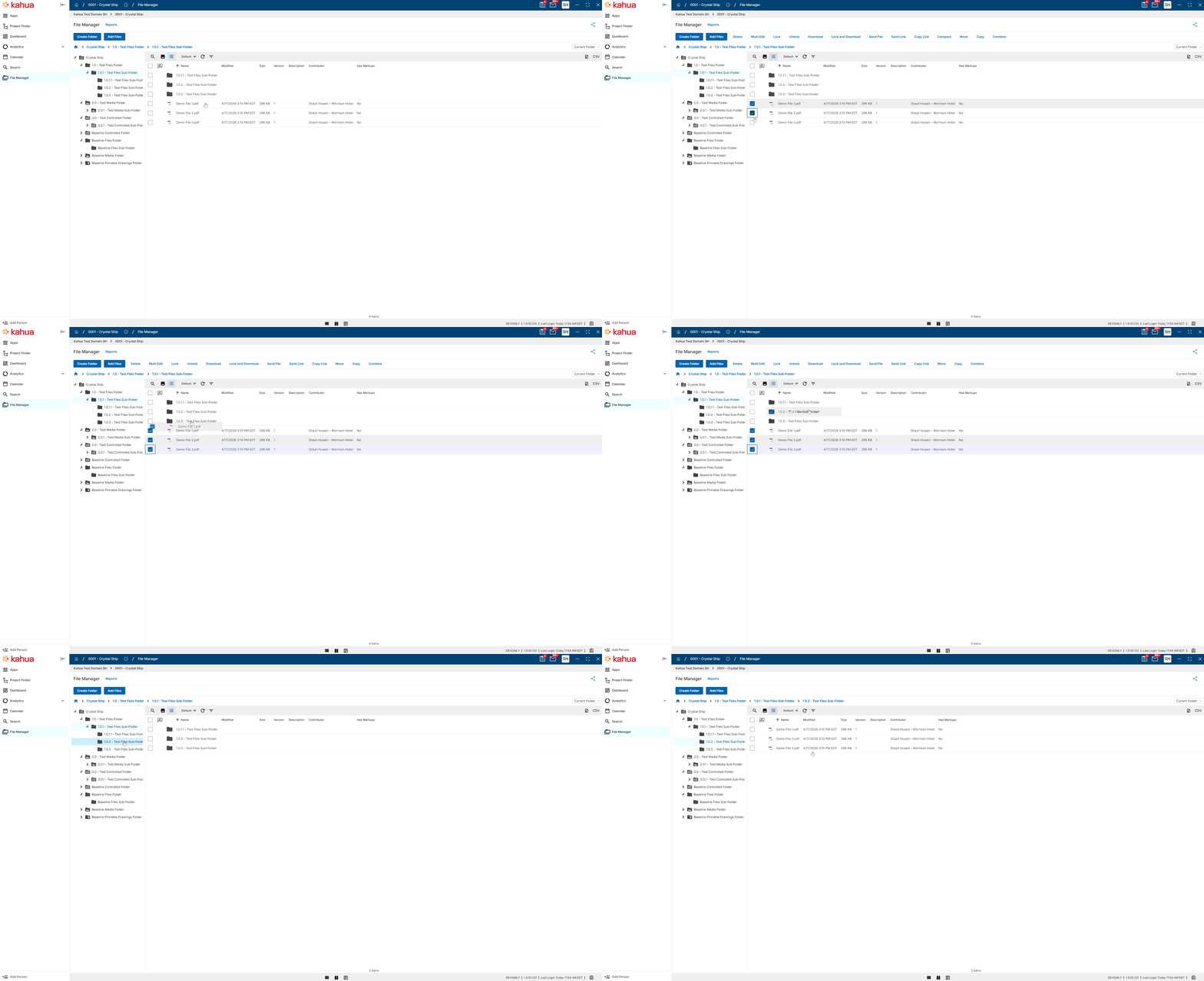
You can now drag and drop files directly within the File Manager log view. This allows files to be easily moved into folders that appear in the same view, streamlining file organization and improving overall workflow efficiency.
File Manager – Added Folder Contributor Permission Role
We've added a new Folder Contributor permission role in File Manager, giving you more granular control over what actions team members can perform. This makes it easier to empower contributors to organize files and folders without granting them the ability to delete folders.
The new Folder Contributor role provides the same permissions as the Contributor role, with the addition of the ability to create folders. The role includes the following permissions: add, add file, create folder, delete file, download, edit file, lock/unlock, markup, open app, process, send file, view file, view folder.
For more information, refer to File Manager Security Permissions.
File Manager – Added Public Link Sharing for Subfolders within Folders
We have enhanced the Anonymous File Access feature by adding the ability to include subfolders when sharing files and folders, updating the user interface where recipients access those files, and renaming the feature to Public Links where it is configured in Domain Settings and File Manager.
You can share folders using public links, with the option to include subfolders for full hierarchy access. This makes it easier to give external collaborators or stakeholders access to organized file structures without requiring a Kahua login.
Previously, anonymous file access was limited to individual files or content of a single folder. Now you can generate a public link for any folder and choose whether to share the current folder only or include all subfolders, using the new link options:
-
Copy Folder Link or Send Folder Link actions in the File Manager to generate and share links with existing behavior for sending a single folders content.
-
Copy Folder Link (include subfolders) or Send Folder Link (include subfolders) actions in the File Manager to generate and share links.
Recipients can browse the shared folder, navigate nested subfolders using breadcrumb navigation, select multiple files, and download them. A warning will appear for downloads exceeding 2GB.
The updated public link experience also features a redesigned layout that displays your company logo, folder context, domain/project details, and file and folder counts. Recipients can open files directly in Kahua using the Open in Kahua action, and a language selector is available within the link view.
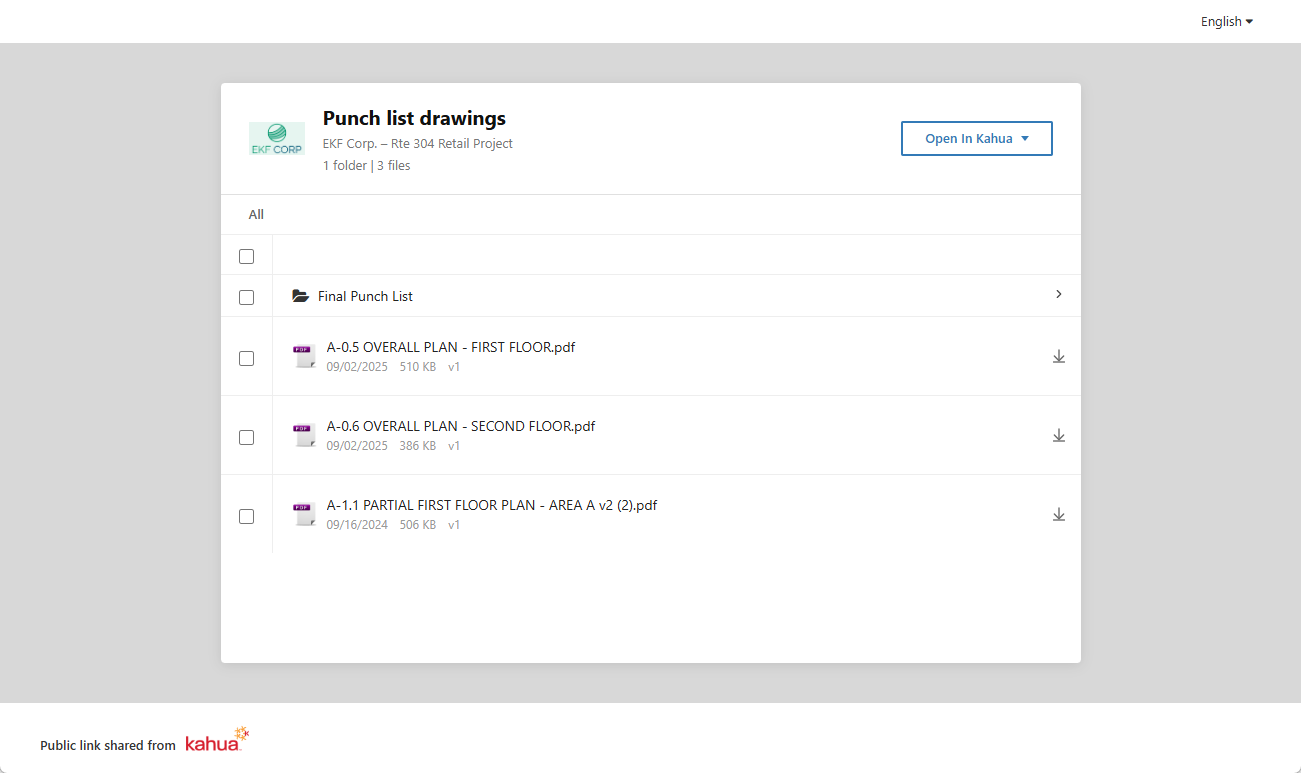
Public Links must be enabled in Domain Settings before folder links can be generated. Existing file links are fully backward compatible and default to current folder only. No behavior changes apply to previously shared links. CUI-restricted files remain excluded from public link sharing, and subfolder sharing is subject to your existing access control permissions.
Link expiration can be configured and appears within the public link UI. Links can expire based on a set date or when file versions are updated, depending on your domain configuration.
For more information, refer to Public File Links.
File Manager – Added separate permission filtering for Controlled Folders
You can now configure permission filtering independently for Controlled folders in File Manager, separate from Files, Media, and Pinnable Drawings folders. This gives you more precise control over what files users can see in each folder type.
Previously, a single group-level permission filter applied to all folder types. We have now split this into two separate settings. The existing setting has been renamed to Filtering Files, Media, Pinnable Drawings folders and continues to apply to those folder types. A new setting, Filtering Controlled folders, now controls filtering for Controlled folders exclusively. Both settings are managed at the group level under the Filtering section.
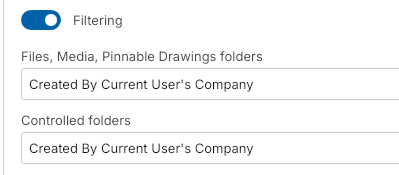
The following filter options are available for the Filtering Controlled folders setting:
-
Contributor Company OR Status: Released, Superseded — Contributor Company defined by the work package, or file status is "Released" or "Superseded".
-
Contributor Company — Contributor Company defined by the work package.
-
Created by Current User's Company — File created by the current user's company.
-
Created by Current User's Company OR Status: Released, Superseded — File created by the current user's company, or file status is "Released" or "Superseded".
-
Created by Current User — File created by the current user.
-
User Company Named on Record — User's company appears on the record in any of these fields: Contributor Company, Assigned To, Contributor, or Created By User's Company.
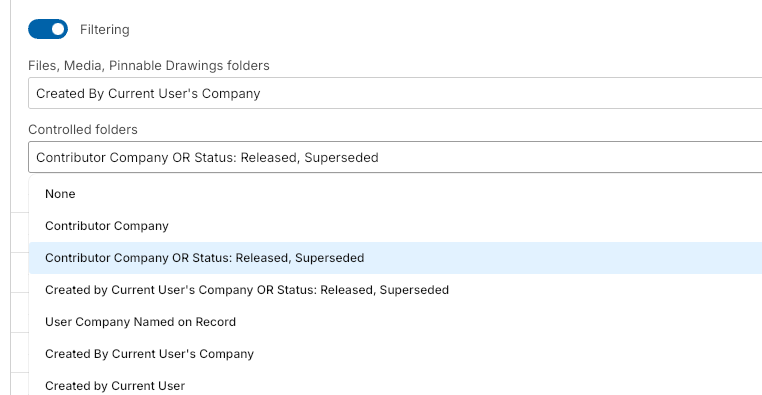
Both Filtering Controlled folders and Filtering Files, Media, Pinnable Drawings folders are configured at the group level.
At rollout, the Filtering Controlled folders setting is automatically initialized to match your existing filter value, so no filtering behavior changes for current customers unless you explicitly update either setting.
For more information, refer to File Manager Security Permissions.
File Manager – Microsoft 365 Co-Authoring and Collaborative Editing
At this time, this feature is only available in the Kahua Commercial Network (KCN).
You can now open, edit, and co-author Word, Excel, and PowerPoint documents directly from Kahua using Microsoft 365. This eliminates the need to download and re-upload files or switch to external tools like SharePoint, OneDrive, or Google Drive, keeping Kahua as your single source of record while enabling real-time collaboration.
Previously, editing Office documents in Kahua required downloading the file, making changes locally, and re-uploading — a process that created version inconsistencies and disrupted collaborative workflows. Now you can open a supported Office file directly in the Microsoft 365 web experience without leaving Kahua. Multiple team members can edit the same document simultaneously, and changes are saved back to Kahua automatically.
To use this feature, select a supported Word, Excel, or PowerPoint file (latest format only) in the File Manager and select Open in [MS365 App] in Web. The document opens in the Microsoft 365 web editor. When you are done, your changes are saved directly to the Kahua record. You must have Contributor permissions or higher in Kahua for the MS365 action to be visible.
Only files in the latest Office format are supported for Microsoft 365 editing. Legacy file formats are not compatible with this feature. Microsoft 365 applications impose file size limitations. Files exceeding those limits cannot be opened for editing using this feature. Additionally, because Microsoft 365 uses autosave, you may notice additional versions being created in Kahua during editing sessions.
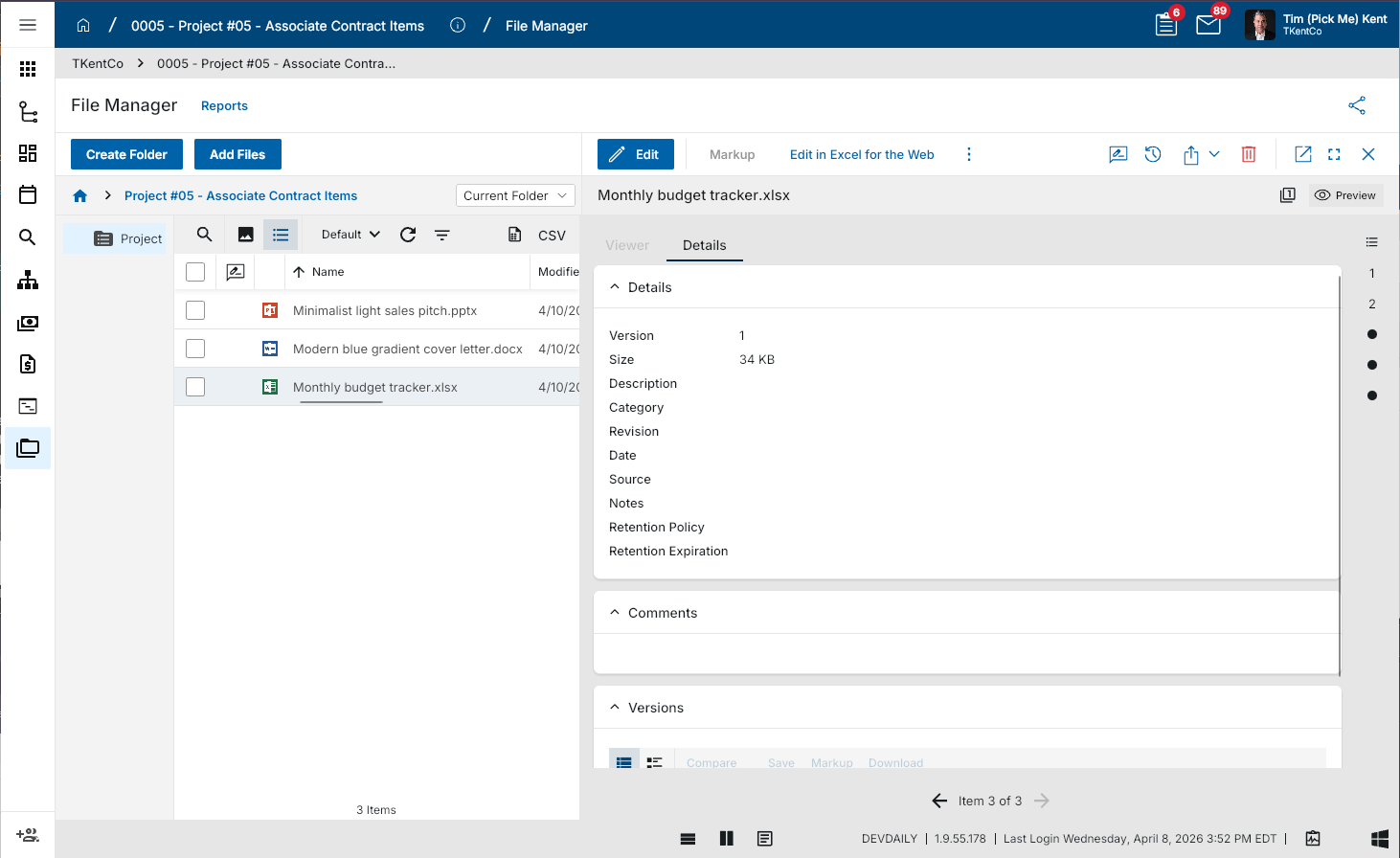
For more information, refer to Editing files with the Microsoft 365 Integration.
Packaged Submittals – Added Portable View Support for Previous Revisions
You can now view previous revision portable views directly from a Submittal Package or Submittal Item record, and access all revision field tokens in Configuration. This makes it easier to reference historical revision data and build custom revision-specific templates without leaving your current workflow.
Submittal Package Revisions and Submittal Item Revisions have their own dedicated portable views, separate from those used by base submittal items and submittal packages. Kahua default portable views are provided for revisions out of the box. From any package or item record, you can open a previous revision and select the View action to display the previous revision's portable view.
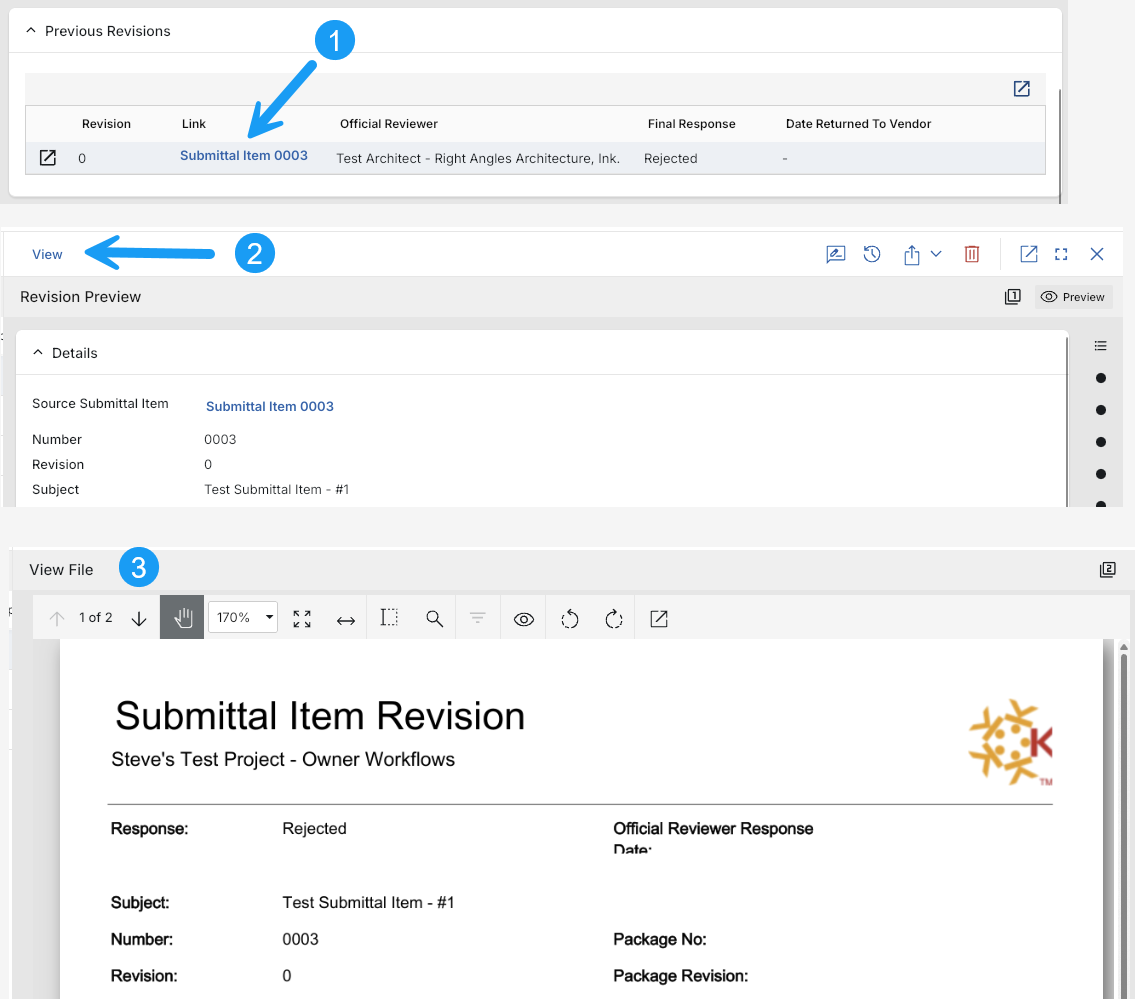
To create custom Word-based portable views for revisions, navigate to Configuration > Submittal Items (or Submittal Packages) > Portable Views > Template Tokens and select the Submittal Package Revision or Submittal Item Revision view name. All Revision field tokens are available here, allowing you to build fully tailored revision templates. Once complete, upload your template to the Configuration > Template tab, associated with the applicable Revision view name.
Punch Lists - Added setting to allow any Responsible Company member to complete items
Kahua workflows have traditionally required tasks to be assigned to a specific individual at the receiving company. In practice, however, project work is often handled by teams rather than a single person, and staff changes can occur after a task has already been assigned.
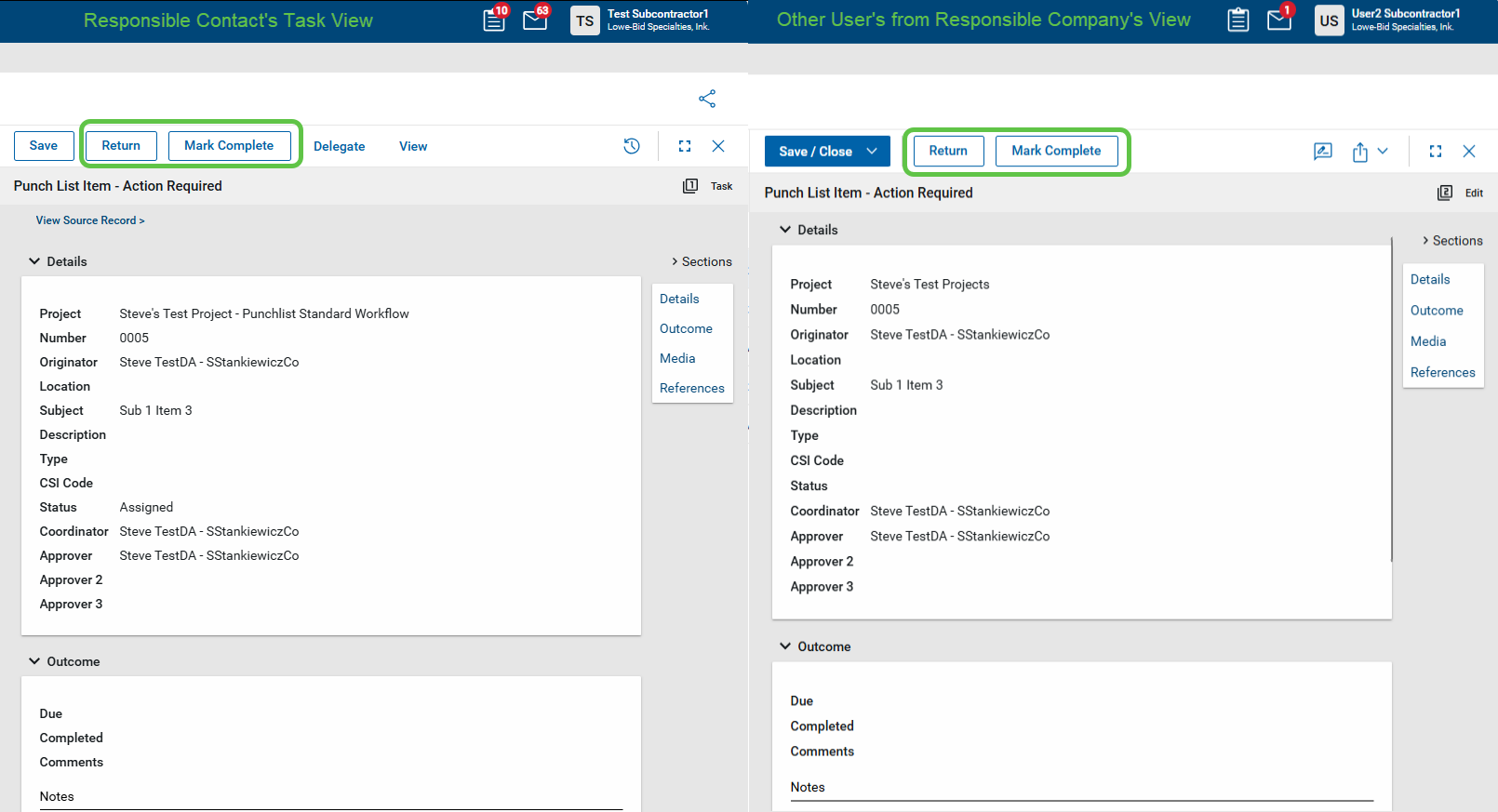
To better support real-world project workflows, Kahua now includes a new setting that allows any member of the punch list item’s Responsible Company to complete the item. When this setting is enabled, any authorized member of the responsible company can edit the punch list item from a shared list, mark it complete, and automatically close the originally assigned task.
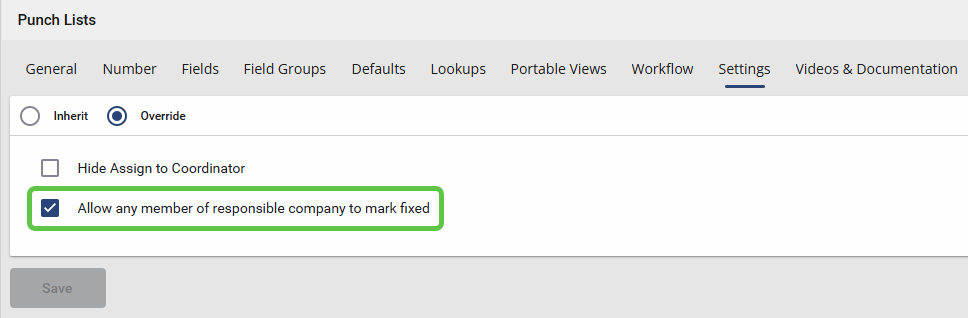
To enable the new setting, navigate to Configuration > Punch List Items > Settings and select Allow any member of responsible company to mark fixed.
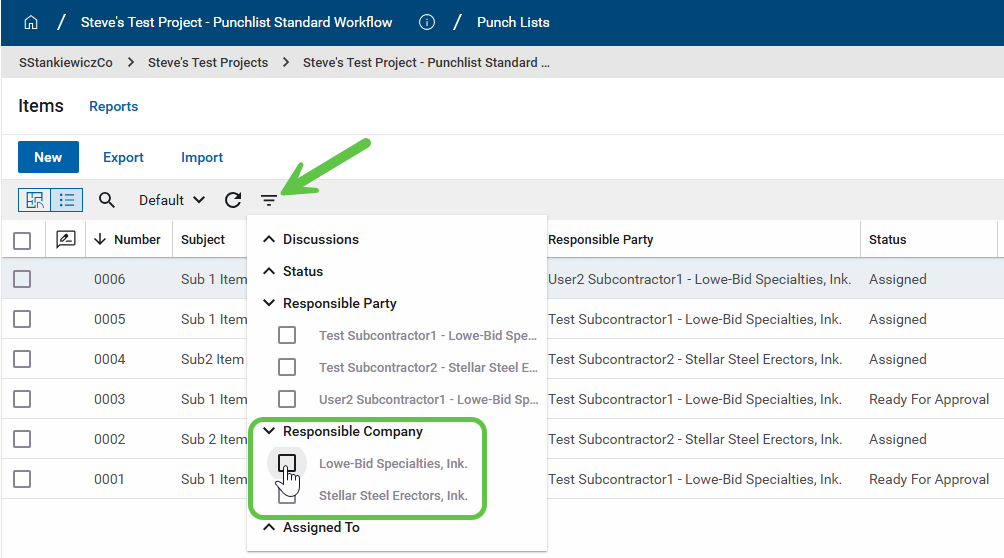
Additionally, a Responsible Company filter has been added to the log view Quick Filters, making it easy to view and manage all punch list items assigned to a specific company—even when those items are assigned to different individuals within that company.
Cost Management
Budget Adjustments and Budget Changes - Added Item import/Export
This update applies to the Kahua-supplied Budget Adjustments and Budget Changes apps.
We have added import and export functionality to Budget Adjustment Item, and also added Multi-Project Document (MPD) support to the existing Budget Change Items import and export. These updates help you to make bulk updates and create items more efficiently.
You can export items from a saved document, modify existing items or add new ones, and import the file back into Kahua. For documents that use MPD, you can follow the same process when MPD is enabled.
Imports continue to follow existing item import patterns and apply standard validations, including project, status, activity code, and cost code checks.
Change Order selection - Added sorting capabilities
This feature is available for Kahua for Owners, Education, General Contractors and Sub Contractors on Expense and Funding SOV Breakdown, Expense Pay Requests and Funding Pay Apps.
When selecting new change orders to add to SOV Breakdown or Pay Request / Pay Apps, the columns are now sortable. This allows for easier access to newly approved Change Orders to add to these documents. The default sort order now puts most recent change orders at the top of the selection grid.
Contracts - Added ability to assign and share with Managing Agent
This update applies to the Kahua-supplied Contracts and related apps.
We have improved contract sharing by adding a Managing Agent field so teams can control visibility for consultants or other companies beyond the primary contract company.
When sharing is configured, users can select the managing agent which will give access to the contract and related documents when shared.
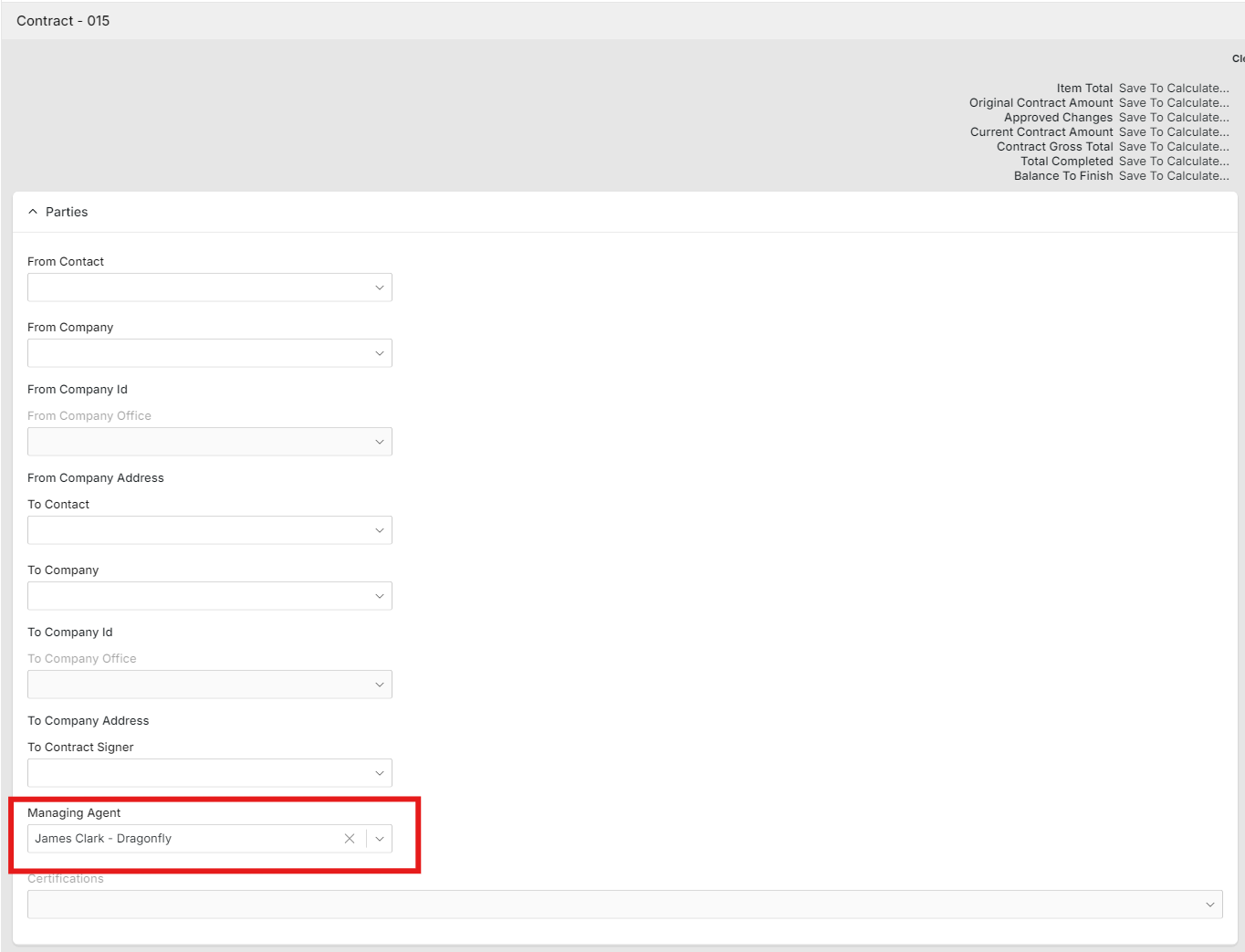
Contracts - Added multi-select functionality to the Exhibits section
This update applies to the Kahua-supplied Contracts and related apps.
We have added support for multi-select on the Exhibits section of contracts.
You can now select multiple exhibits for download at one time into a zip file. Additionally, in Edit mode you can select multiple exhibits for removal from the contract.
Cost (K4X) applications - Added Item Filter and Sort support
This feature is available for Kahua for Owners, Education, General Contractors and Subcontractors on an expanded list of Kahua Supplied cost applications.
You can now filter and sort items directly within item grids across K4X Cost Apps. This makes it faster and easier to find the specific line items you need in large documents, without having to scroll through the full list.
Previously, working with large cost documents required scrolling through all items to locate the ones you needed. Now you can use search, filter, and sort controls on item grids in the following applications:
Funding Applications: Budget, Budget Change, Budget Adjustments, Planning Budget, Planning Budget Adjustments, Contract, Change Order, SOV Breakdown, and Pay Apps.
Expense Applications: Contract, Change Request, Change Order, SOV Breakdown, Pay Request, Quote Requests, Purchase Order, Purchase Order Change Order, PO invoice and General Invoice.
Additional Applications: Master Services Agreement and Issues.
To use the new controls, open any supported document and use the Filter and Sort options available in the item grid header area.
Note Filter and Sort are available only for attributes that currently support search and filter functionality. Some item-level attributes — including certain quantity, UOM, Unit Price, Tax Amount, and Total Amount fields, Multi Project Document project reference — are not supported at this time.
Issues app - Added "Initiated By" contact as an Approval Actor and Notification Recipient (Kahua for K-12 Education only)
This update applies to the Kahua-supplied Issues app for Kahua for K-12 Education only.
In the Kahua-supplied K-12 Issues app, you can now include the Initiated By contact in issue approval workflows and use that contact as a notification recipient for key workflow events. This update helps keep the originating contact informed throughout the approval and pricing process without requiring manual workarounds.
To add the Initiated By contact as an approver or notification recipient, select "Initiated By" as a Recipient in the Approval Steps or as a Step Notification Recipient or Completion Message Recipient under Custom Message Settings.
The Initiated By contact also receives automatic notifications for internal approvals, pricing submissions, WCD actions, and SCO recalls.
Multi-Project Cost Documents (MPD) - Import Support
This update applies to the Kahua-supplied cost management apps.
Over the past few releases we've been adding new features to the cost imports, including the ability to import items in Multi Project Cost Documents.
The following applications now support imports of MPD items:
-
Funding Budget
-
Funding Budget Adjustments
-
Funding & Expense Contracts
We will continue to add import and MPD support to other apps over the coming releases.
Pay Request app - Added Balance to Finish Including Retainage as an optional log column
This update applies to the Kahua-supplied Pay Request and Pay Apps applications.
You can now add Balance to Finish Including Retainage as a column in the pay request log. This makes it easier to review key financial data across pay requests at a glance without opening individual records.
To add this column, use the standard column selection in the pay request log and save it to a custom view. The value displayed in the column matches the value shown in the Summary section of the detail pane.
The Balance to Finish Including Retainage column is not included in the default view and must be added through a custom view.
Source of Funds – Improved Guard Enforcement When No Fund Sources Are Present
We've updated the Source of Funds logic so that optional guards are now enforced even when no Fund Sources have been added to a project. This improvement gives your organization stronger financial controls and ensures that budget, commitment, and invoice workflows are consistently protected — regardless of whether Fund Sources are present on a project.
Previously, the Source of Funds guards could only run if at least one Fund Source was associated with the project. This technical limitation meant that projects without any Fund Sources were not subject to the optional guard settings. Now, when Fund Source Auto Calculation is enabled, all optional guards configured in Additional Settings are enforced on every applicable project — even those with no Fund Sources.
This behavior applies when Configuration > Fund Sources > Settings > Fund Source Auto Calculation Enabled is selected. The optional guards are configured under Configuration > Fund Sources > Additional Settings.
NOTE: this revised logic has been in place since Kahua version 2026.1.
Cashflow – Added Lock Protection for Cashflow-Impacting Edits
You can now lock a cashflow document to prevent accidental, non-reversible changes to financial values. This gives you greater confidence when sharing cashflows for review, preserving approved versions, or maintaining locked reference copies — all without restricting safe actions like commenting, formatting, and visual adjustments.
A new Lock Forecast Data checkbox can be made visible, via configuration, on Cashflow Documents. Lock Forecast Data can be selected by any user with edit access. It can only be cleared by either the user who locked it or an administrator.
A read-only Locked By field shows the user who most recently locked the cashflow document.
When Lock Forecast Data is selected, the following occurs:
-
Main document page:
-
The following fields on the main document become read-only: Current Financial Period, Start Date, End Date, Allow Items Outside Start and End Dates, Allow Variances, and Lock Cap Budget Column.
-
-
Manage page:
-
The following fields on the Manage window become read-only: item milestone and schedule links, item forecast curves, item start and end dates, item variance fields
-
The following actions are disabled or hidden: Add, Remove, Get Current, and Save buttons.
-
Visual controls such as selecting views and formatting options remain fully available while the cashflow is locked.
Note This lock does not prevent deletion of the cashflow document.
Financial Periods - Added the ability to bulk create new periods
This update applies to the Kahua-supplied Financial Periods app.
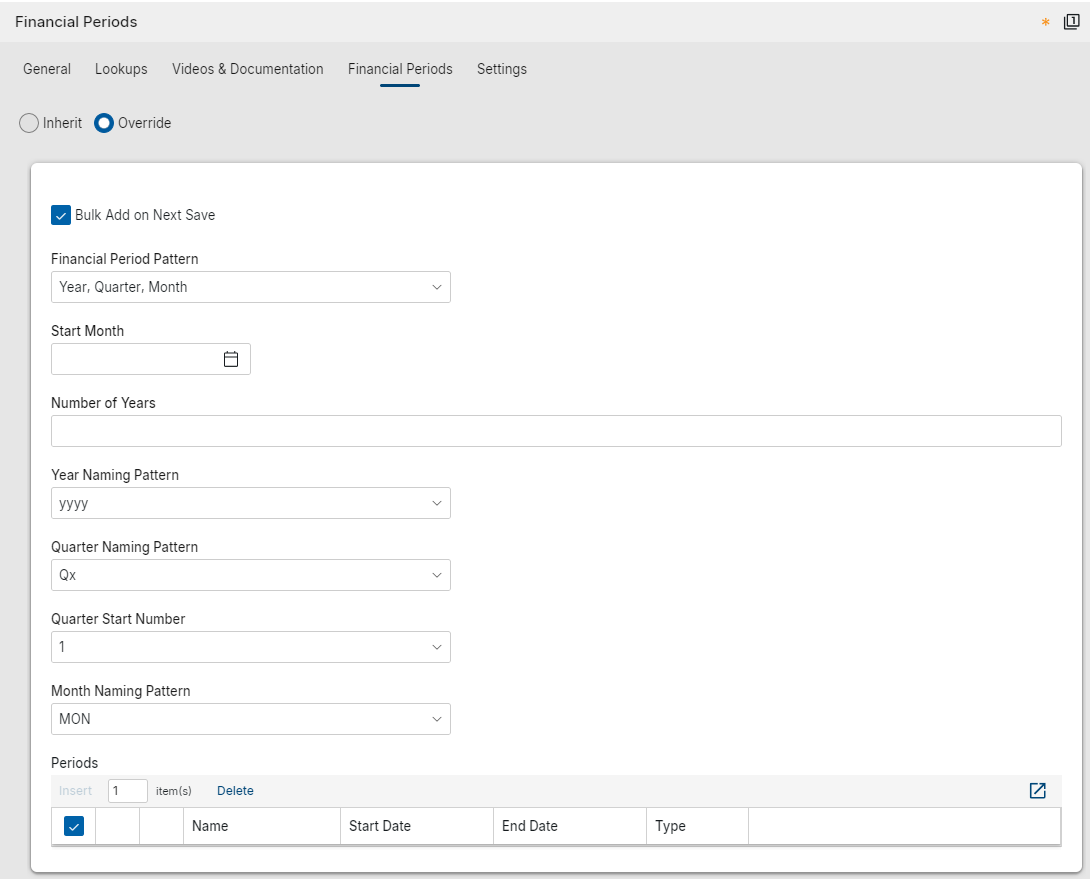
We’ve improved how financial periods are created by adding a bulk add option that can generate periods from defined rules, including pattern, naming, start month, start date, and number of years.
This update is intended to make setup faster and reduce the manual effort involved in creating periods for a domain.
Bulk add will only create periods that do not overlap existing records, and standard limits and validations will apply.
Assets
Asset Definition - Added Discipline field to Classes-Master app
You can now categorize assets and types by discipline, making it easier to filter, group, and organize records by professional or technical domain across your projects.
A new Discipline lookup field has been added to the Classes-Master app with a predefined set of values including Architectural, Structural, Civil, Mechanical, Electrical, Plumbing, Fire Protection, Geotechnical, and Environmental.
The field is also available in the Assets and Types apps as a read-only field, where you can add it to views, hide it, or group by it as needed. The Discipline field value can also be exported and imported.
Asset Manager - Added Submittal Count visibility to Assets and Types
The number of Required Submittals and Approved Submittals now appears on the detail view of records in the Assets and Types apps, allowing users to quickly understand submittal status without opening the Submittals section.
The following new calculated read-only fields are available on asset and type records:
-
Required Submittals – Displays the total number of submittals listed in the Required Submittals section.
-
Approved Submittals – Displays the number of required submittals that are considered approved.
An approved submittal is defined as a required submittal item where the Count as Approved flag is set to true on the submittal item associated with the asset class. Only submittals marked as required are included in this calculation.
Both fields appear at the bottom of the Details section on the record detail view.
When Enable Required Submittals is selected in the Classes-Master application, these fields are included in the default log views for both the Assets and Types applications.
Assets app – Added Asset Component Hierarchy
You can now define parent/child relationships between assets to track components at the individual part level. By defining parent/child relationships, you gain a granular view of your equipment’s structure, allowing you to attribute data to specific parts while maintaining a complete picture of your high-value assets
A new Parent Asset field on the asset form lets you assign any asset as a component of another. Once set, a read-only Components tab on the parent asset displays the full descendant hierarchy with clickable Name links. The default log view now includes a Parent Asset column after Type, and a new Asset Hierarchy log view displays assets in an expandable hierarchy for easy navigation.
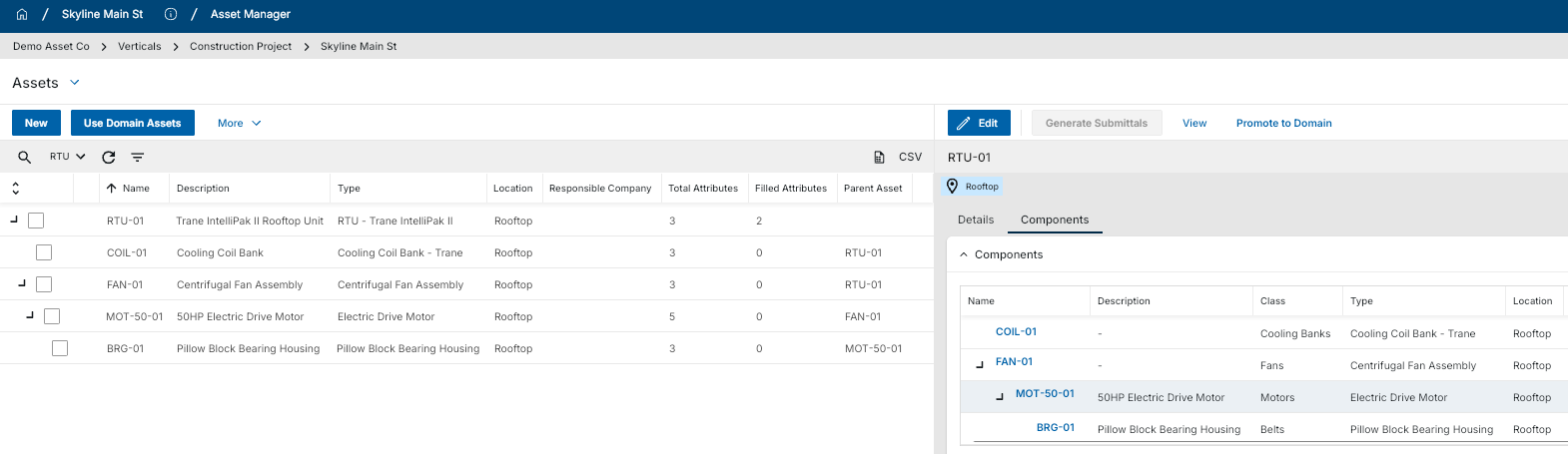
Promote to Domain automatically includes the full parent chain when promoting a child. Import/Export supports one new columns, Parent Asset, resolved within the same import set using row number references.
To enable the Components tab, go to Configuration > Asset Manager Assets > Settings and select Enable Components. You can also hide the Parent Asset field or set a default parent value from the same configuration area.
Assets app - Added ability to set default values for the Status Change Notification field
You can now configure default recipients for the Status Change Notification field in the Assets app. This helps you apply a consistent notification setup to new asset records while still allowing flexibility at the individual asset level.
Default field values are managed in the Configuration > Applications > Asset Manager Assets > Defaults tab and are inherited down through the hierarchy. Default values are applied to new asset records when they are created. Existing asset records can still be managed individually if different notification recipients are required.
Assets app – Added setting to control access to COBie Import and Export
We added a new setting in Configuration for the Asset Manager > Assets app that lets you control whether COBie (Construction Operations Building Information Exchange) import and export actions are available. This gives you more flexibility to manage access to COBie-related actions based on the needs of your project.
Previously, the Import (COBie) / Export (COBie) options always appeared in Asset Manager > Assets. Now, you can go to Configuration > Asset Manager Assets > Settings and use the Enable COBie Import/Export setting to control their availability.
When this setting is enabled, Import COBie and Export COBie appear in the More menu in the action bar. When this setting is disabled, both actions are hidden.
Assets app - Added unique Asset Identifier field
We added a new Asset ID field in the Asset Manager > Assets app so you can store and validate a unique identifier for each asset across a project or an entire domain. The field is available on asset records and appears in the Details section. By default, the field is optional.
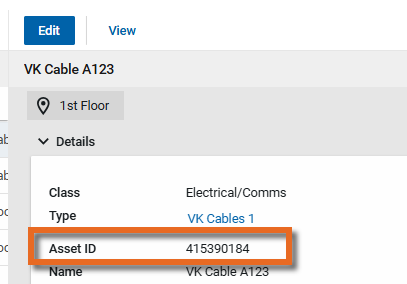
Uniqueness enforcement is managed in configuration:
-
Enforce Unique Asset ID across the domain can be set only at the domain level. When enabled, Asset ID values must be unique across all projects. In this state, Enforce Unique Asset ID at this project becomes read-only and cannot be changed at the project level.
-
When Enforce Unique Asset ID across the domain is not enabled, you can use Enforce Unique Asset ID at this project within an individual project to require Asset ID values to be unique only within that project.
When uniqueness enforcement is enabled, Kahua validates the Asset ID when you save the asset record. If the value already exists within the enforced scope, the system displays an error and prevents the record from being saved. If the Asset ID field is blank, no validation occurs.
Assets app – Added visibility into asset pins from asset records
You can now see where an asset is pinned on drawings directly from the asset record, without switching to Drawing mode. This update gives you faster access to pin details and makes it easier to confirm where an asset has been placed.
A new Pins section is now available on the asset detail view. The section appears above References and shows the drawing name, the user who pinned the asset, and the date and time the pin was created. You can show or hide the Pins section through configuration.
Assets that have pins now also display a Pins indicator in the Assets log view. The Pins field is available in the log view editor and is included in the default Assets log view, so you can quickly identify assets that are pinned on drawings.
Pinnable drawings must be enabled for pin information to be available.
Kahua Analytics
Analytics Dashboards - Added Last and Next Refresh timestamps next to each Analytics dashboard
We are excited to announce the introduction of new Last Refresh and Next Refresh tiles to improve transparency into data currency across Kahua Analytics. These tiles are displayed in the top right of the Analytics application, giving users immediate access to refresh information without relying on report-level visuals.
Key Features
-
The Last Refresh tile displays the most recent successful data refresh. This is a key visual indicator for a user to understand the last time their Kahua data was refreshed in Analytics.
-
The Next Refresh tile displays the next scheduled refresh. This can be beneficial for a user to understand when new data will be visible in Analytics.
Summary - This enhancement ensures users can confidently answer two critical questions at any point in Analytics:
-
“When was this data last updated?”
-
“When will this data update next?”
Infrastructure - Updated Kahua Analytics Infrastructure to the most recent stable PBIRS version across DEVx, DEMOx, PROD, KGN and KDN
We have upgraded our Power BI Report Server infrastructure to the January 2026 release. This update ensures continued alignment with Microsoft’s latest updates, improving stability and performance across the Kahua Analytics offering.
Key Customer Impact - Self-servicing customers can now use the latest Power BI Desktop - Optimized for Report Server version. This allows users to use an application that is widely available and are no longer tied to old desktop versioning.
In addition to improving reliability within the Kahua Analytics product, this upgrade comes with a couple of Power BI visual and modeling enhancements. The primary visual update includes a “fit to visual width” table visual for columns to fit to the width of the visual as opposed to the width of the column.
Action Required (For self-servicing customers) - While Power BI Report Server, in many cases, is backwards compatible to older versions of Power BI Desktop - Optimized for Report Server, it is recommended to upgrade to the latest version of the Desktop application to ensure there are no versioning bugs.
Continuous Improvement - The Kahua Analytics team is dedicated to ensuring our infrastructure is the latest offered by Microsoft and will continue to upgrade with every Microsoft release for the foreseeable future.
Integrations
Outlook Plug-in - Improved project selection
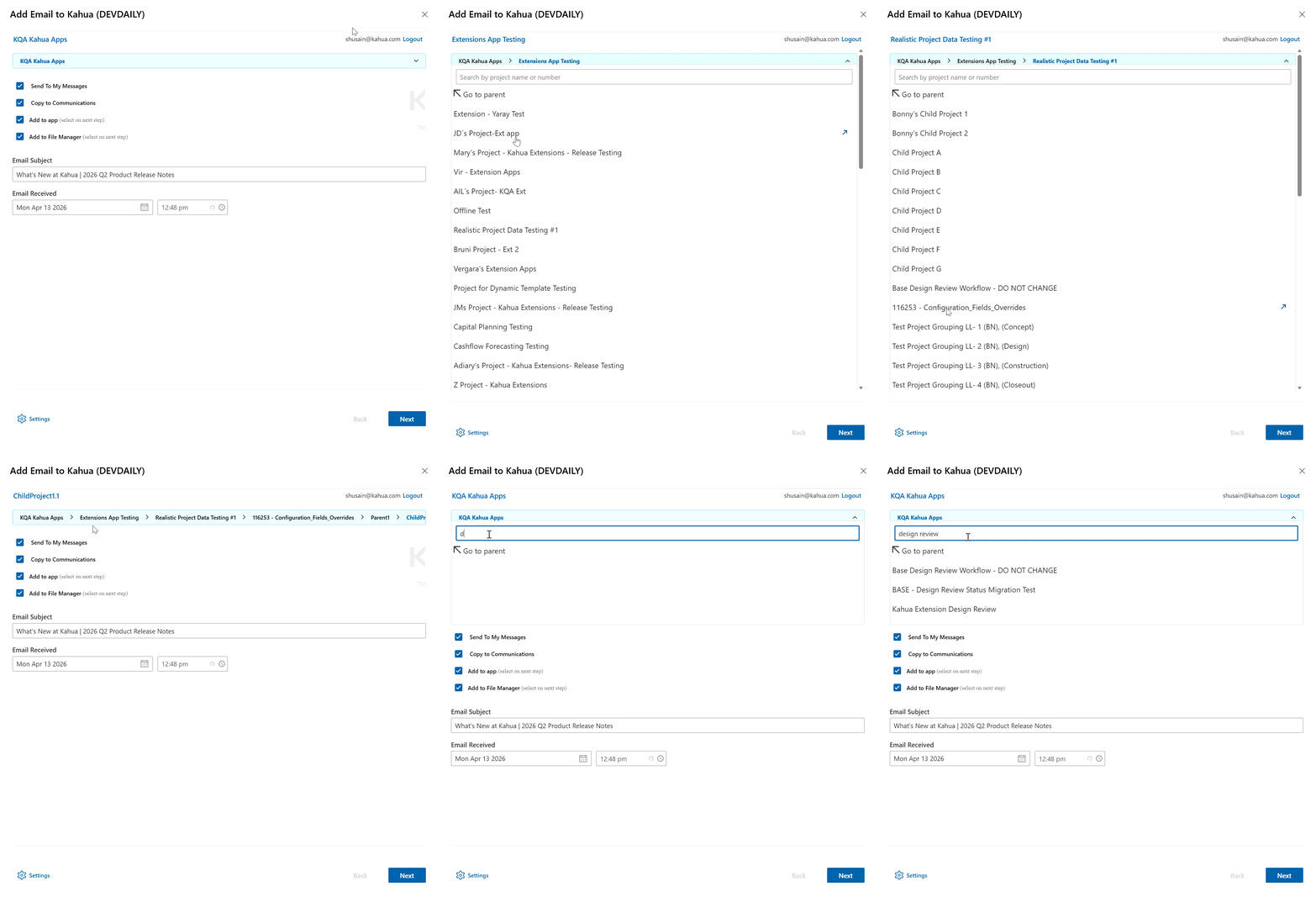
We have improved the process of selecting a project when adding an email message to Kahua through the Outlook plug-in. We added a search function that allows you to search by project name or project number. Additionally we improved the navigation up and down the project hierarchy, allowing you to more easily find and select the appropriate project.
Outlook Plug-in - Updated user interface
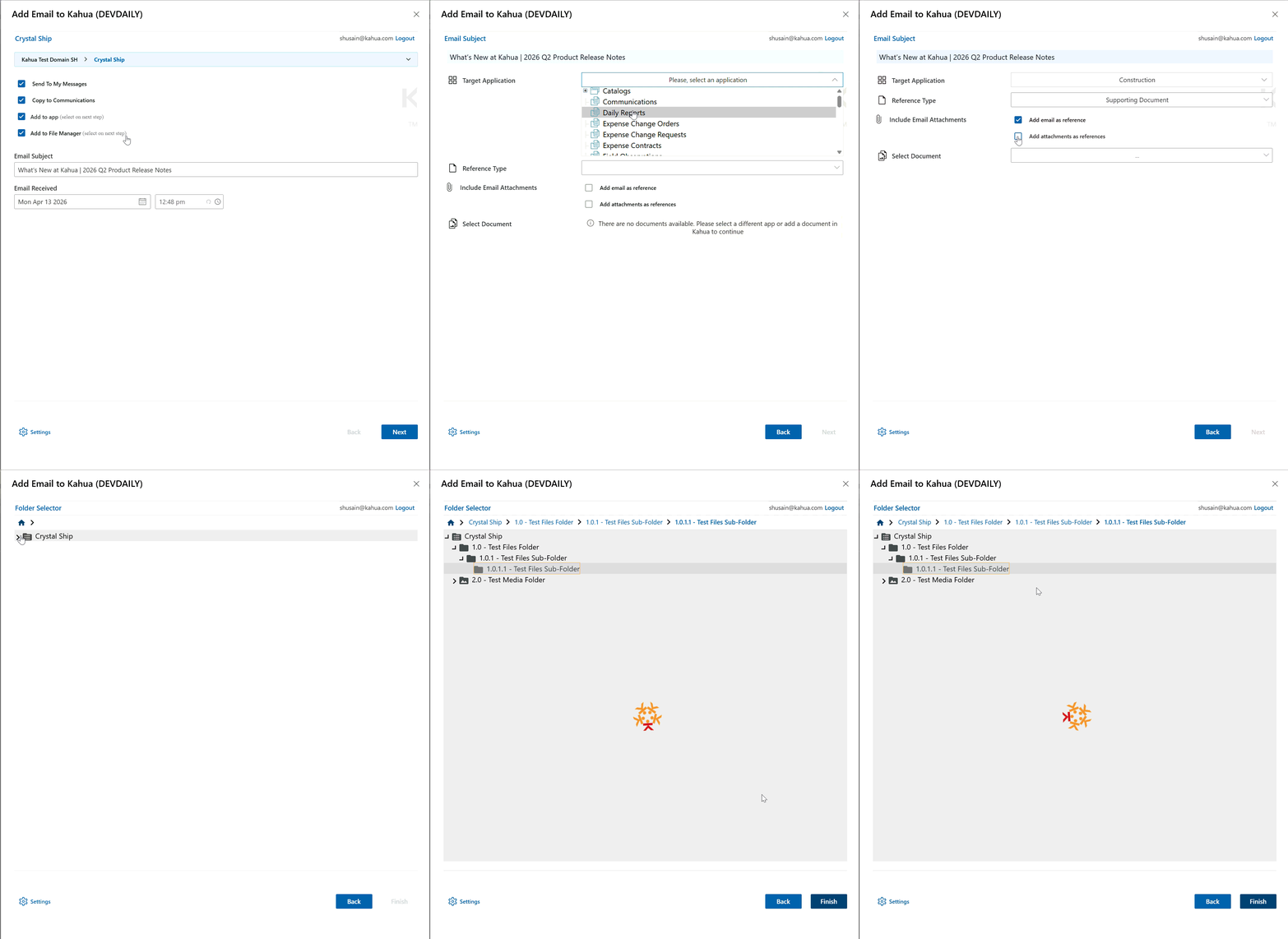
We updated the styling and visual presentation of the Kahua Outlook Plugin interface. You will see a more modern and consistent experience that aligns more closely with the current Kahua user interface.
RFIs - Added Newforma Konekt integration
We have added an integration with Newforma Konekt, allowing your project team to collaborate on RFIs between Kahua and Newforma Konekt.
With this integration, the RFIs (Request for Information) app integrates with Newforma Konekt so you can coordinate RFI activity across platforms more efficiently. You can use Newforma as the design system of record for consultant collaboration while continuing to manage and communicate official RFI responses through Kahua.
This integration requires initial configuration and coordination with Kahua and Newforma technical support teams. Please contact your Customer Success representative for details about setup requirements and implementation planning.
Mobile app
Mobile – Added QR Code Preview for Supported Destinations
You can now preview a QR code on the mobile app before you send or copy it for supported destinations. This gives you an easier way to share records in person by displaying the code on your screen for someone nearby to scan, while keeping the existing behavior unchanged.
When QR and link sharing are available for the page you are viewing, you will now see QR Preview in the share or overflow menu. Tap QR Preview to open a mobile-friendly sheet that shows the QR code for that destination. The QR code uses the same URL as Copy Link, and you can close the sheet without leaving your current page.
You can use QR Preview from these locations:
-
Record Preview, where the QR code links to the record preview
-
Portable View, where the QR code links to the portable view
-
Log/Start View, where the QR code links to that view
When someone scans the displayed QR code, it opens the same destination as the equivalent shared link and follows the same authentication, authorization, and error-handling rules.
QR Preview is available only when QR and link sharing are supported for the current destination on mobile. Existing Copy QR Code behavior is unchanged.
Mobile - Updated the list and log view selection for Tasks and Messages
You can now switch between lists and log views in the Tasks and Messages apps on mobile using the same improved log view and list selection experience already available in apps like RFIs and Daily Reports.
Instead of tapping through multiple menus, you can now simply tap the gray space at the top of the application (where list and view name display) to open a flyout where you can select any of the lists available within your current application and any of the log views available within your current list.
Mobile - Updated navigation and filtering in Drawing Mode for Punch Lists
In the mobile app, we have updated the navigation in Drawing Mode for Punch Lists. When viewing a drawing in drawing mode, you now click the Back button to return to the thumbnail selector page instead of clicking the Close icon  .
.
Additionally, we replaced the Close icon with a new filter menu  , allowing you to manage which pins appear on the punch list drawing.
Kahua Host Updates
All Kahua hosts have been updated with various enhancements and bug fixes. The Windows host will automatically update upon first launch after the release.
Download the appropriate app for your device:
Release Note Changes
| Date | Revision | Section | Change Description |
|---|---|---|---|
| April 10, 2026 | 0 | All sections | Initial publication |
| April 14, 2026 | 1 | Administration | Added "Users – Added ability for domain administrators to unlock user accounts" |
| April 15, 2026 | 2 | Assets | Added "Assets app – Added Asset Component Hierarchy" |
| April 16, 2026 | 3 | Document Management | Added "File Manager – Added separate permission filtering for Controlled Folders" |
| April 20, 2026 | 4 | General | Added "File Viewer – Updated pan mode" |
| April 24, 2026 | 5 | Integrations | Added "RFIs - Added Newforma Konekt integration" |
| May 1, 2026 | 6 | General | Added "Global Search – Changed Default Multi-Word Search Behavior" |
| May 5, 2026 | 7 | Document Management | Added "Specifications app - Introduction" |
| May 11, 2026 | 8 | Administration | In the "Invitations – Added Expiration Setting for Pending Invitations" item, clarified that the new invitation expiration setting applies to external user invitations only. |
| May 12, 2026 | 9 | General | In the "Dashboards – Added live video stream widgets" item, clarified that video stream widgets are only available for the Kahua Commercial Network (KCN), not the Kahua Government Network (KGN). |
Note Printable versions of these release notes can be downloaded as PDF or MS Word.