Types
The Asset Manager > Types app is used in a project to create and manage asset types. Asset types are a more specific category within asset classes and represent a specific product in that asset class. You must set up asset types in your project in order to be able to add individual assets.
Example The asset class of "Security Systems" may include asset types such as "Security cameras", "Motion detectors", and "Control Panels".
Important things to know about this application include the following:
-
Types are based on asset classes. Asset classes are set up in the Asset Definition > Classes - Master app and made available to your project in the Asset Definition > Classes - Project app. For more information, refer to Classes - Master and Classes - Project.
-
Asset types can be promoted to the domain level for use in other projects.
-
Each type includes basic details such as Name, Description, Class, and optionally Responsible Company, plus any dynamic attributes configured for that class.
-
You can import type records through the standard import process.
How to . . .
 Create and manage an asset type
To create a new type, complete the following steps:
-
Review the header to ensure that you are in the correct project or partition.
-
Navigate to the Asset Manager > Types application (Apps > Asset Management > Asset Manager > Types).
-
Click New in the action bar.
-
Complete the following fields as appropriate:
Field Description Class / Classes-Project Select the appropriate asset class for the type you are creating.
Note The available list is based on the asset classes selected in the Asset Definition > Classes - Project app for this project. Refer to Classes - Project.
Name Enter the name of the asset type. Description Enter a brief description of the asset type. -
Click Next in the action bar.
-
Complete the following fields as appropriate:
Note Depending on how this app is configured for your domain, there may be fields or sections listed here that do not appear for you, fields and sections that appear for you which are not listed here, or fields and sections which appear in a different order. If you have any questions, check with your domain administrator.
Field Description Details Class / Discipline / OmniClass Code / Master Format Code These values appear, based on the asset class selection. Refer to Classes - Master.
Name / Description Modify these values if desired. Responsible Company If applicable, select the company responsible for this asset type. Attributes Complete the Type Attribute fields as appropriate.
These are determined by the selections made in the Asset Definition > Classes - Project app for this project. Refer to Classes - Project.
Files Any attributes with the type of "File" appear here. Select Upload to add a new file. Select Add Kahua Doc to select a file previously uploaded to Kahua. To remove a previously added file, select Delete.
Linked Documents Any linked records associated with the type appear here. Assets Any assets associated with the type appear here. References Upload or select any relevant files or documents. You can use drag and drop to add a file to this section. For more information on using this section, refer to References section.
-
Click Save when you are done.
Promote and use domain asset types
You can promote existing asset types to the domain level, allowing them to be re-used in other projects.
To promote an existing asset type to be available throughout your domain, complete the following steps:
-
Review the header to ensure that you are in the correct project or partition.
-
Navigate to the Asset Manager > Types application (Apps > Asset Management > Asset Manager > Types).
-
From the log view, select the asset type you want to promote to open the detail pane.
-
From the action bar, select Promote to Domain. You may need to select the More icon
 if the option is hidden for space reasons.
 -
Click Continue on the confirmation message. The asset type is promoted to the domain level and available for selection in all projects.
To use an asset type that has been promoted to the domain level, select Use Domain Types in the appropriate project. Select the appropriate asset types and click Update. The asset types are added to the project.
Note The asset classes associated with the added asset types are added to the Asset Definition > Classes - Project for the project and are now available for selection when creating new asset types in the project.
Generate and track required submittals
If Required Submittals are enabled in the Classes-Master app, you can define what submittal items are required for any Types or Assets created based on those classes. Refer to Required Submittals.
The Required Submittals section appears at the bottom of the type page, listing the required submittals as set up in the appropriate class.
To generate the required submittal items in the Submittal Items app, select Generate Submittals from the action bar. New submittal item records are created and the corresponding Type is automatically tagged.
Note If the Generate Submittals action is initiated multiple times, only the submittal items that have not yet been generated will be created. Duplicate submittal item records are not created.
The number of Required Submittals and Approved Submittals appears in the Details section of the record detail view.
Note An approved submittal is defined as a required submittal item where the Count as Approved flag is set to true on the submittal item associated with the asset class. Only submittals marked as required are included in this calculation. For more information, refer to Responses to Count as "Approved".
Import existing records
If you already have type information prepared outside of Kahua, you can import it through the standard import process.
You will first generate an export of an existing record to access the correctly formatted spreadsheet file for the import. Once the exported file is available, add the appropriate values for the records you want to import to the exported spreadsheet. You can then import those records. For more detailed information on the importing process, refer to Importing records.
When preparing the import workbook, use the Asset Types tab. Types are treated as duplicates if there is no value in the ID column and the Name already exists in Kahua.
Attributes with unit values can be imported by entering the value and unit abbreviation separated by the | symbol. For example, a duration in months could be entered as 60 | m.
Generate a log report or other reports
You can generate a report from a selected log view, or use one of the built-in reports available by default in each application. For more information on creating your own reports, including how to set up scheduled reports, refer to Creating ad hoc reports.
Note For information on modifying the logo that appears on reports in your project, refer to Managing report logos.
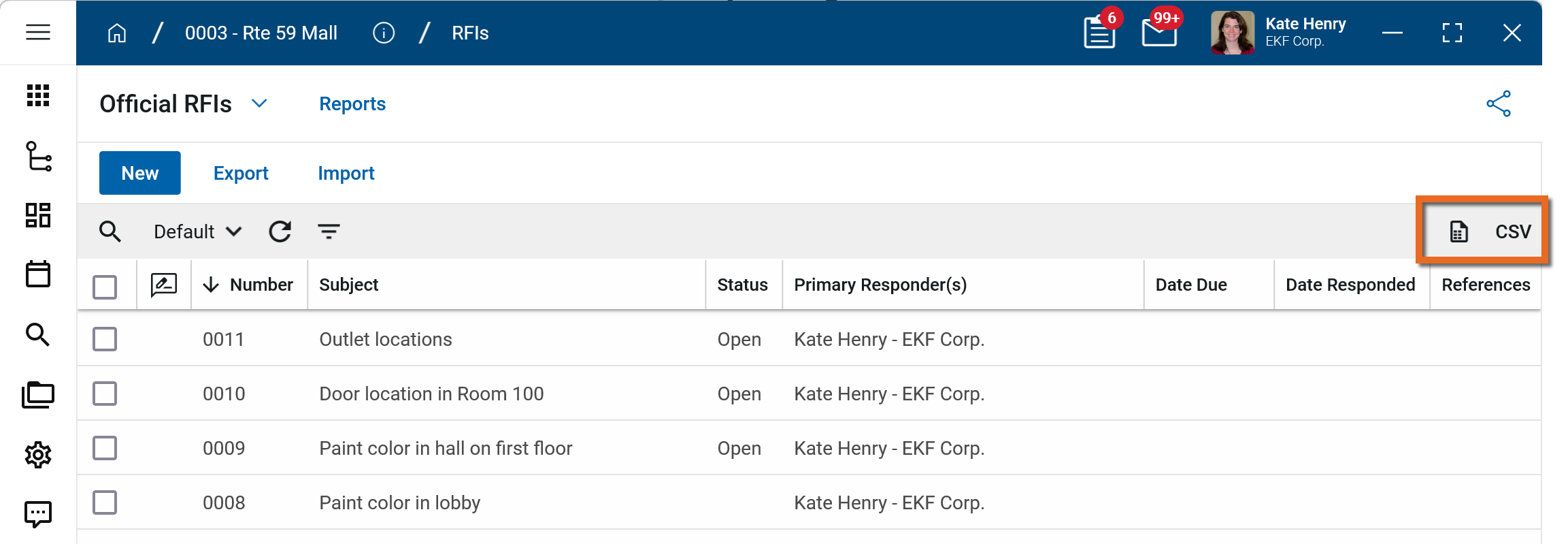
To generate a report from a log view with up to 10,000 records, click the More icon  and select Print. If your log view contains more than 10,000 records, the Print option will be disabled and you can select
  to download the records to a CSV file instead.
To generate an application report, complete the following steps:
-
Navigate to the application.
-
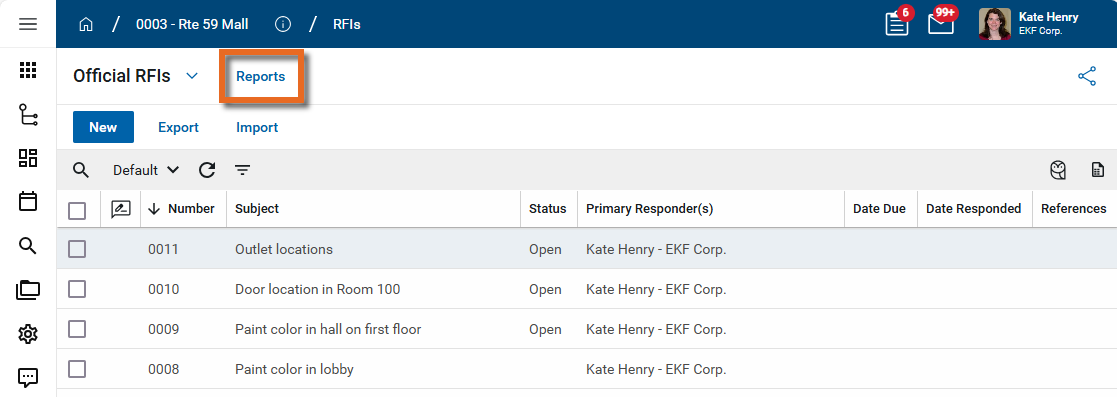
Select Reports in the application title bar.
-
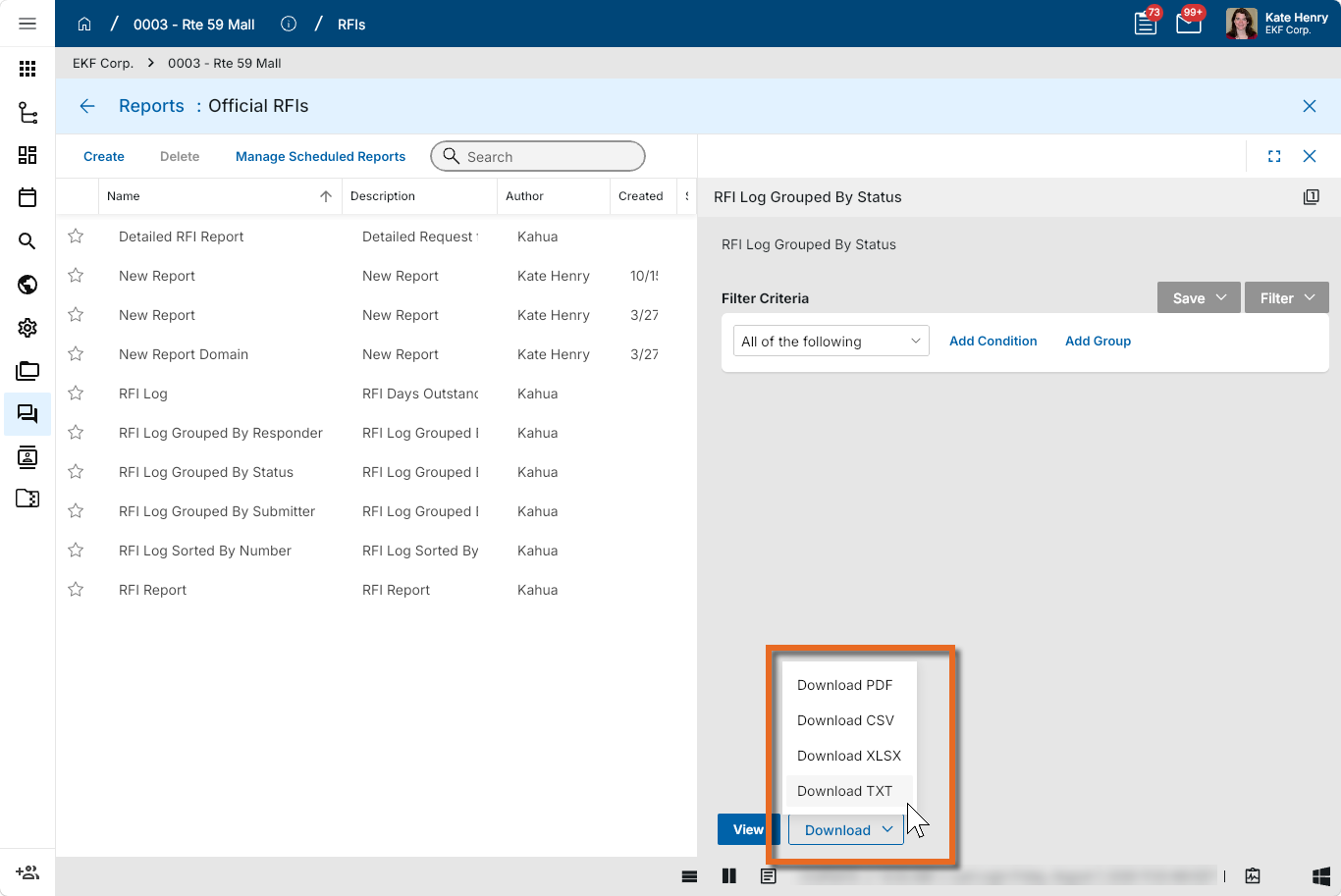
Select the report you want to run.
-
Apply any desired filters.
-
Select View or Download as appropriate. For more information, refer to Viewing Reports.
-
Click the Close icon
 when you are done.
Perform standard actions on a single record (print, send, view history, delete, etc.)
From the detail view of a record, there are several standard actions you can take. Depending on your permissions, some or all of the following options may be available to you:
-
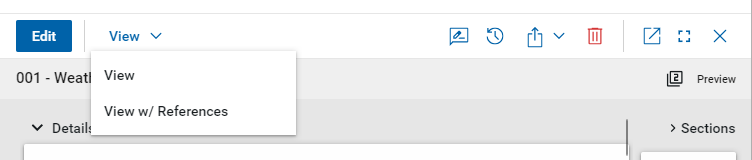
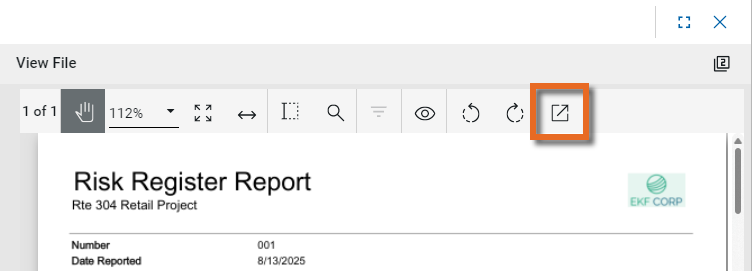
View and View w/References - Select View or View w/References to open a PDF view of the current record. The PDF file can be printed or shared from the viewer by clicking on the Open PDF icon
 .
.
Note Only references where the Include on Send value is set to "Yes" are included in the View w/References.
Additionally, if Include Markup on Send is set to "Yes", any markups on the file are included. -
Discussions
 - Select this icon to open the Discussions panel. If enabled in your domain, the discussions feature allows you to participate in public or private conversations associated with specific records. For more information, refer to Discussions.
 -
View History
 - Select this icon to open the History page for the record. The history page provides details regarding all activity (creation, edits, saves, etc.) performed on the record. Click view edit to drill down into more detail on a specific action. Click hide edit to close the action detail. Click the Close icon
  to close the history page.
 -
Send actions
 - Click this icon to select an appropriate Send action for the record. The following options may be available to you:
-
Copy Link and Copy Portable View Link - Select this option to copy a URL link for the record or record's portable view to your clipboard. This link can be sent outside of Kahua. Users with the appropriate permissions will be able to open Kahua directly to that record or portable view by using the link.
-
Copy QR Code and Copy Portable View QR Code - Select this option to generate a QR code for the currently open record or record's portable view. The QR code can be shared directly from your screen, or copied to your clipboard to be shared as appropriate. This QR code can be shared outside of Kahua. Users with the appropriate permissions will be able to open Kahua directly to that record or portable view by using the link.
-
Send - Select this option to open a new Kahua message with the open record included as an attachment. References with the Include on Send value set to "Yes" are also included. For more information, refer to Messages app.
-
-
Delete
 - Select this option to delete the open record. You must agree to the confirmation message before the record is deleted.
Alternatively, right-click on the record in the log view and select Delete, or select multiple records from the log view and select Delete.
Note If a record is deleted in error, your domain administrator may be able to recover it through the Recycle Bin app. For more information, refer to Using the Recycle Bin.
-
Open in a new window
 - Select this option to open the current record as read-only in a new window (desktop host) or browser tab (web host). This allows you to navigate to other records in the original Kahua instance while keeping the read-only window or tab open for reference. To re-open the record on the read-only window or tab in Kahua, select Open in the header.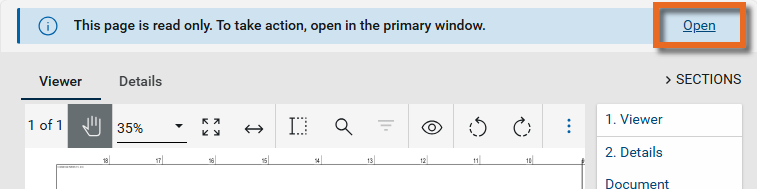
-
Maximize
 and Minimize
  - Select Maximize to open the record to a full screen view. From the full screen view, select Minimize
  to return to the original view.
 -
Close
- Select the close icon to close the currently open item.
Configure the app
Your domain administrator or another user with the appropriate permissions can configure the app in the Configuration application.
Important When working in the Configuration app, it is important to review the header and ensure that you are working at the correct level in the hierarchy, either the root domain or at a partition or project level.
Settings that you establish at the root domain or lower levels will inherit down the hierarchy until they are overridden. For more information on the hierarchical structure of Kahua, refer to Understanding the hierarchical structure of Kahua.
The Configuration app can be accessed directly through the apps list (Apps > Administration > Configuration), or, in some applications, by right-clicking on an application in the launch bar and selecting Configure. When you select Configure for an app from the launch bar, the detail view of the configuration page for that application opens automatically.
The following items are part of the application configuration and are specific to this application:
| Options | Description |
|---|---|
| Settings tab | |
| Disable duplicate name creation during import | Enable this setting to prevent duplicate named records from being created during import. |
Available application roles
Application roles determine which actions users can perform in the app. Roles are assigned to groups in the Groups app > Permissions tab. Members of the group then have the permissions associated with the roles assigned to the group.
The following roles are available for this application:
| Role | Details |
|---|---|
| Administrator | Full administration, including add, configure, create lists, edit, import, export, share, view, send, process, remove, and edit view templates. |
| Contributor | Can add, edit, open, view, send, and process type records. |
| Moderator | Can add, edit, remove, import, export, share, open, view, and send type records. |
| Observer | Can open, view, and send type records. |
| Referencer | View-only access to type records. |
| DomainAssetContributor | Can edit attributes on domain assets and entities. |
Note To manage these permissions, open the Groups app and assign the appropriate application role to the group. Only users with the appropriate permissions can manage application roles. For more information, refer to Managing Permissions.