Training Register
The Training Register is a domain level sub-application within the Safety Suite which allows you to track employee training history. For more information on the Safety Suite, refer to Safety Suite.
Important The sub-apps in the Safety Suite are unlike most other apps in that they reside at the domain level, not at the project or partition level. They can be accessed while you have a project or partition open, but the data entered is not linked to that project or partition and instead resides at the domain level.
Key elements of the Training Register are as follows:
-
You can set up a training register record for each employee in your company as needed.
-
You can record training events for each employee with a training register record.
-
The employees must first be set up as employees in the Contacts app in Kahua. Employees are set up as contacts, and then additional information is captured for them on an employee record.
-
Your domain administrator can modify the names of the training event fields to match your organization's requirements.
-
You can upload supporting media or reference documents, such as images or PDF files of training certificates or completion documents.
-
You can print a training report for an individual employee or a log report for all or a filtered list of employees.
How to . . .
 Create employee records
Each employee for whom you are creating a record must be set up as an employee in the Contacts app. Employees are first set up as contacts in the People sub-app, and then additional information is captured for them on an employee record in the Employees sub-app.
For information on setting up employee records, refer to Managing Employee Profiles.
Create a new training register record or edit an existing one
All the Safety Suite applications are domain level applications, but they can be accessed from any project or partition in your domain. The records you create are not connected to the project or partition that is open at the time you create the record.
To create a new training register record for an employee or edit an existing one, complete the following steps:
-
Navigate to the Training Register sub-application (Apps > All Apps > Safety > Training Register).
-
To create a new record, click New on the action bar. The new training register detail page opens.
To edit an existing record, select it from the log view to open the detail page and click Edit from the action bar.
Note To open the detail page in a full page view, click the Display Detail View icon
 at the bottom of the page. For more information, refer to Log view/Split View/Detail View.
 -
Complete the following fields as necessary:
Field Description Employee Number Allow Kahua to auto-number the record, or enter a different value.
Note The number format can be configured by your domain administrator. Refer to Number.
Employee Select the person whose training information you are tracking.
Important This person must first be set up as an employee in the Contacts application. Refer to Managing Employee Profiles.
Employee Number This number defaults to the Employee Number set up in the Employee Profile. It can be edited. Status Select the appropriate status. Department Select the employee's department.
Note .This lookup list is managed in the Configuration app. Refer to Lookups.
Phone Enter the phone number of the person reporting the injury. Onboarding Date Enter the employee's onboarding date. Training Enter training dates for the employee. You can enter the class date or certificate expiration date as needed.
Note These fields are managed by your domain administrator in the Configuration app. If your organization requires different training certifications, your domain administrator can modify the names of these fields to reflect your organization's requirements.
Media Upload any relevant image files, such as pictures of certificates. For more information on using this section, refer to Media section. References Upload any relevant files or documents, such as training certificates. For more information on using this section, refer to References section. -
When you have entered all the necessary information, click Save.
Generate a log report or other reports
You can generate a report from a selected log view, or use one of the built-in reports available by default in each application. For more information on creating your own reports, including how to set up scheduled reports, refer to Creating ad hoc reports.
Note For information on modifying the logo that appears on reports in your project, refer to Managing report logos.
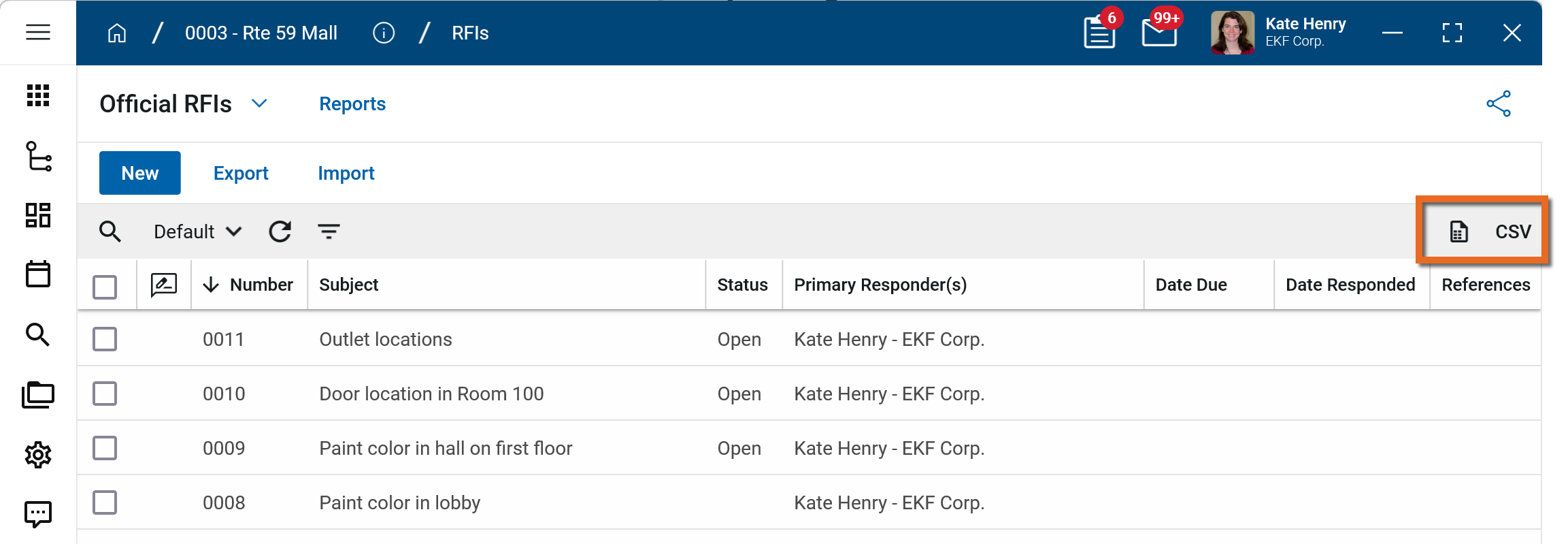
To generate a report from a log view with up to 10,000 records, click the More icon  and select Print. If your log view contains more than 10,000 records, the Print option will be disabled and you can select
  to download the records to a CSV file instead.
To generate an application report, complete the following steps:
-
Navigate to the application.
-
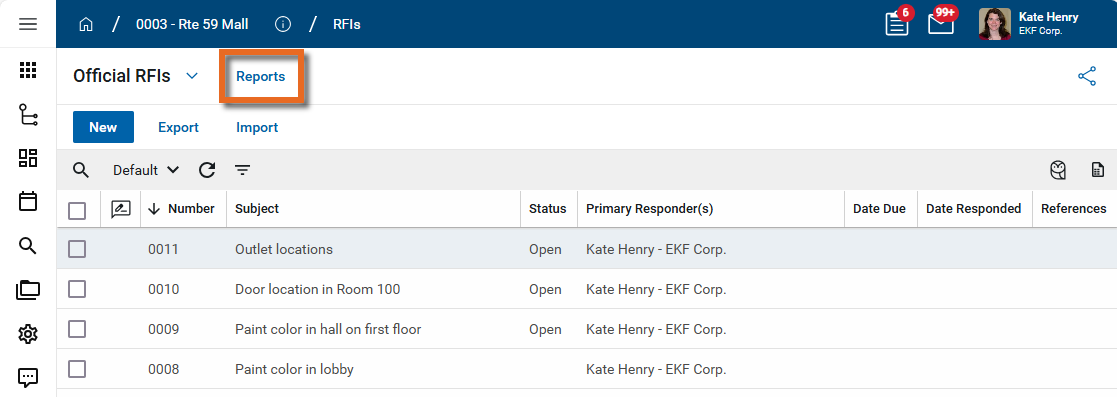
Select Reports in the application title bar.
-
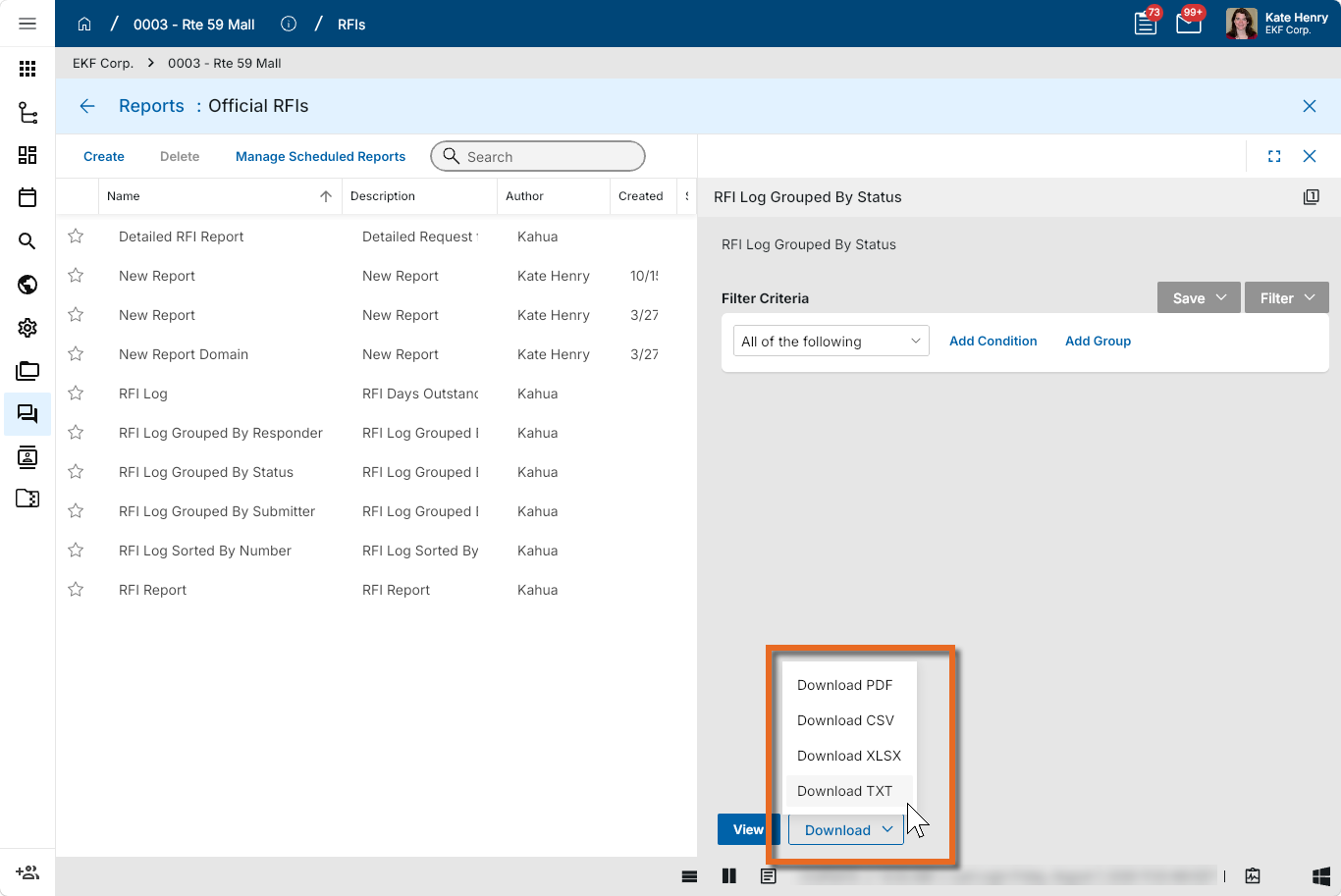
Select the report you want to run.
-
Apply any desired filters.
-
Select View or Download as appropriate. For more information, refer to Viewing Reports.
-
Click the Close icon
 when you are done.
Import existing records
If you have existing training register data that you want to import into the Training Register sub-app in Kahua, you can do so through the import process.
You will first generate an export of an existing record to access the correctly formatted spreadsheet file for the import. Once the exported file is available, add the appropriate values for the records you want to import to the exported spreadsheet. You can then import those records. For more detailed information on the importing process, refer to Importing records.
Perform standard actions on a single record (print, send, view history, delete, etc.)
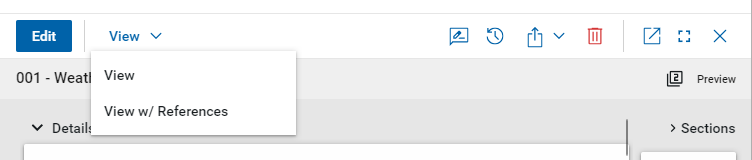
From the detail view of a record, there are several standard actions you can take. Depending on your permissions, some or all of the following options may be available to you:
-
View and View w/References - Select View or View w/References to open a PDF view of the current record. The PDF file can be printed or shared from the viewer by clicking on the Open PDF icon
 .
.
Note Only references where the Include on Send value is set to "Yes" are included in the View w/References.
Additionally, if Include Markup on Send is set to "Yes", any markups on the file are included. -
Discussions
 - Select this icon to open the Discussions panel. If enabled in your domain, the discussions feature allows you to participate in public or private conversations associated with specific records. For more information, refer to Discussions.
 -
View History
 - Select this icon to open the History page for the record. The history page provides details regarding all activity (creation, edits, saves, etc.) performed on the record. Click view edit to drill down into more detail on a specific action. Click hide edit to close the action detail. Click the Close icon
  to close the history page.
 -
Send actions
 - Click this icon to select an appropriate Send action for the record. The following options may be available to you:
-
Copy Link and Copy Portable View Link - Select this option to copy a URL link for the record or record's portable view to your clipboard. This link can be sent outside of Kahua. Users with the appropriate permissions will be able to open Kahua directly to that record or portable view by using the link.
-
Copy QR Code and Copy Portable View QR Code - Select this option to generate a QR code for the currently open record or record's portable view. The QR code can be shared directly from your screen, or copied to your clipboard to be shared as appropriate. This QR code can be shared outside of Kahua. Users with the appropriate permissions will be able to open Kahua directly to that record or portable view by using the link.
-
Send - Select this option to open a new Kahua message with the open record included as an attachment. References with the Include on Send value set to "Yes" are also included. For more information, refer to Messages app.
-
-
Delete
 - Select this option to delete the open record. You must agree to the confirmation message before the record is deleted.
Alternatively, right-click on the record in the log view and select Delete, or select multiple records from the log view and select Delete.
Note If a record is deleted in error, your domain administrator may be able to recover it through the Recycle Bin app. For more information, refer to Using the Recycle Bin.
-
Open in a new window
 - Select this option to open the current record as read-only in a new window (desktop host) or browser tab (web host). This allows you to navigate to other records in the original Kahua instance while keeping the read-only window or tab open for reference. To re-open the record on the read-only window or tab in Kahua, select Open in the header.
-
Maximize
 and Minimize
  - Select Maximize to open the record to a full screen view. From the full screen view, select Minimize
  to return to the original view.
 -
Close
- Select the close icon to close the currently open item.
Configure the app
Your domain administrator or another user with the appropriate permissions can configure the app in the Configuration application.
Important When working in the Configuration app, it is important to review the header and ensure that you are working at the correct level in the hierarchy, either the root domain or at a partition or project level.
Settings that you establish at the root domain or lower levels will inherit down the hierarchy until they are overridden. For more information on the hierarchical structure of Kahua, refer to Understanding the hierarchical structure of Kahua.
The Configuration app can be accessed directly through the apps list (Apps > Administration > Configuration), or, in some applications, by right-clicking on an application in the launch bar and selecting Configure. When you select Configure for an app from the launch bar, the detail view of the configuration page for that application opens automatically.
For general information on configuring this app in Configuration, refer to Application configuration.
Available application roles
Application roles determine which actions users can perform in the app. Roles are assigned to groups in the Groups app > Permissions tab. Members of the group then have the permissions associated with the roles assigned to the group.
The following roles are available for this application:
| Role | Details |
|---|---|
| Administrator |
Full administration, including add, configure, create lists, edit, import, export, share, view, send, process, remove, and edit view templates. |
| Contributor |
Can add, edit, open, view, send, and process records. |
| Moderator |
Can add, edit, import, export, remove, share, open, view, send, and process records. |
| Observer |
Can open, view, send, and process records. |
| Referencer |
View-only access to records. |
Note To manage these permissions, open the Groups app and assign the appropriate application role to the group. Only users with the appropriate permissions can manage application roles. For more information, refer to Managing Permissions.