Design Review
Notice Kahua is a very flexible and customizable platform. In your domain, this application may have been modified to meet your company's needs. The online help uses default field labels for field names and describes standard workflows. Please check with your domain administrator for specific information about working in your organization's domain.
The Design Review app allows you to select a set of drawing revisions and other documents from File Manager, create a review set, and have them go through a review process that gathers markups and comments and provides a review status for each document. You can then manage a release of approved documents.
Key elements of the Design Review app include the following:
-
You can process Drawing Revisions and other documents from controlled folders in File Manager into a Design Review set.
-
You can have up to four steps in a design review.
-
You can use Work Packages to automatically assign reviewers and distribution contacts to Design Review sets. Refer to Work Packages.
-
The built-in Design Review workflow automatically routes documents to the appropriate individuals based on a combination of Discipline (Architectural, Mechanical, etc.) and the type of documents (drawings, specifications, etc.) being reviewed.
-
The pre-configured, but editable, workflow automatically sends notifications to Design Review participants:
-
as their review is needed,
-
to remind them of an upcoming or overdue deadline, and
-
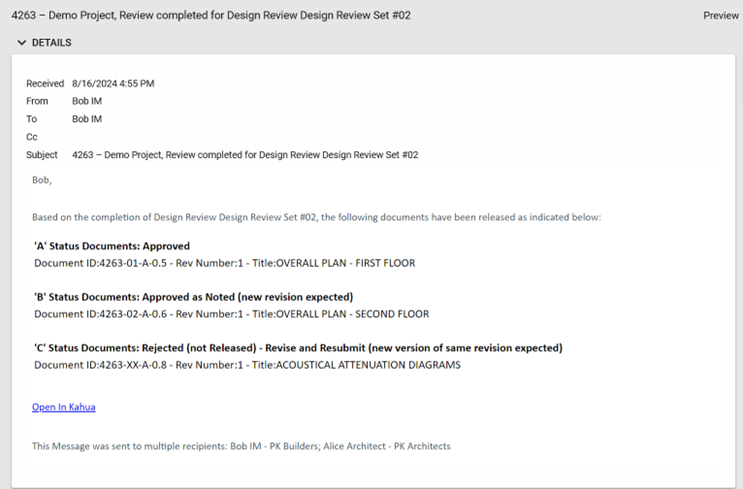
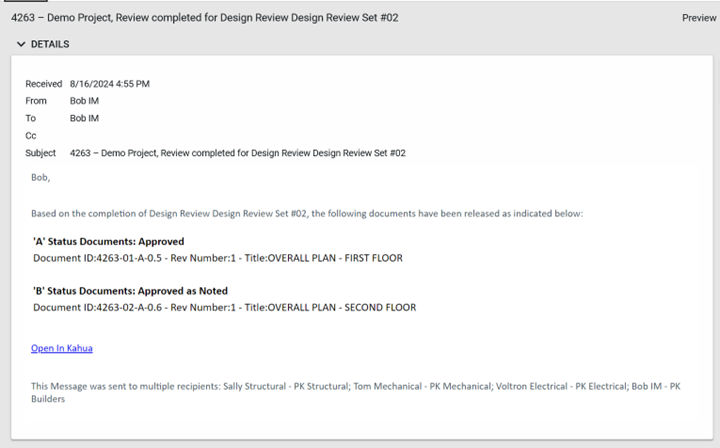
to announce completion of the Design Review, with details about the status of each document in the Design Review set
-
-
Reviews can be configured to auto-advance to the next step when the current step’s due date has been reached.
-
Markups can be extracted to generate document-specific comments, which can then be assigned out for action as Tasks. Ad hoc comments may also be created as necessary.
-
Comments can also be added for the entire Design Review set.
-
When the Design Review process is complete, all document revisions in the Design Review set are automatically “round-tripped” back to File Manager.
-
Release status (Approved, Rejected, etc.) and ball-in-court are updated in File Manager.
-
Approved documents are automatically Released and merged into the “Current Set”, and rejected documents are automatically returned to their authors with instructions to address outstanding issues and then resubmit.
-
markups/comments from the Design Review are merged back into File Manager
-
notifications automatically are generated based on associated Distributions, ensuring that everyone on the project team has the latest approved revision of a document
-
any previous ‘Current Set” revisions are automatically marked as superseded
-
How to . . .
 Process documents from a controlled folder into design review
Drawings and other documents that are to be reviewed are first added to controlled folders in File Manager. In the controlled folder, they are submitted for QA Check. Once they have a status of "QA Accepted", they can be processed into a design review set.
To process multiple drawings and documents into a design review set, complete the following steps:
-
Review the header to ensure that you are in the correct project or partition.
-
Navigate to the File Manager app (Apps > Document Management > File Manager).
-
Open the controlled folder that contains the appropriate files. Controlled folders are denoted by the controlled folder icon
 .
. -
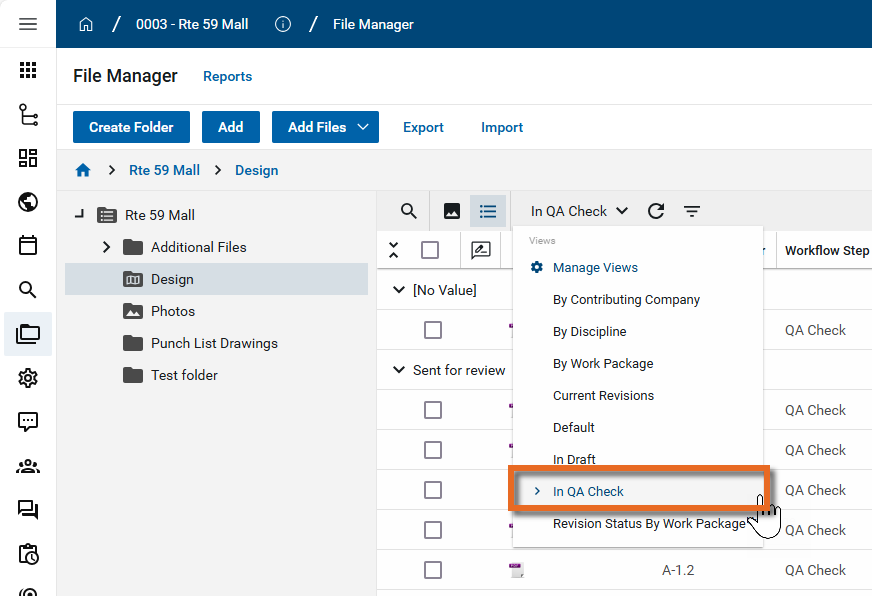
Select the "In QA Check" log view to see all the documents in the QA Check step.
-
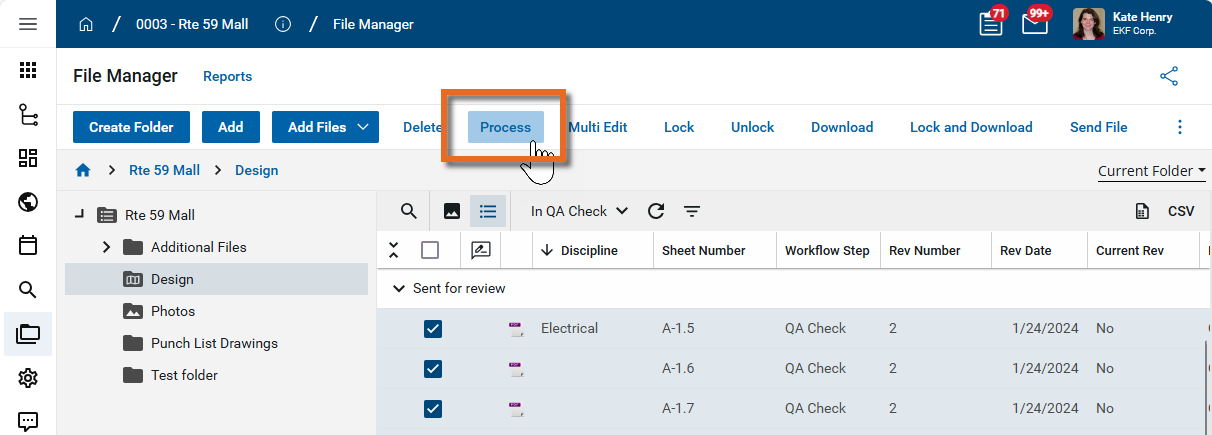
Select the "QA Accepted" documents you want to include in the Design Review set.
Note If you are using work packages, all the documents being processed into the design review set must be associated with the same work package. Use the By Work Package view to organize the list view by work package.
-
Select Process from the action bar.
-
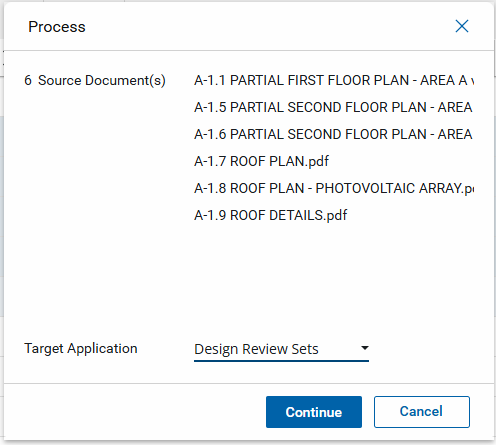
The Process dialog box will open, listing all the documents that will be included in the design review set. In the Target Application field, select "Design Review Sets".
-
Click Continue. The Design Review app opens to a new design review set.
-
Complete the following fields as appropriate:
Note Depending on how this app is configured for your domain, there may be fields or sections listed here that do not appear for you, fields and sections that appear for you which are not listed here, or fields and sections which appear in a different order. If you have any questions, check with your domain administrator.
Field Description Details Number Allow Kahua to auto-number the record, or enter a different value.
Note The number format can be configured by your domain administrator. Refer to Number.
Title Enter a title for the review set. Review Manager(s) Select one or more contacts as Review Managers.
Review Managers can complete the following actions:
-
Advance the design review workflow.
-
Remove comments or markups made by other reviewers.
-
Act as a reviewer during the workflow process (add comments or markups, apply recommended review status, etc.).
-
If enabled in configuration, add additional Preliminary, Primary, or Interim Reviewers. Refer to Allow Preliminary / Primary / Interim Reviewers to be added.
Reviewers Select the appropriate reviewers for each step. By default, the Preliminary Review, Primary Review, and Interim Review steps are optional. If the reviewer field for any of these steps is left blank, the workflow will automatically move to the next step with reviewers selected.
Reviewers can be defaulted from the work package associated with the processed files. For more information, refer to Work Packages.
Preliminary Reviewer(s) / Preliminary Review Duration / Preliminary Review Auto-Advance
Optionally select one or more reviewers for this step. All selected Preliminary Reviewers will be assigned a review task and be required to complete the review.
Enter the number of days allowed for this review step.
To have the review automatically advanced to the next step once the due date has passed, select Preliminary Review Auto-Advance. Do not select this option if you want to require the reviewers to manually approve the documents.
Primary Reviewer(s) / Primary Review Duration/ Primary Review Auto-Advance
Optionally select one or more reviewers for this step. All selected Primary Reviewers will be assigned a review task. Only one needs to complete the review to advance to the next step.
Enter the number of days allowed for this review step.
To have the review automatically advanced to the next step once the due date has passed, select Primary Review Auto-Advance. Do not select this option if you want to require one of the primary reviewers to manually approve the documents.
Interim Reviewer(s) / Interim Review Duration / Interim Review Auto-Advance
Optionally select one or more reviewers for this step. All selected Interim Reviewers will be assigned a review task. Only one needs to complete the review to advance to the next step.
Enter the number of days allowed for this review step.
To have the review automatically advanced to the next step once the due date has passed, select Interim Review Auto-Advance. Do not select this option if you want to require one of the interim reviewers to manually approve the documents.
Final Reviewers / Final Days to Review
Select one reviewer for this step. By default, this step is required.
Enter the number of days allowed for this review step.
Comment Reviewers Select one or more contacts as Comment Reviewers. Comment Reviewers are defaulted as the responsible party or parties on newly created comments in the design review set.
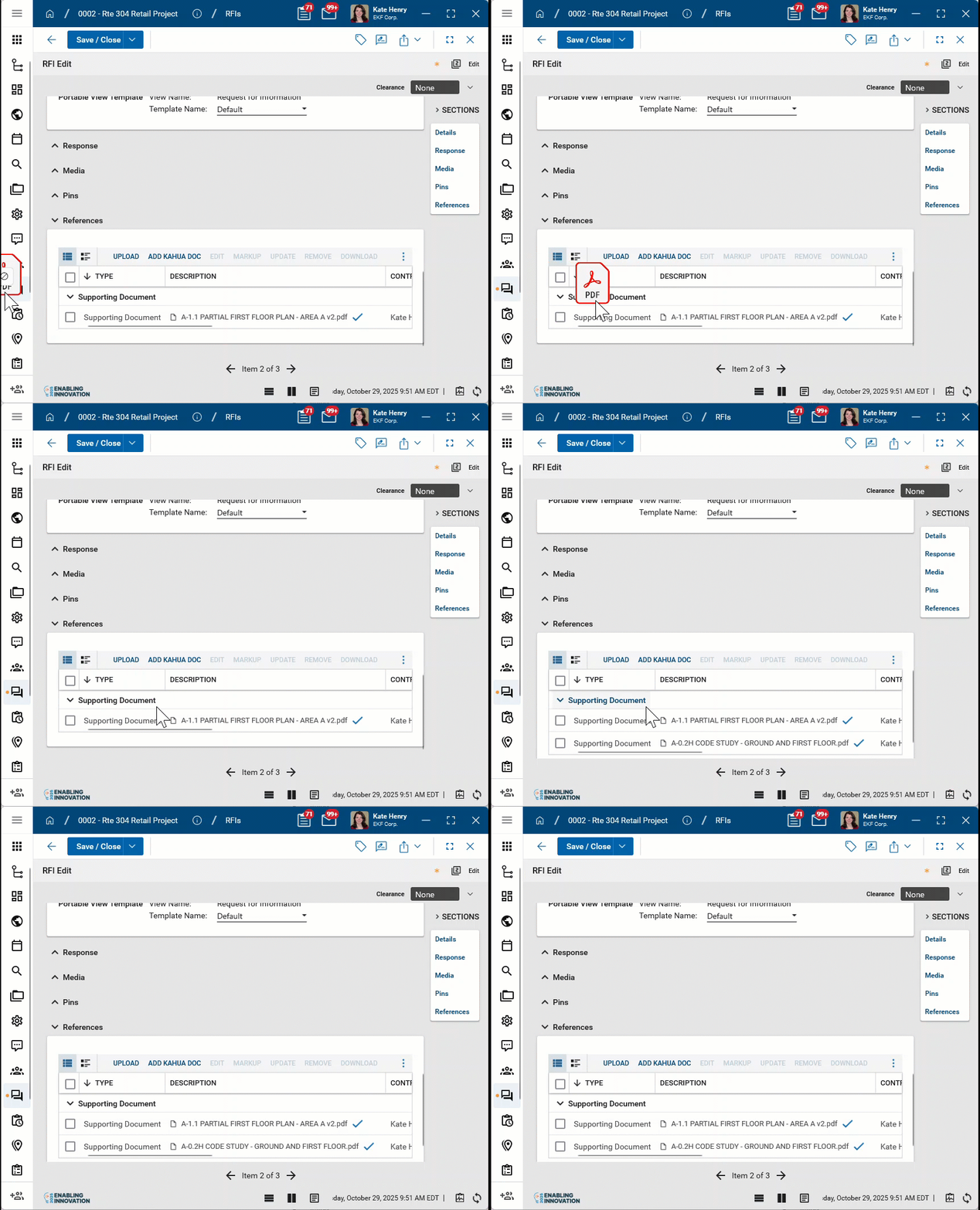
Notifications Distribution Notifications Client Notifications Files For Review The files selected for this design review set are listed here. References Upload or select any relevant files or documents. You can use drag and drop to add a file to this section. For more information on using this section, refer to References section.
-
-
Click Save when you are done. Kahua will process the files.
Submit documents for design review
When the processing of files from the controlled folder to design review is complete, the design review set detail view appears.
To begin the review process, click Submit For Review in the action bar.
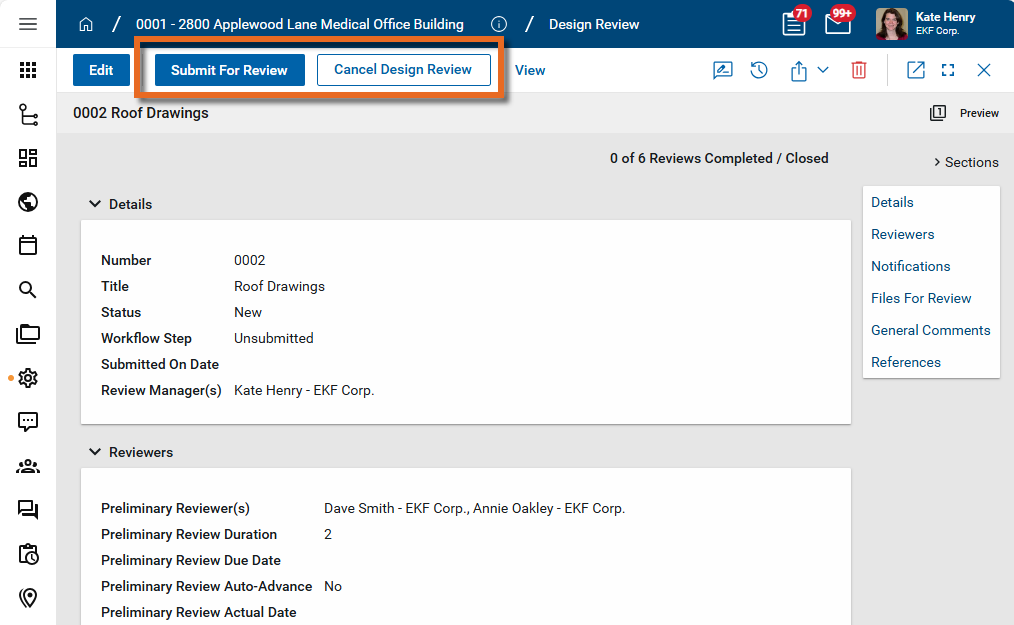
To close the design review set without completing the design review, select Cancel Design Review. If you need to add or remove drawings from the design review set, cancel it and return to File Manager to create a new design review set.
Understand Review Statuses
Note Review status settings can be modified in configuration. Refer to Review Statuses (for Files).
By default, the following review statuses are available for selection by reviewers:
A - Approved - This selection follows the business rule "A) Release and make Current - New Revision Permitted". When this status is selected and the review is completed, the document is released to the current set in File Manager.
B - Approved as Noted - This selection follows the business rule "B) Release and make Current - New Revision Expected". When this status is selected and the review is completed, the document is released to the current set in File Manager and the Contributor Contact receives a notification to resubmit a new revision.
C - Revise and Resubmit - This selection follows the business rule "C) Rejected - Do not make Current - New Version Expected". When this status is selected and the review is completed, the document is not released to the current set in File Manager and the Contributor Contact receives a notification to revise and resubmit a new version of the document.
Not Applicable - This selection follows the business rule "A) Release and make Current - New Revision Permitted". When this status is selected and the review is completed, the document is released to the current set in File Manager.
No Comment - This selection follows the business rule "A) Release and make Current - New Revision Permitted". When this status is selected and the review is completed, the document is released to the current set in File Manager.
Complete the preliminary review
Multiple reviewers can be assigned to the preliminary review. Each preliminary reviewer will receive a task to complete the preliminary review. All preliminary reviewers must complete the review for the design review set to move to the next step if auto-advance is not selected.
Note If Preliminary Review Auto-Advance is selected on the design review set, the set will automatically advance to the next step at the end of the Preliminary Review Duration period, at the time selected in the Auto-Advance End of Day setting in configuration.
To complete the preliminary review, complete the following steps:
-
From the Tasks app, select and open the task. For more information on working with tasks, refer to Tasks App.
-
Read-only information appears in the Details section, including the following fields:
-
Number
-
Title
-
Status
-
Review Manager(s)
-
-
The Reviewers section lists the reviewers assigned to each step of the design review process.
-
The files included in the design review set appear in the Files for Review section. The files appear in an Items grid. For detailed information on working with the items grid, refer to Item grids.
-
To view a file, download it, or add markups, click the More icon
 next to the file name and select View, Download, or Markup. For more information on the markup tool, refer to Using the Markup Tool.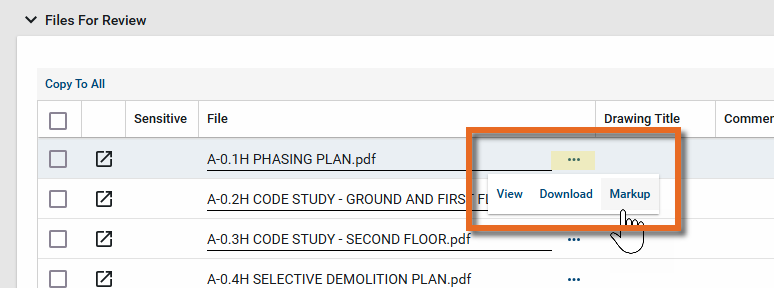
-
Click the View Details icon
 to open a more detailed view of the file record.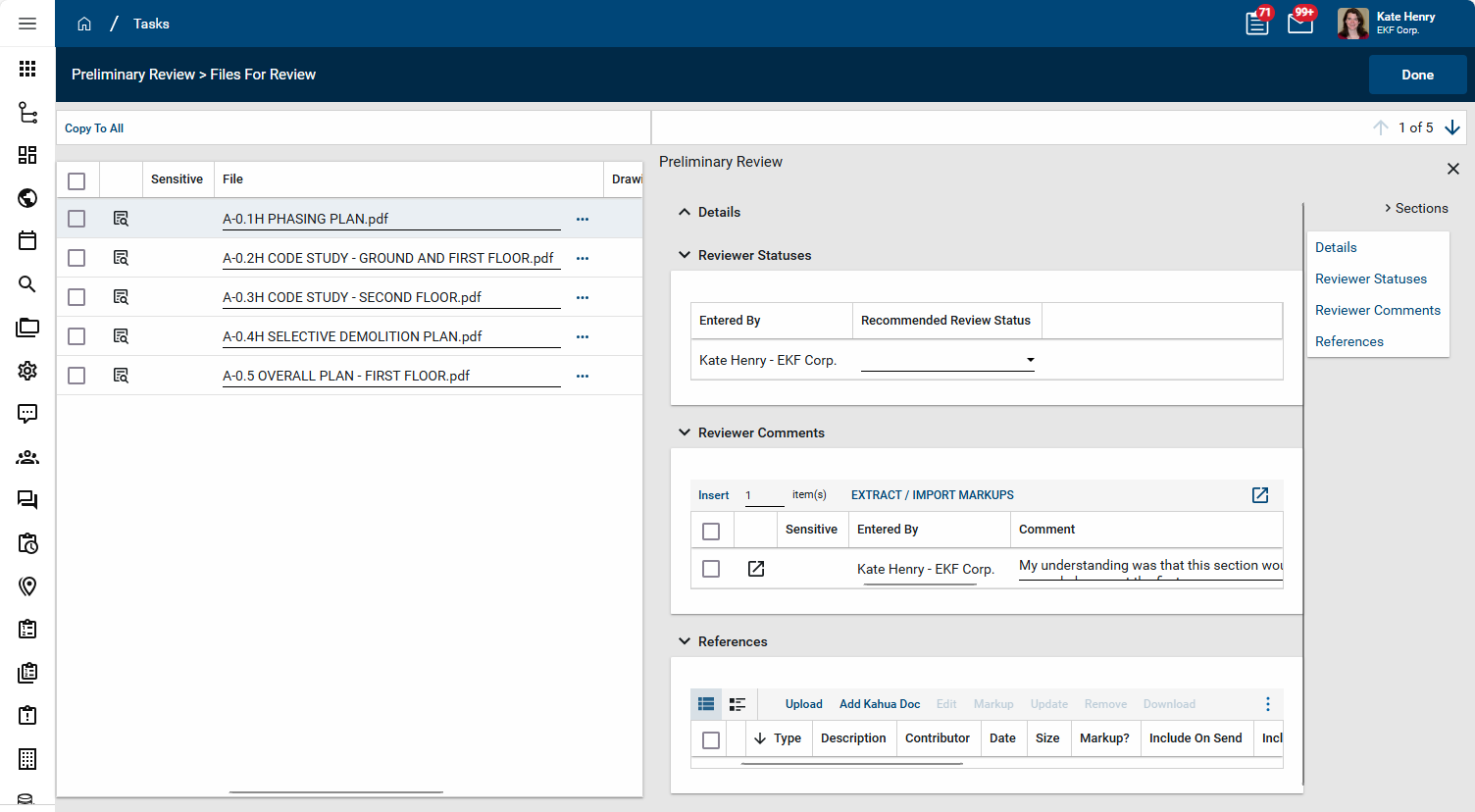
-
The detailed view includes the following sections:
-
Details - This read-only section includes the Document ID, Drawing Title, Discipline, Type, and File Name.
-
Reviewer Statuses - The statuses assigned by all the reviewers appears here. You can select the review status for this file for your review here, or from the main page for the design review set.
-
Reviewer Comments - Reviewer comments appear here.
-
To manually add a new comment, select Insert in the grid and add a comment.
-
If Auto-Extract Markups as Comments is selected for this project in configuration for Design Review Sets, markup comments automatically appear here when the markup is initially saved.
-
To manually extract comments or update edited markup comments, select Extract / Import Markups.
Note In the Preliminary review, selecting Extract Comments from Markups will only extract comments from your own markups.
-
To view and enter more detailed information related to the comment, click the View Details icon
. -
You can assign a responsible contact to a comment. The comment will appear in the Design Review > Review Comments sub-application where it can be acted on by the responsible contact. Refer to Design Review Comments.
-
-
References - If appropriate, add reference files here. For more information, refer to References section.
-
-
Click Done in the upper-right corner to close the detailed view and return to the main page for the design review set.
-
To assign a Recommended Review Status, complete one of the following actions:
-
To update each file one at a time, select a status for each file.
-
To update all files at once, select a status for one file, then select Copy to All. That status will be assigned to all files in the design review set.
-
To update some files, select a status on one line. Select the check box next to the files you want to receive the same status, and select Copy to Selected.
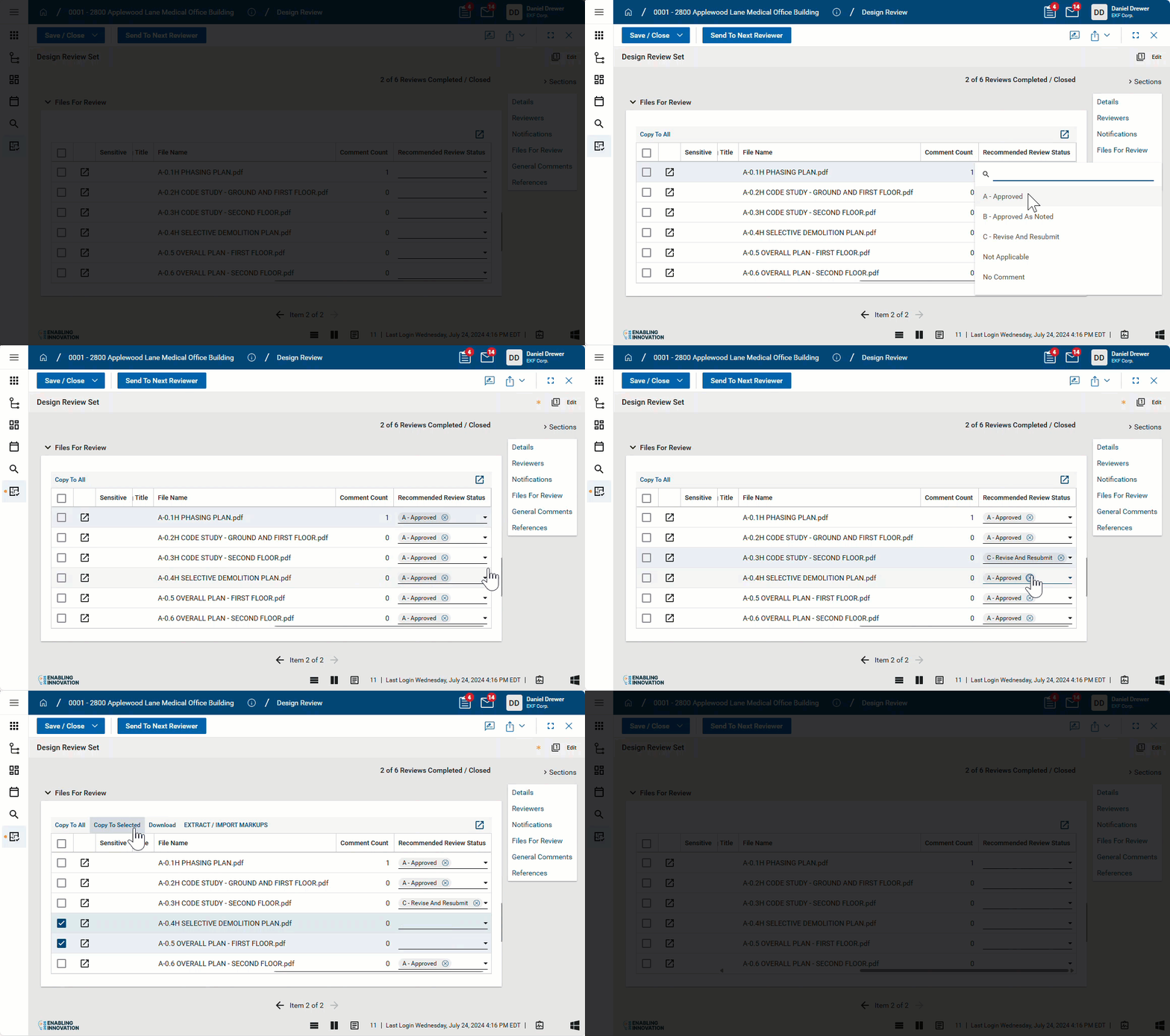
Note You can combine these functions. For example, you could select "A - Approved" and click Copy to All to apply the status to all the files, then select "B - Approved as Noted" for one of the files, and select the check box for additional files and click Copy to Selected to update those selected files.
-
-
In the General Comments section, click Insert to add a line and enter a comment for the entire design review set. Select Is Critical if appropriate.
You can assign a responsible contact to a general comment. The comment will appear in the Design Review > Review Comments sub-application where it can be acted on by the responsible contact. Refer to Design Review Comments.
-
In the References section, upload or select reference files as appropriate. For more information, refer to Navigating Apps.
-
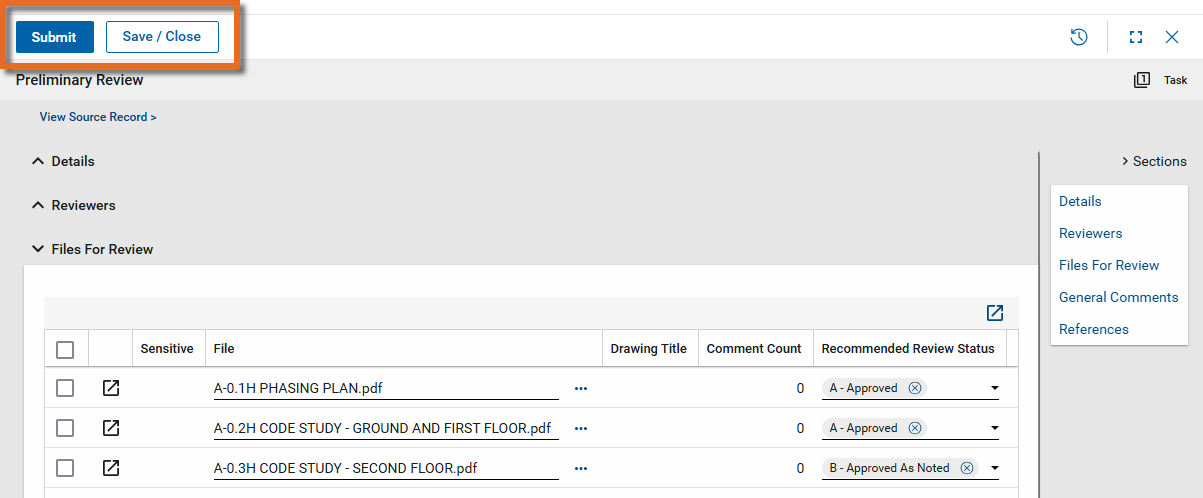
To save your work before completing your review, click Save in the action bar. To complete your review, click Submit.
-
When all Preliminary Reviewers have completed their review tasks, the design review set will move to the next review step.
Complete the primary or interim review
Multiple reviewers can be assigned to the primary or interim reviews. Each reviewer receives a task to complete the review. The first reviewer in each step who completes the review advances it to the next step.
In other words, when the first primary reviewer completes their review, the design review set advances to the interim review step, or if no interim reviewers were selected, to the final review step. Multiple users can be assigned to the primary review step, but it advances when the first primary reviewer completes their review.
Similarly, when the first interim reviewer completes their review, the design review set advances to the final review step. Multiple users can be assigned to the interim review step, but it advances when the first interim reviewer completes their review.
Note If Auto-Advance for the Primary or Interim review step is selected on the design review set, the set will automatically advance to the next step at the end of the Review Duration period, at the time selected in the Auto-Advance End of Day setting in configuration.
Note If desired, reviewers can select End Preliminary Review or End Primary Review to move the review process into the next step.
To complete the primary or interim review, complete the following steps:
-
From the Tasks app, select and open the task. For more information on working with tasks, refer to Tasks App.
-
Select View Source Record to open the design review set in the Design Review app.
-
Read-only information appears in the Details section, including the Number, Title, Status, and Review Manager(s).
-
The Reviewers section lists the reviewers assigned to each step of the design review process.
-
The files included in the design review set appear in the Files for Review section. The files appear in an items grid. For detailed information on working with the items grid, refer to Item grids.
-
To view a file, download it, or add markups, click the More icon
next to the file name and select View, Download, or Markup. For more information on the markup tool, refer to Using the Markup Tool.
-
Click the View Details icon
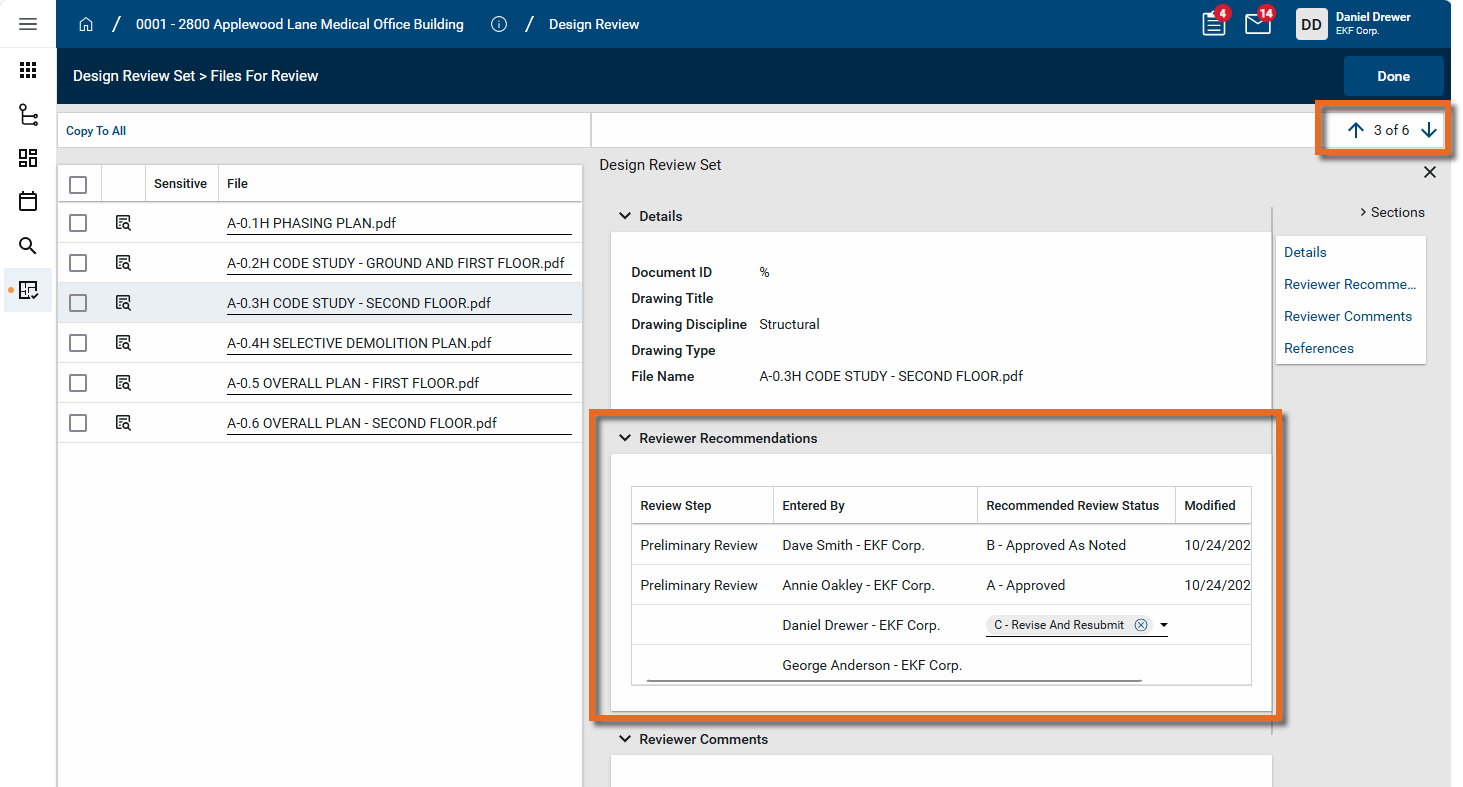
to open a more detailed view of the file record. The detailed view includes the Recommended Review Status selections from the previous reviewers. -
The detailed view includes the following sections:
-
Details - This read-only section includes the Document ID, Drawing Title, Discipline, Type, and File Name.
-
Reviewer Recommendations - The statuses assigned by all the reviewers appears here. You can select the review status for this file for your review here, or from the main page for the design review set.
-
Reviewer Comments - Reviewer comments appear here.
-
To manually add a new comment, select Insert in the grid and add a comment.
-
If Auto-Extract Markups as Comments is selected for this project in configuration for Design Review Sets, markup comments automatically appear here when the markup is initially saved.
-
To manually extract comments or update edited markup comments, select Extract / Import Markups.
-
To view and enter more detailed information related to the comment, click the View Details icon
. -
You can assign a responsible contact to a comment. The comment will appear in the Design Review > Review Comments sub-application where it can be acted on by the responsible contact. Refer to Design Review Comments.
-
-
References - If appropriate, add reference files here. For more information, refer to References section.
-
-
Use the arrow icons in the upper right corner to navigate through the file list.
-
Click Done in the upper-right corner to close the detailed view and return to the main page for the design review set.
-
To assign a Recommended Review Status, complete one of the following actions:
-
To update each file one at a time, select a status for each file.
-
To update all files at once, select a status for one file, then select Copy to All. That status will be assigned to all files in the design review set.
-
To update some files, select a status on one line. Select the check box next to the files you want to receive the same status, and select Copy to Selected.
Note You can combine these functions. For example, you could select "A - Approved" and click Copy to All to apply the status to all the files, then select "B - Approved as Noted" for one of the files, and select the check box for additional files and click Copy to Selected to update those selected files.
-
-
In the General Comments section, click Insert to add a line and enter a comment for the entire design review set. Select Is Critical if appropriate.
You can assign a responsible contact to a general comment. The comment will appear in the Design Review > Review Comments sub-application where it can be acted on by the responsible contact. Refer to Design Review Comments.
-
In the References section, upload or select reference files as appropriate. For more information, refer to Navigating Apps.
-
To save your work before completing your review, select Save in the action bar.
-
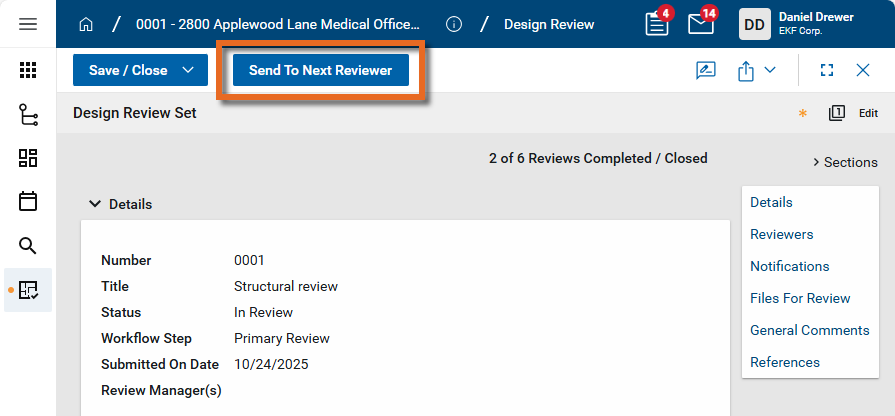
To complete the primary review, select Send to Next Reviewer. If interim reviewers are assigned to the design review set, it will be forwarded to them. If not, it will be forwarded to the selected final reviewers.
-
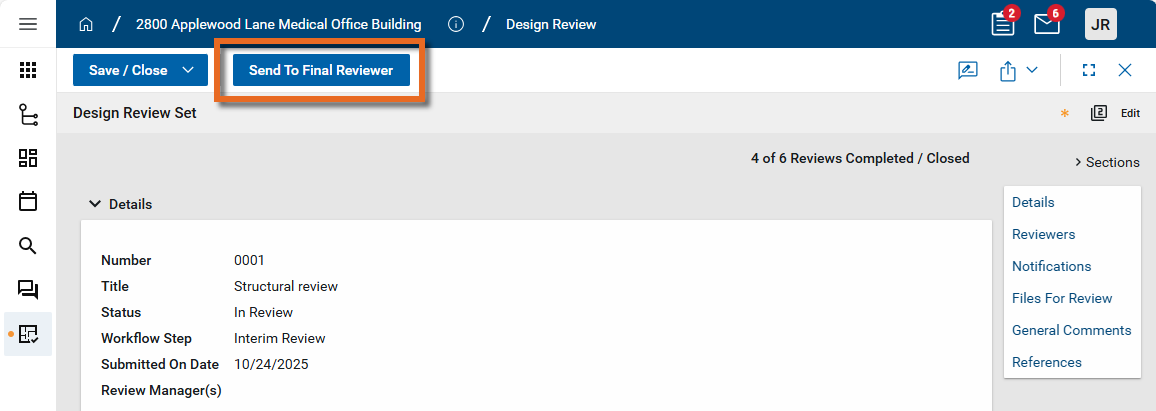
To complete the interim review, select Send to Final Reviewer. A task will be sent to the selected final reviewers.
Complete the final review
Only one user can be assigned as the final reviewer.
Note If desired, the final reviewer can select End Interim Review to move the review process into the Final Review.
To complete the final review, complete the following steps:
-
From the Tasks app, select and open the task. For more information on working with tasks, refer to Tasks App.
-
Select View Source Record to open the design review set in the Design Review app.
-
Read-only information appears in the Details section, including the Number, Title, Status, Workflow Step, Submitted On Date, and Review Manager(s).
-
The Reviewers section lists the reviewers assigned to each step of the design review process.
-
The Notifications section lists the contacts who will receive Distribution Notifications and Client Notifications. Modify these values as needed.
-
The files included in the design review set appear in the Files for Review section. The files appear in an items grid. For detailed information on working with the items grid, refer to Item grids.
-
To view a file, download it, or add markups, click the More icon
next to the file name and select View, Download, or Markup. For more information on the markup tool, refer to Using the Markup Tool.
-
Click the View Details icon
to open a more detailed view of the file record. The detailed view includes Reviewer Comments and the Reviewer Recommendations from the previous reviewers. If the detail panel does not appear initially, click the View Details
 icon for the line item.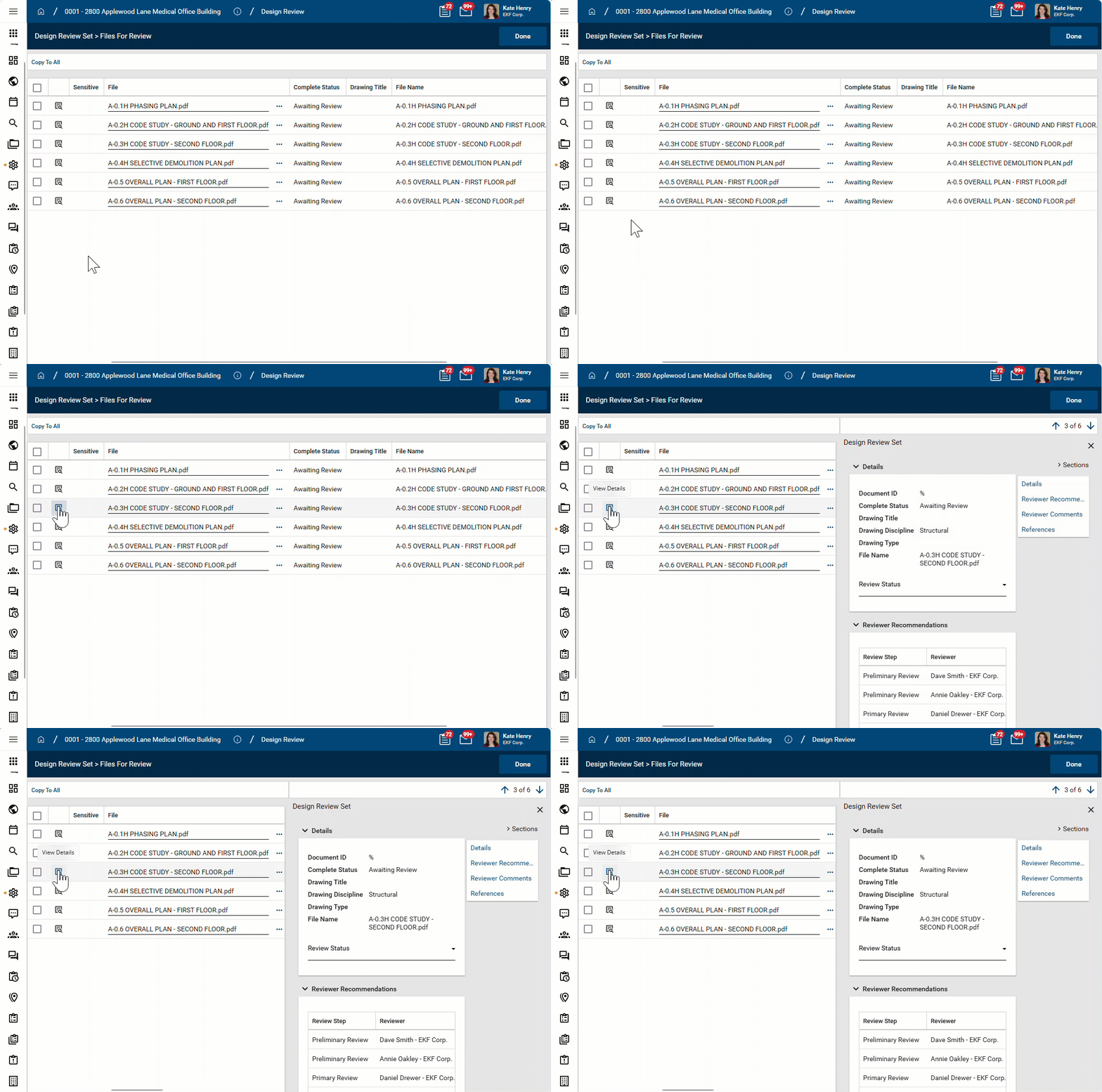
-
The detailed view includes the following sections:
-
Details - This read-only section includes the Document ID, Drawing Title, Discipline, Type, and File Name.
-
Reviewer Recommendations - The statuses assigned by all the reviewers appears here. You can select the review status for this file for your review here, or from the main page for the design review set.
-
Reviewer Comments - Reviewer comments appear here.
-
To manually add a new comment, select Insert in the grid and add a comment.
-
If Auto-Extract Markups as Comments is selected for this project in configuration for Design Review Sets, markup comments automatically appear here when the markup is initially saved.
-
To manually extract comments or update edited markup comments, select Extract / Import Markups.
-
To view and enter more detailed information related to the comment, click the View Details icon
. -
You can assign a responsible contact to a comment. The comment will appear in the Design Review > Review Comments sub-application where it can be acted on by the responsible contact. Refer to Design Review Comments.
-
-
References - If appropriate, add reference files here. For more information, refer to References section.
-
-
Use the arrow icons in the upper right corner to navigate through the file list.
-
Click Done in the upper-right corner to close the detailed view and return to the main page for the design review set.
-
To assign a Review Status, complete one of the following actions:
-
To update each file one at a time, select a status for each file.
-
To update all files at once, select a status for one file, then select Copy to All. That status will be assigned to all files in the design review set.
-
To update some files, select a status on one line. Select the check box next to the files you want to receive the same status, and select Copy to Selected.
Note You can combine these functions. For example, you could select "A - Approved" and click Copy to All to apply the status to all the files, then select "B - Approved as Noted" for one of the files, and select the check box for additional files and click Copy to Selected to update those selected files.
-
-
In the General Comments section, click Insert to add a line and enter a comment for the entire design review set. Select Is Critical if appropriate.
You can assign a responsible contact to a general comment. The comment will appear in the Design Review > Review Comments sub-application where it can be acted on by the responsible contact. Refer to Design Review Comments.
-
In the References section, upload or select reference files as appropriate. For more information, refer to Navigating Apps.
-
To save your work before completing your review, select Save in the action bar.
-
To complete the final review, select Complete Review.
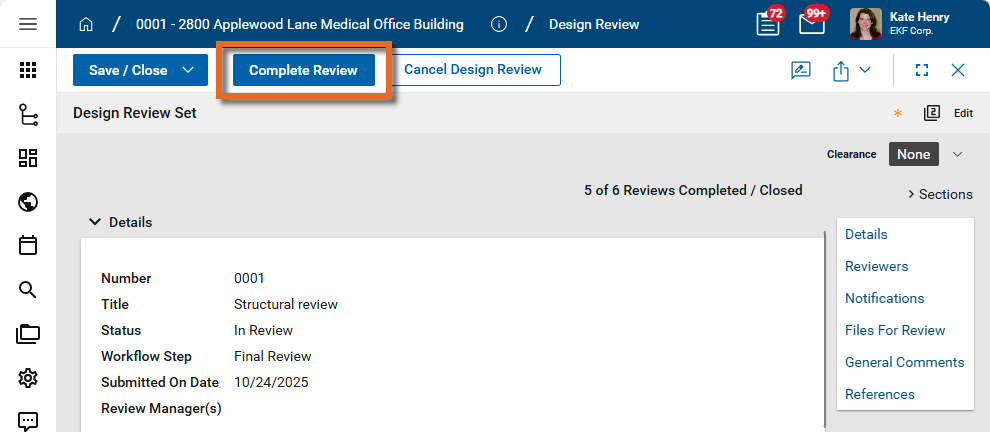
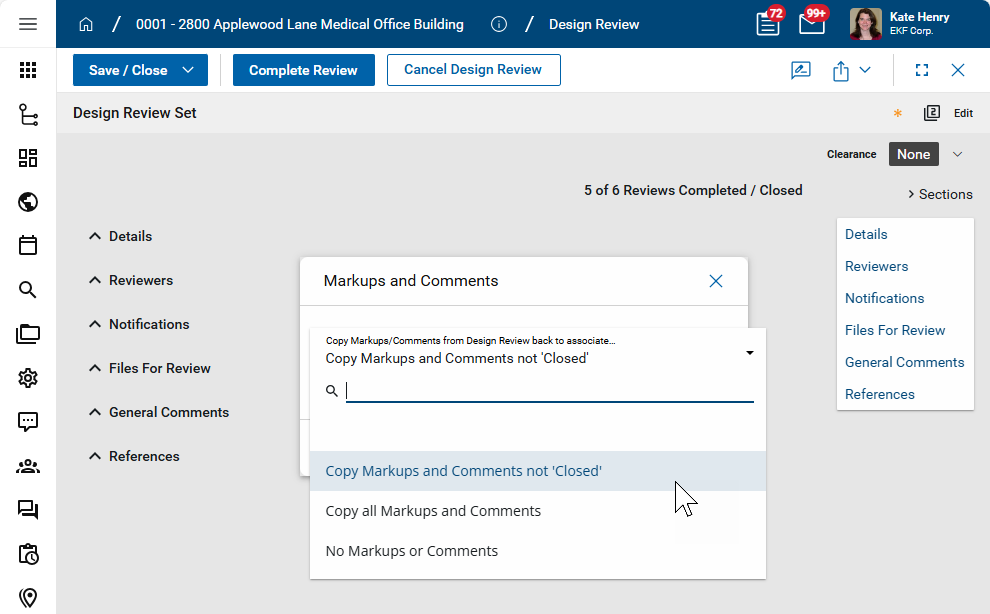
On the Markups and Comments dialog that follows, select one of the following options and click Continue:
-
Copy Markups and Comments not 'Closed' - Markups and comments from the design review that are not marked as Closed will appear on the file in File Manager.
-
Copy all Markups and Comments - All markups and comments from the design review will appear on the file in File Manager.
-
No Markups or Comments - No markups or comments from the design review will appear on the file in File Manager.
-
-
A list of the files that are part of the design review set appears. Click Continue to complete the review. Click Close on the confirmation.
The files appear in File Manager with their review statuses. If the document requires re-submission, the Workflow Step is returned to "Draft". Files that were approved have a Workflow Step of "Complete" and the files are released and part of the current set.
Generate a log report or other reports
You can generate a report from a selected log view, or use one of the built-in reports available by default in each application. For more information on creating your own reports, including how to set up scheduled reports, refer to Creating ad hoc reports.
Note For information on modifying the logo that appears on reports in your project, refer to Managing report logos.
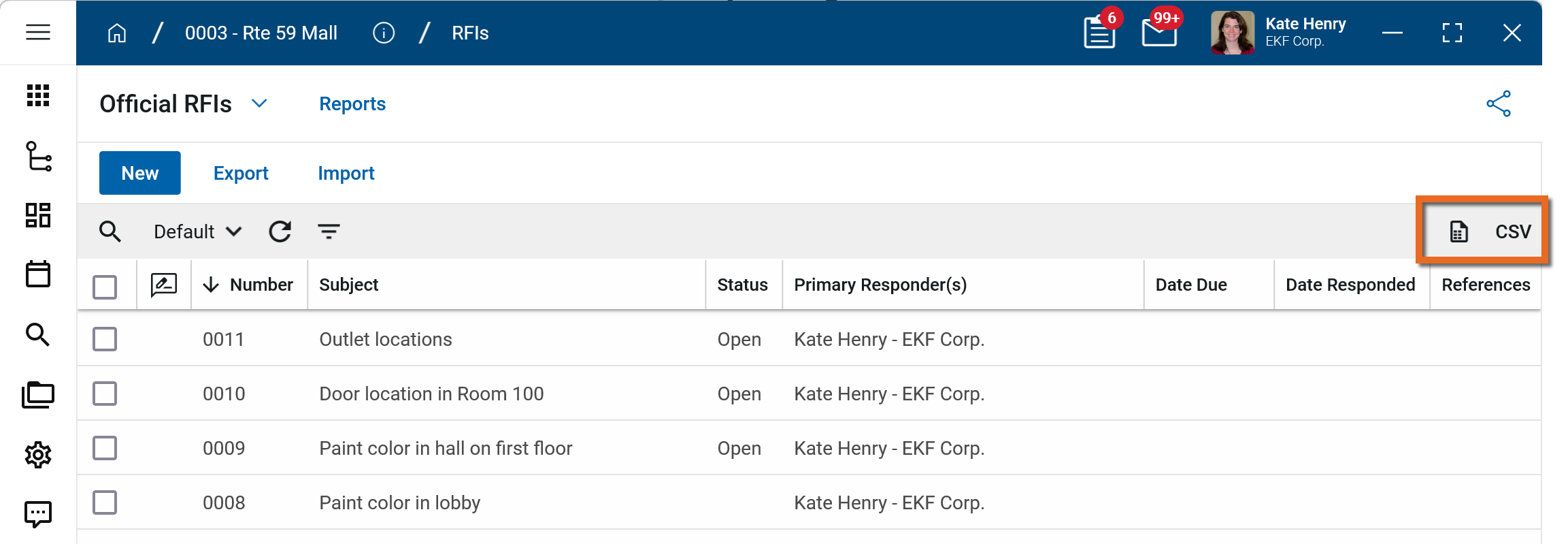
To generate a report from a log view with up to 10,000 records, click the More icon  and select Print. If your log view contains more than 10,000 records, the Print option will be disabled and you can select
  to download the records to a CSV file instead.
To generate an application report, complete the following steps:
-
Navigate to the application.
-
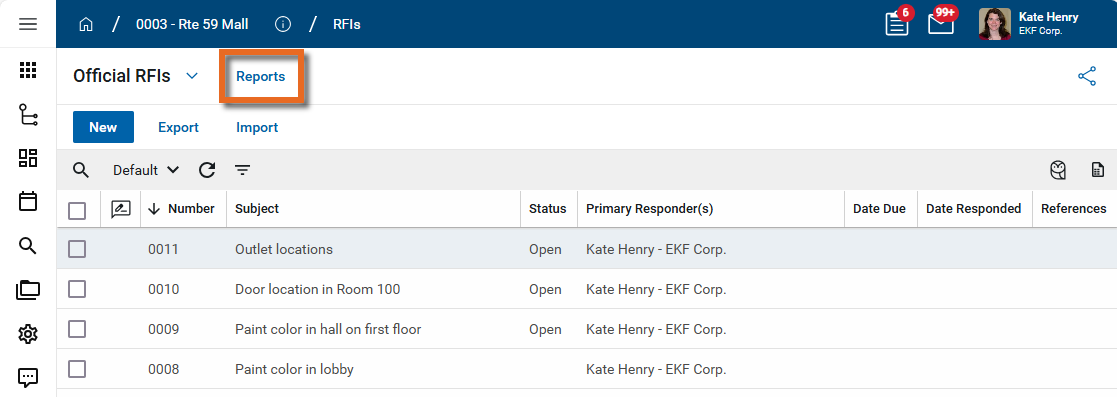
Select Reports in the application title bar.
-
Select the report you want to run.
-
Apply any desired filters.
-
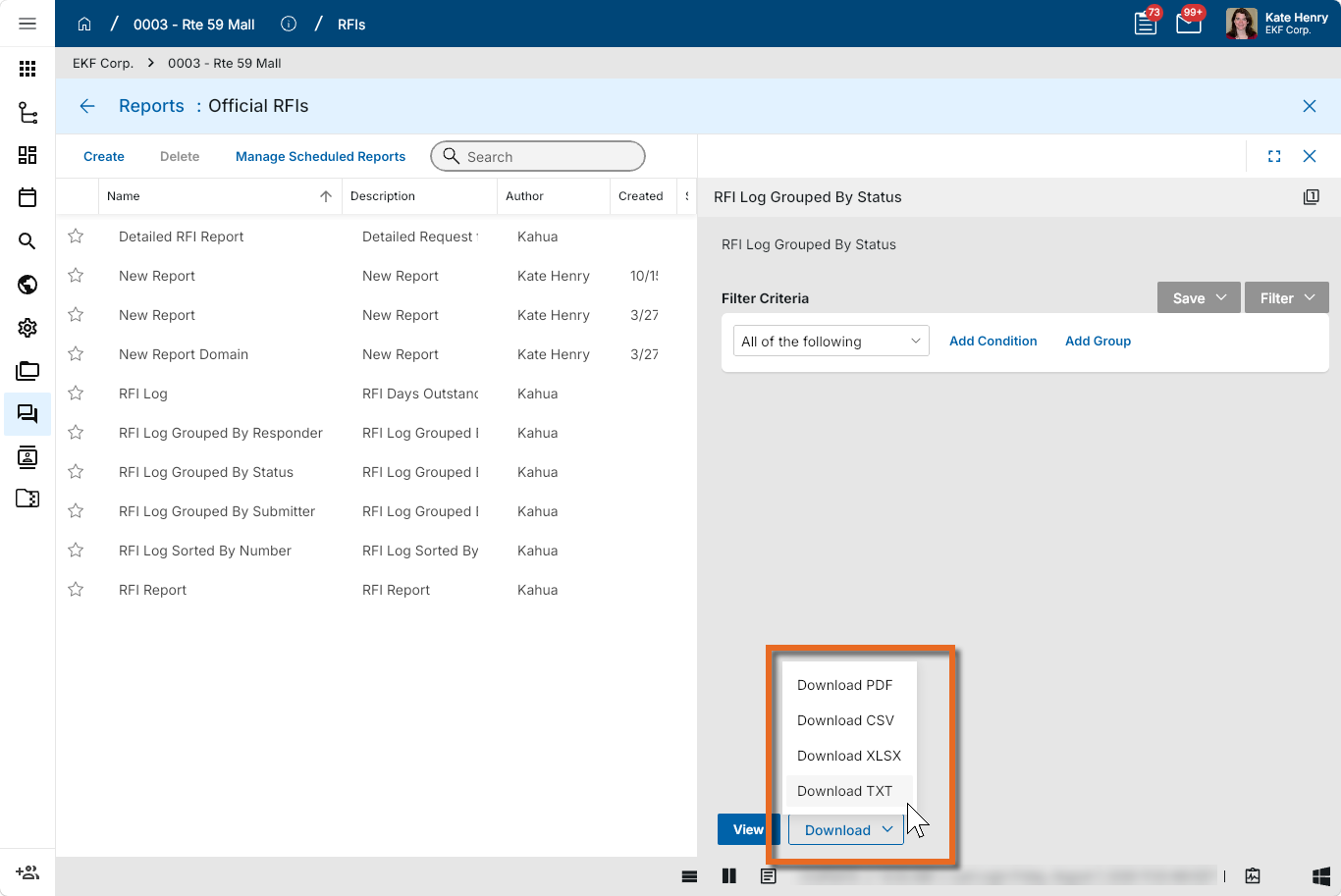
Select View or Download as appropriate. For more information, refer to Viewing Reports.
-
Click the Close icon
 when you are done.
Configure the app
Your domain administrator or another user with the appropriate permissions can configure the app in the Configuration application.
Important When working in the Configuration app, it is important to review the header and ensure that you are working at the correct level in the hierarchy, either the root domain or at a partition or project level.
Settings that you establish at the root domain or lower levels will inherit down the hierarchy until they are overridden. For more information on the hierarchical structure of Kahua, refer to Understanding the hierarchical structure of Kahua.
The Configuration app can be accessed directly through the apps list (Apps > Administration > Configuration), or, in some applications, by right-clicking on an application in the launch bar and selecting Configure. When you select Configure for an app from the launch bar, the detail view of the configuration page for that application opens automatically.
For general information on configuring this app in Configuration, refer to Application configuration.
The following items are specific to this application:
| Options | Description |
|---|---|
| Defaults tab | |
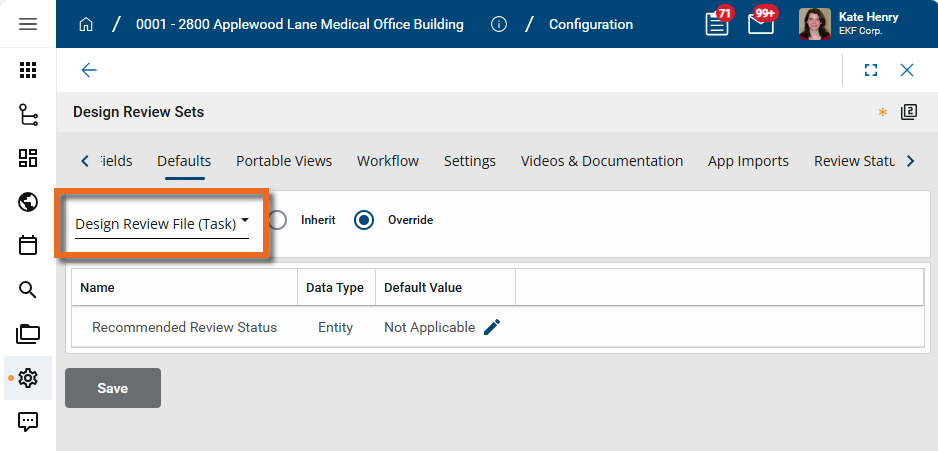
| Recommended Review Status |
A default value can be selected for the Design Review task. If reviewers frequently are not required to review all files in a design review set, you can select "Not Applicable" or "No Comment" as the default value, allowing reviewers to only modify the Recommended Review Status for files they have reviewed. In the drop-down list, select Design Review File (Task) to make this selection.
|
| Fields | |
| Note that if desired, the References sections on Design Review Sets, Files for Review, and Design Review Comments can be removed by clearing the Is Visible column for these fields. | |
| Settings tab | |
| Design Review Calendar |
This setting determines which calendar is used in the calculation of due dates. For more information, refer to Work Days. Select one of the following options:
|
| Comments Import Settings |
Select one of the following options:
|
| Enable NEW Action |
Select this option to allow a new Design Review set to be created directly in the Design Review app. Note It’s recommended that you do not select this option if you normally create Design Review Sets by processing documents from Controlled Folders in File Manager. |
| Enable Partial Complete |
Select this option to allow users to partially complete a Design Review Set. This will enable the Final Review to release a subset of documents while other documents are still in review. |
| Behavior for Completing a Design Review Set with Open Comments |
Select one of the following options to control the what happens when a Design Review Set with open comments is completed:
|
| Allow Preliminary / Primary / Interim Reviewers to be added |
As appropriate, select this option to allow additional reviewers to be added for the selected review step when that review step is not yet completed. Note Adding additional reviewers will not change pre-established due dates. Added Reviewers will be sent the same notifications and tasks as the original reviewers. |
| Auto-Extract Markups as Comments |
Select this option to have markups automatically extracted as comments associated with the file. When markups are saved on a file, all applicable markups are automatically extracted. You must then save the Design Review set to save the extracted comments. Important The auto-extract function only applies when the markup is originally saved to the document. If the markup text is subsequently modified, you must select Extract/Import Markups in the Reviewer Comments section to update the extracted text. |
| Auto-Advance End of Day |
This setting determines the time of day that a design review set is auto-advanced to the next step. By default, this value is set to 5pm, but it can be modified. The due time is based on the time zone set for the domain in Domain Settings > Domain Defaults > Defaults. When viewed in the Design Review app, the due time is converted to your time zone, as selected in My Settings > General tab > Timezone. Note This setting is applied to design review sets created after the 2025.4 release was deployed, when the setting was introduced. |
| Review Statuses (for Files) | |
| Use this section to configure the Recommended Review / Review Status fields to match the needs of your organization.
You can enable or disable existing items. To add a new Review Status, select Insert in the grid. Note Once a Review Status is created, it cannot be deleted. It can, however, be modified or disabled. |
|
| Enabled |
Select or clear this field to enable or disable this status. Note Once a review status is created, it cannot be deleted but it can be disabled or modified. |
| Sort Order | Enter appropriate values to modify the sort order of the review statuses. |
| Review Status Label |
Enter or modify the label for the review status. The label can be modified to match your organization's preferred terminology. This label will appear for selection in the Review Status field. |
| Review Status Rule for Revisions / Versions |
Select from the option that reflects the appropriate business logic for the review status:
For information on versions vs revisions, refer to Understanding Versions vs Revisions in Controlled Folders. |
| Inc in Release Msg |
Select this option to include this status in release messages. Typically, release messages include all Review Statuses. Release messages are sent to all reviewers, the identified information manager, and contributing contact in the identified work package on your files for review. This message is sent out at the completion of the review. |
| Release Msg Label |
Enter the label to use for this status in release messages. You may want to include additional explanatory text on the release message label. Release messages are sent to all reviewers, the identified information manager, and contributing contact in the identified work package on your files for review. This message is sent out at the completion of the review.
|
| Inc in Dist Msg |
Select this option to include this status in distribution messages. Typically, Distribution Messages include Review Statuses where the file for review is marked as the "Current Revision". Distribution Messages are sent to contacts identified for Distribution and Client notifications. This message is sent out at the completion of the review. |
| Dist Msg Label |
Enter the label to use for this status in distribution messages. You may want to include additional explanatory text on the distribution message label. Distribution Messages are sent to contacts identified for Distribution and Client notifications. This message is sent out at the completion of the review.
|
 Available application roles
Application roles determine which actions users can perform in the app. Roles are assigned to groups in the Groups app > Permissions tab. Members of the group then have the permissions associated with the roles assigned to the group.
The following roles are available for this application:
| Role | Details |
|---|---|
| Administrator |
Full administration, including add, configure, create lists, edit, import, export, share, view, send, process, remove, and edit view templates. |
| Contributor |
Can add, edit, open, view, send, and process records. |
| Moderator |
Can add, edit, import, export, remove, share, open, view, send, and process records. |
| Observer |
Can open, view, send, and process records. |
| Referencer |
View-only access to records. |
Note To manage these permissions, open the Groups app and assign the appropriate application role to the group. Only users with the appropriate permissions can manage application roles. For more information, refer to Managing Permissions.