RFIs (Request for Information)
Notice Kahua is a very flexible and customizable platform. In your domain, this application may have been modified to meet your company's needs. The online help uses default field labels for field names and describes standard workflows. Please check with your domain administrator for specific information about working in your organization's domain.
The RFI (Requests for Information) process is a formal way to ask questions of a general contractor, design team, or owner's representative in order to obtain additional information, clarification, or guidance related to construction documents or field conditions on a construction project or program.
The RFI app allows you to create RFIs and submit them for review by the appropriate responders.
Key elements of the RFIs app are as follows:
-
Your domain administrator can configure your RFIs app to use Kahua workflow on your project or domain. With the standard Kahua RFI Workflow enabled, RFIs can be created and sent to a Primary Responder and optionally to Secondary Responders. Secondary Responders submit their responses to the Primary Responder.
With the Kahua RFI Workflow with Owner enabled, you can include an Owner's Representative on the RFI, and submit the RFI to them for review and distribution.
-
When your RFIs app is configured to use Kahua workflow, your domain administrator can additionally enable the Assign to Coordinator function for your project. When enabled, the RFI Coordinator field is available and RFIs can be assigned to the Coordinator for review prior to submission to the Primary Responder.
-
The Primary Responder is added to the RFI by the original author and is the person responsible for providing the final response to the RFI. This is typically the Architect of Record on the project.
-
Secondary Responders are added by the original author, primary responder, or another secondary responder. They are typically engineers or other consultants on the project. Secondary Responders reply to the Primary responder, not the author.
-
RFIs include an in-app Summary dashboard, which appears above the log view. For more information, refer to Using in-app summary dashboards.
-
If enabled in Configuration, an RFI Revision can be created from a completed RFI.
-
RFIs can be created when pins are added to drawings. Refer to Pinning functionality in File Manager.
-
If enabled for your domain, RFIs can be made available for access when you are offline. Refer to Kahua Offline.
-
RFIs that have the potential for a cost impact can be processed into an issue for tracking in the Issues app.
-
When using the Kahua RFI Workflow with Owner, you can use Work Packages to establish default reviewers and distribution. For more information, refer to Work Packages.
Note By default, an in-app Summary dashboard appears above the RFIs log view. For more information, refer to Using in-app summary dashboards.
How to . . .
 Create an RFI
To create a new RFI, complete the following steps:
-
Review the header to ensure that you are in the correct project or partition.
-
Navigate to the RFIs application (Apps > Document Management > RFIs).
-
Click New in the action bar.
-
Complete the following fields as appropriate:
Note Depending on how this app is configured for your domain, there may be fields or sections listed here that do not appear for you, fields and sections that appear for you which are not listed here, or fields and sections which appear in a different order. If you have any questions, check with your domain administrator.
Field Description Question Number Allow Kahua to auto-number the record, or enter a different value.
Note The number format can be configured by your domain administrator. Refer to Number.
Subject Enter a subject for the RFI. Question Enter the detailed question. Proposed Solution If applicable, enter a proposed solution. Response / Primary Response Response / Primary Response The response to the question posed appears here. Primary Responder(s) Enter the person or people responsible for answering this RFI.
Note Selected contacts must be Kahua users to submit the RFI for their review. If multiple Primary Responders have been selected, they will all receive tasks and notifications when the RFI is submitted. When one of them responds to the RFI, the response task will be removed from all other selected Primary Responders.
Note Your domain administrator can select a default value for this field in the Configuration app. Refer to Defaults.
Responders Any additional responder names appear here. Auto Send to Primary Responder When using Kahua RFI Workflow with Owner , select this option to have the RFI sent to the Primary Responder and the Owner's Representative upon submission. If not selected, the submitted RFI will be sent to the Owner's Representative for review, and the Owner's Representative will be required to forward it to the Primary Responder. Owner's Representative Select the Owner's Representative.
Important This field is only applicable when using the Kahua RFI Workflow with Owner. When using this workflow, upon submission the RFI is sent to the user selected here. If no one selected in this field, the submitted RFI is sent directly to the Primary Responder instead.
Note You can set a default value for this field for this project on the Defaults tab in the Configuration application. Refer to Defaults.
Owner Remarks Any comments from the Owner's Representative appear here.
Note This field can be made required in Configuration. Refer to Owners Rep Remarks Required?.
Date Due / Date Responded / Date Sent These date fields will automatically be completed if you use the Kahua workflow. Otherwise you can manually enter in the information.
Note Depending on your configuration, these fields may appear in the Tracking section.
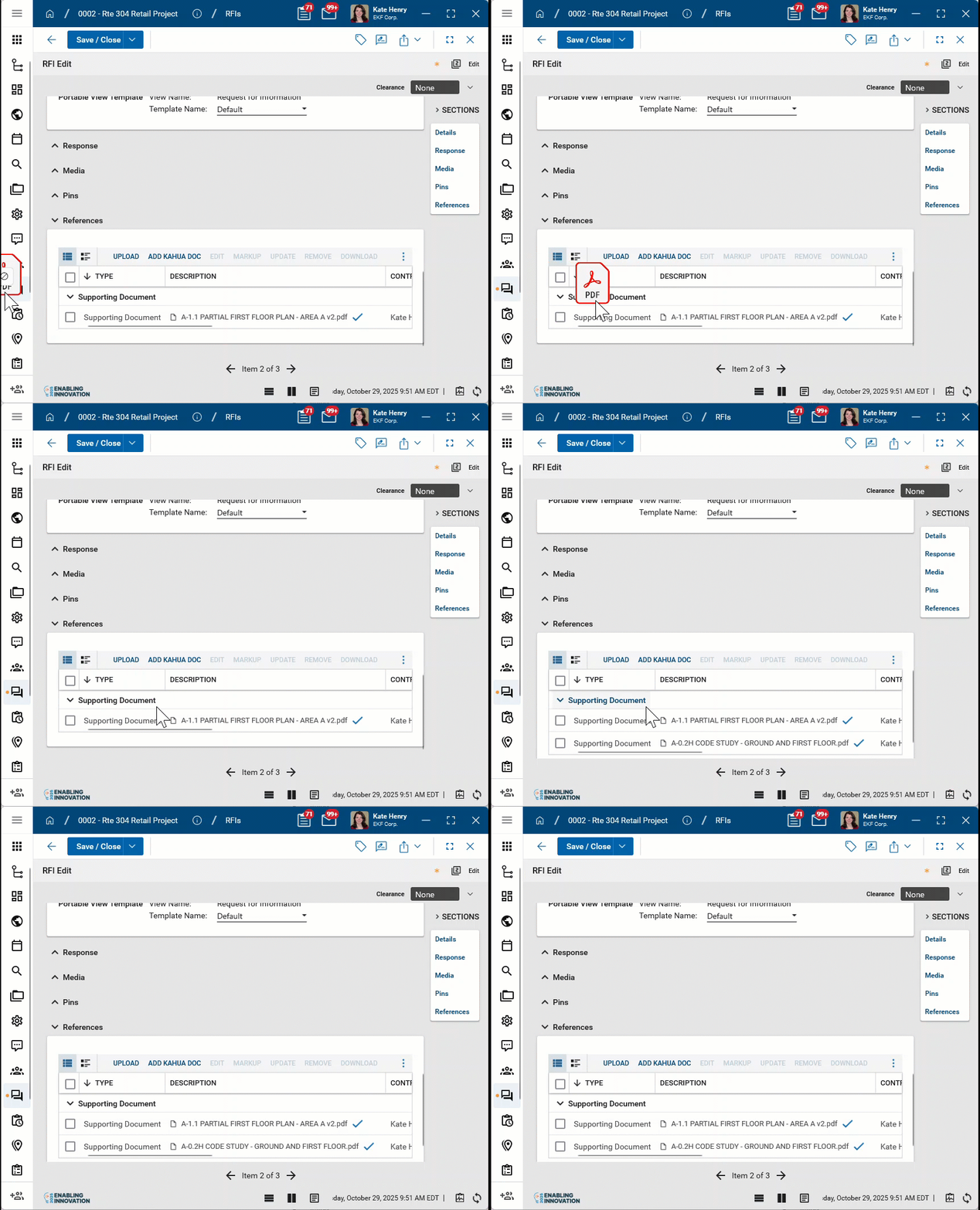
Media Upload or select any relevant image files. You can use drag and drop to add an image file to this section. For more information on using this section, refer to Media section. References Upload or select any relevant files or documents. You can use drag and drop to add a file to this section. For more information on using this section, refer to References section.
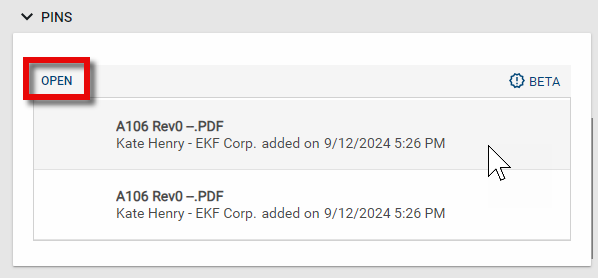
Pins Any pins related to this RFI will appear in this section. From this section, you can open the drawing and review the pin. Click on the pin you want to open to select it, and click Open to open the file in File Manager that contains that pin. For more information, refer to Pinning functionality in File Manager.
Details Date By default today's date appears. Modify if appropriate. Work Package Select a work package to establish default reviewers and distribution.
When a new work package is selected, the Secondary Reviewers are automatically updated to reflect only the contacts defined in the newly selected Work Package. All reviewers associated with the previous Work Package are automatically removed.
For more information, refer to Work Packages.
Note This field only appears when the Kahua RFI Workflow with Owner option is selected. Refer to Workflow.
Reason Select an appropriate reason for the RFI.
Note This lookup list is managed in the Configuration app. Refer to Lookups.
Root Cause Select an appropriate root cause.
Note This lookup list is managed in the Configuration app. Refer to Lookups.
Priority Select the appropriate priority for this RFI.
Note This lookup list is managed in the Configuration app. Refer to Lookups.
Status Select the appropriate status. The status of the RFI will update automatically as it moves through the workflow.
Note This lookup list is managed in the Configuration app. Refer to Lookups.
Author Your name is selected by default. Modify if necessary. Coordinator Select the user responsible for reviewing RFIs prior to their submission to the Primary Responder. For more information, refer to Include an RFI Coordinator in the workflow.
Note If the option Hide Assign to Coordinator in Configuration is selected, this field does not appear.
Type Select the appropriate type of question from the list.
Note This lookup list is managed in the Configuration app. Refer to Lookups.
CSI Code Select the appropriate CSI Code. Location Select one or more locations from the list, as appropriate. For more information on setting up location values, refer to Setting up locations. Cost Effect Select the appropriate Cost Effect from the list.
Note This lookup list is managed in the Configuration app. Refer to Lookups.
Cost Amount Enter the cost amount. Time Effect Select the appropriate Time Effect from the list.
Note This lookup list is managed in the Configuration app. Refer to Lookups.
Number of Days Enter the number of days. Reference Enter any reference information. Response Distribution Select contacts who should receive of copy of the response when it is completed. Completed Date The date the RFI was marked complete appears here. Portable View Template Select the portable view template to apply to this RFI. For more information on portable views, refer to Portable Views. Secondary Responses Secondary Responders appear here. Click Insert to insert a number of lines in the grid and select Secondary Responders. Click the More icon
 to open an expanded grid view. For more information on working with grids, refer to Item grids.
Important This section only appears if the Kahua RFI Workflow with Owner option has been selected in Configuration.
Auto Send to Responders Select this option to have the RFI automatically sent to the Primary Responder and Secondary Responders upon submission.
If not selected, the RFI will have to be forwarded to the Primary Responder by the Owner's Representative, and forwarded to any Secondary Responders by the Primary Responder.
Responders can add Responders Select this option to allow Secondary Responders to select and forward this RFI to other Secondary Responders. Responders can see all Responses Select this option to allow all Secondary Responders to view the responses from other Secondary Responders. Notify All Responders Display Secondary Responses Upon Completion Select this option to make secondary reviewer responses visible on the source record when the RFI is complete.
Note Users will have to drill into the Secondary Responses grid to view the secondary response. Refer to Item grids.
Display Secondary Responses Upon Secondary Response Select this option to make secondary reviewer responses visible on the source record immediately when the responses are saved.
Note Users will have to drill into the Secondary Responses grid to view the secondary response. Refer to Item grids.
Tracking These date fields will automatically be completed if you use the Kahua workflow. Otherwise you can manually enter in the information.
Note This section only appears if the Kahua RFI Workflow with Owner option has been selected in Configuration.
-
Click Save when you are done.
Include an Owner's Representative in the workflow
Your project may include an Owner's Representative who is part of the workflow as RFIs are submitted to and returned from the Primary Reviewer. An administrator can configure the RFI app in your project to use the Kahua RFI Workflow with Owner.
When using the Kahua RFI Workflow with Owner option, the RFI moves through the workflow as follows:
-
The RFI is created with the Owner's Representative selected.
-
The RFI is submitted.
-
If Auto Send to Primary Responder is selected on the RFI, the RFI is sent to both the Owner's Representative and the Primary Responder.
-
If Auto Send to Primary Responder is not selected on the RFI, the RFI is sent to the Owner's Representative, who either responds or sends it on to the Primary Responder.
-
-
If needed, the Primary Responder can send the RFI to secondary responders for review and return.
-
After receiving any needed responses from secondary responders, the Primary Responder submits their response to RFI. The response goes to the Owner's Representative.
-
The Owner's Representative reviews the response and can return it to the Primary Responder if there is an issue with their response, or move it forward to the Originator for completion.
Note If the Kahua RFI Workflow with Owner option is enabled on a project but no Owner's Representative is selected on an RFI, the RFI will move forward without that role, i.e., the RFI will be submitted directly to the Primary Responder, and the Primary Responder's response will be returned directly to the user who created the RFI.
To include an Owner's Representative in the workflow, the following settings in the Configuration app for RFIs on your project should be reviewed:
-
On the Workflow tab in Configuration, the Kahua RFI Workflow with Owner option must be selected.
-
On the Fields tab , the visibility of the following fields should be reviewed:Auto Send to Primary Responder / Owner Remarks / Owner's Representative / Owner Responded
-
On the Settings tab, review the Owners Rep Remarks Required? setting.
Note A user can be selected as the default for the Owner's Representative field in the Defaults tab of the Configuration app. Refer to Defaults.
Include an RFI Coordinator in the workflow
Your project may include an RFI coordinator who reviews RFIs prior to submission to the Primary Reviewer. An administrator can configure the RFI app in your project to include the coordinator in the workflow.
When configured this way, the Assign to Coordinator option appears when an RFI is created or saved. The author or another user can select Assign to Coordinator.
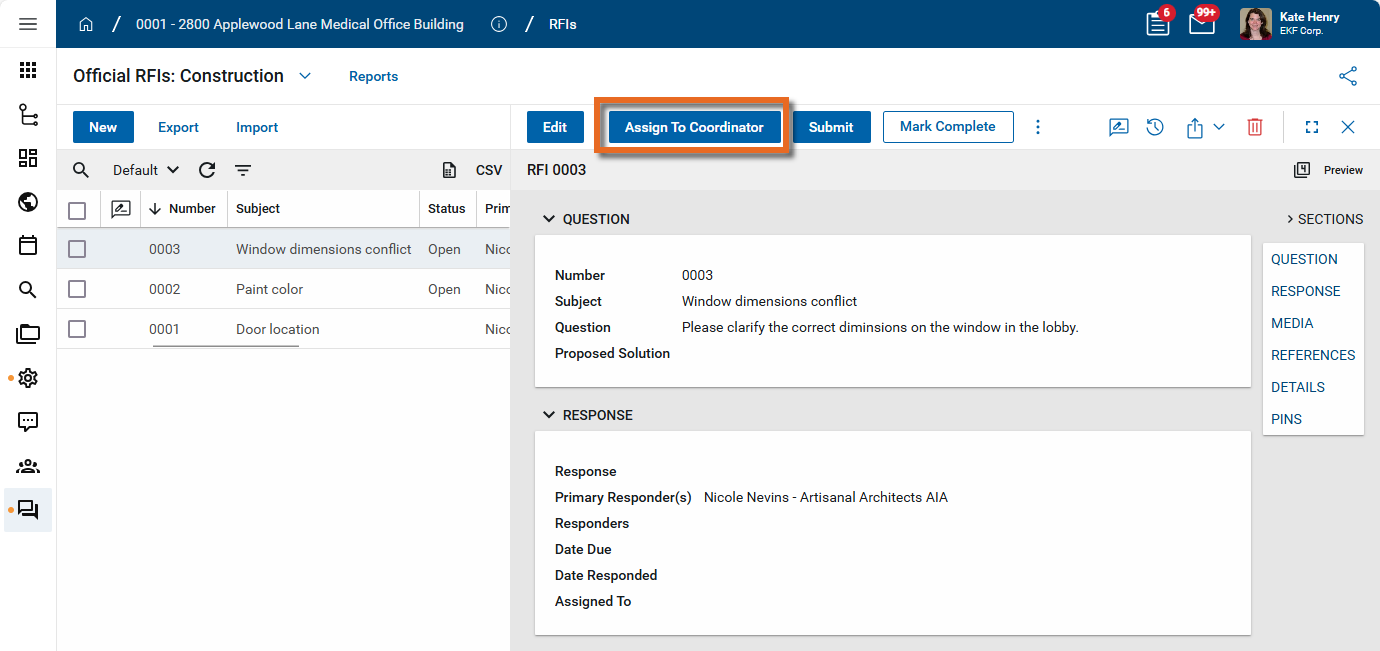
Once selected, the RFI is forwarded as a task to the user named in the Coordinator field. That user can then review the RFI and make any modifications as needed before submitting it to the Primary Reviewer.
Note A user can be selected as the default for the Coordinator field in the Defaults tab of the Configuration app. Refer to Defaults.
To include an RFI Coordinator in the workflow, the following selections are required in the Configuration app on your project:
-
Kahua Workflow must be enabled, either the Kahua RFI Workflow or Kahua RFI Workflow with Owner option.
-
The setting Hide Assign to Coordinator must be cleared.
Submit an RFI for a response
If your RFI app is configured to use Kahua workflow, you can submit RFIs to the designated responders for review.
To do so, complete the following steps:
-
Review the header to ensure that you are in the correct project or partition.
-
Navigate to the RFIs application (Apps > Document Management > RFIs).
-
Select the appropriate RFI from the log view and open the detail view.
-
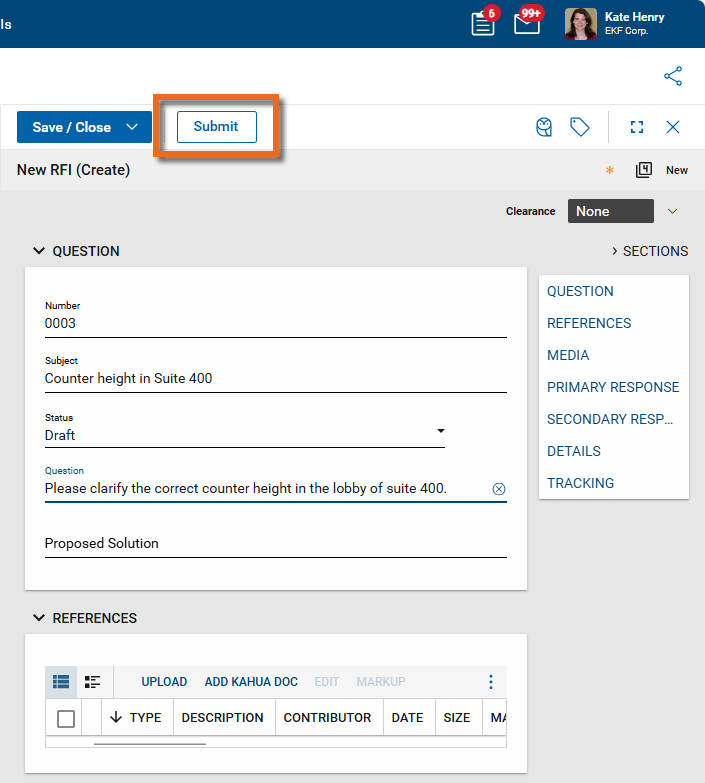
Select Submit on the RFI. You can select Submit from the edit view and changes will be saved automatically.
-
If your app is configured to use the standard Kahua RFI workflow, the RFI is sent as a task to all Primary Responders and any Secondary Responders.
Selected contacts must be Kahua users to submit the RFI for their review. If multiple Primary Responders have been selected, they will all receive tasks and notifications when the RFI is submitted. When one of them responds to the RFI, the response task will be removed from all other selected Primary Responders.
Note If your app is configured to use the Kahua RFI Workflow with Owner and the Owner's Representative has been selected on the RFI, the RFI is sent as a task to the Owner's Representative for review and to be forwarded on to the Primary Responders and any Secondary Responders. If there is no Owner's Representative selected, the RFI will follow the standard workflow.
Important If for some reason you need to modify the RFI after it has been submitted for a response, open the RFI detail view and select Recall. This will remove the task from the Primary and Secondary Responders and allow you edit the original RFI. It can then be resubmitted for response.
Respond to an RFI
If you are a designated Primary or Secondary Responder on an RFI, you will receive a task for the response. For general information on the Tasks app, refer to Tasks App.
To respond to an RFI task, complete the following steps:
-
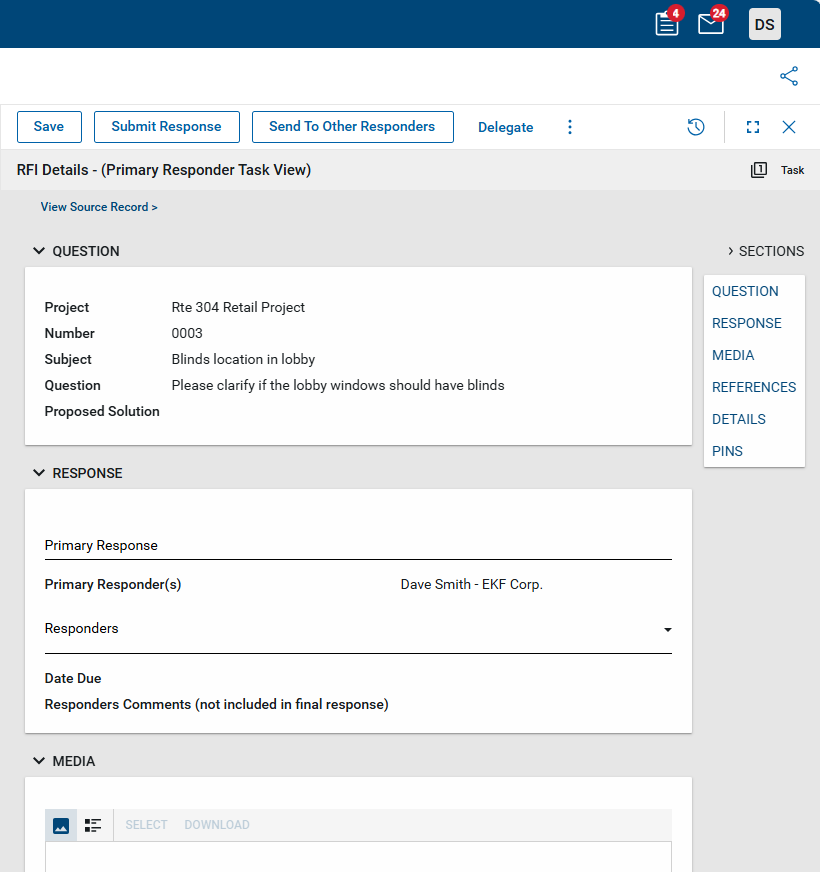
Navigate to the Tasks app and select the appropriate task.
-
Review the Question and Proposed Solution, if present. Review any attached files in the Media or References sections. For more information on using these sections, refer to Media section or References section.
-
If you are a secondary responder, enter your response and select Submit. If you don't want to respond, select Decline.
-
If you are the primary responder, review other responder comments and enter your response in the Response section.
If the Secondary Responders grid is present, click the More icon
to open an expanded grid view and review responses. For more information on working with grids, refer to Item grids. -
To send the response to other contacts, add them to the Response Distribution field in the Details section. Select Submit Response to complete your response. Click the More icon
 to show additional options hidden for space reasons.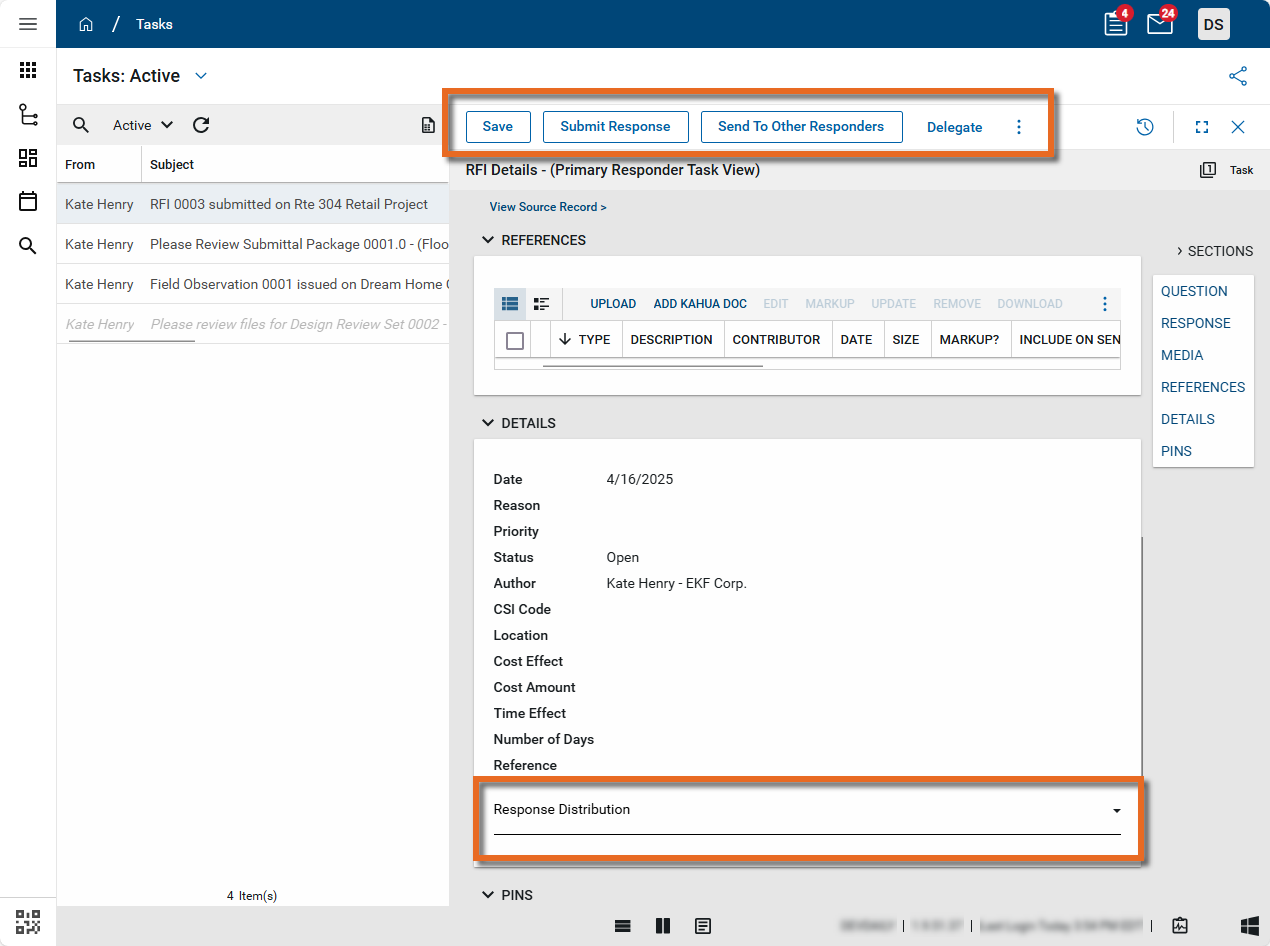
Important If multiple Primary Responders were selected, all the Primary Responders will have received tasks and notifications. If another Primary Responder submits a response, the response task is removed from all the other selected Primary Responders.
Receive the RFI response
When the RFI has been responded to, the originator of the RFI will receive the response.
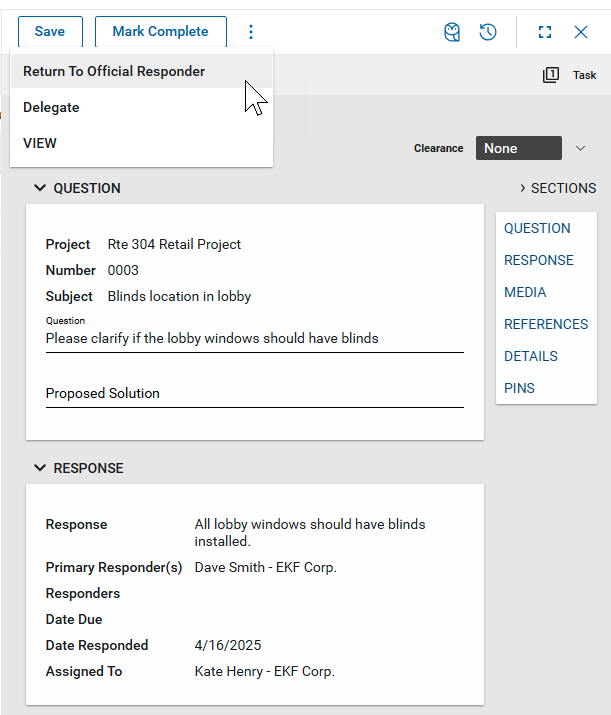
If you are satisfied with the response, select Mark Complete. The Status of the RFI will be updated to "Complete"
If you are not satisfied with the response, select Return to Official Responder. The Status of the RFI will remain "Open" and the RFI will be sent back to the Primary Responder as a task requiring their attention.
Note If not all options appear in the action bar, select the More icon to show additional options hidden for space reasons.
If necessary, an RFI that has been set to "Complete" can be reopened. Select the RFI to open the detail view and select Reopen. The Status will change to "Open" and the RFI can be edited and resubmitted by selecting Resubmit. To close it again instead, select Mark Complete.
Create a revision of an RFI
Your project or domain can be configured to allow the creation of revisions of completed RFIs.
Important To allow revisions to be created on an RFI, the Allow RFI Revisions setting must be enabled in Configuration by your domain administrator and additional settings reviewed.
To create a new RFI that is a revision of another RFI, complete the following steps:
-
Review the header to ensure that you are in the correct project or partition.
-
Navigate to the RFIs application (Apps > Document Management > RFIs).
-
Select the appropriate RFI from the log view and open the detail view. To create a revision of an RFI, the original RFI must have been marked as complete and have a Status of "Closed".
-
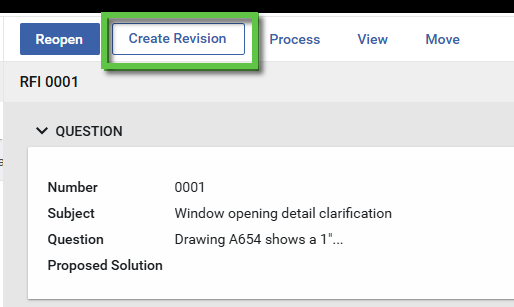
Select Create Revision on the RFI.
-
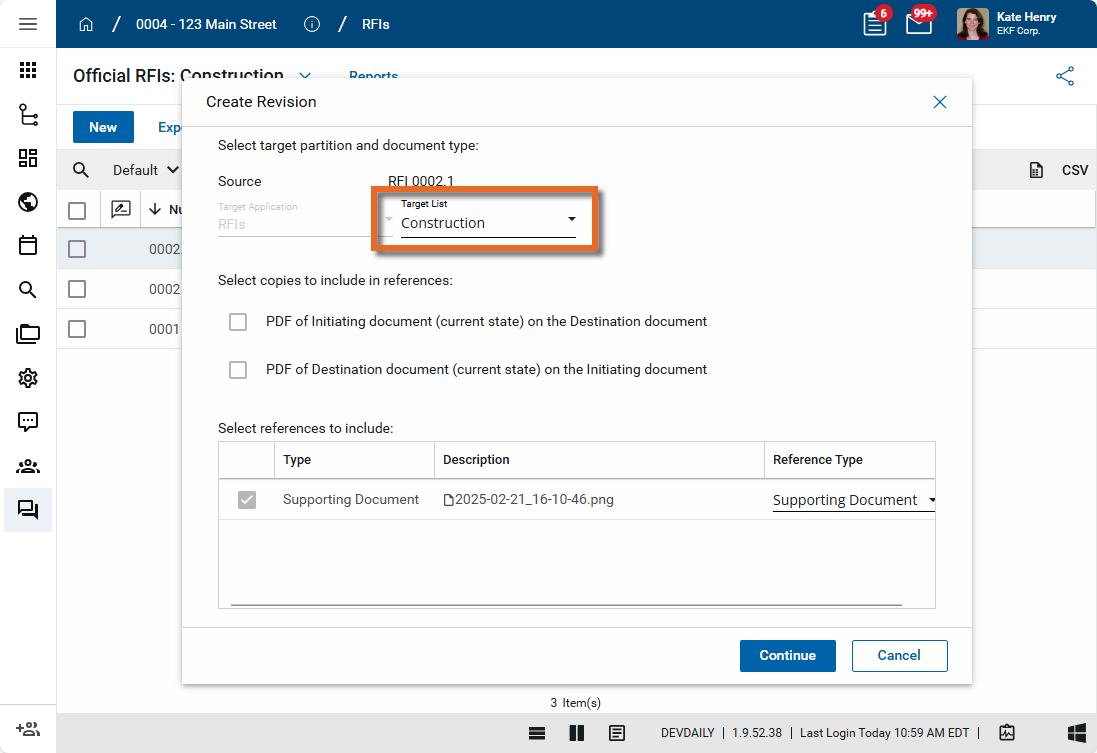
The Create Revision dialog appears. Select the appropriate Target List (i.e., if your RFI app contains a "Pre-Construction" list and a "Construction" list, and you are working in the "Construction" list, select "Construction").
-
Click Continue.
-
The new RFI appears with the following characteristics:
-
The RFI Number is the number of the original RFI plus the revision number
Example Using the default settings, if the original RFI was number 1004, the first revision would be 1004.1, a second revision would be 1004.2, etc. For information on customizing the format, refer to Allow RFI Revisions.
-
The Question field contains the Question and Response from the original RFI.
-
Any Reference files that were attached to the original RFI are copied to this new RFI.
-
Process an RFI into an Issue
Sometimes an RFI has the potential to become a cost item. To track this potential cost item, the RFI can be processed into an issue in the Issues application.
To create an issue related to this RFI, complete the following steps:
-
Review the header to ensure that you are in the correct project or partition.
-
Navigate to the RFIs application (Apps > Document Management > RFIs).
-
Right-click on the RFI and select Process, or open the detail view and select Process from the action bar.
-
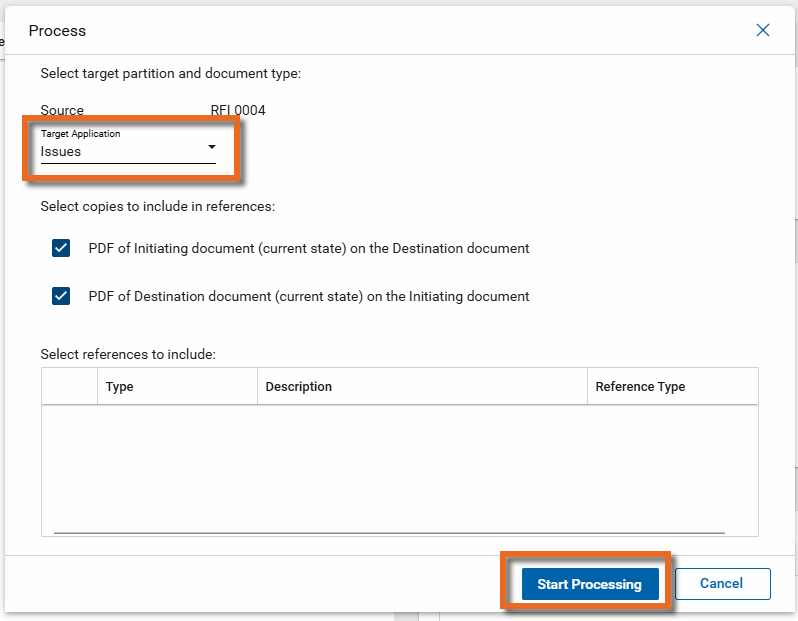
In the Target Application field, select "Issues". By default, reference files are included. Clear the check boxes for any files you do not want to include.
-
Click Start Processing.
-
The Issues app opens to a new issue item with information from the RFI. Complete any additional fields and click Save.
Generate a log report or other reports
You can generate a report from a selected log view, or use one of the built-in reports available by default in each application. For more information on creating your own reports, including how to set up scheduled reports, refer to Creating ad hoc reports.
Note For information on modifying the logo that appears on reports in your project, refer to Managing report logos.
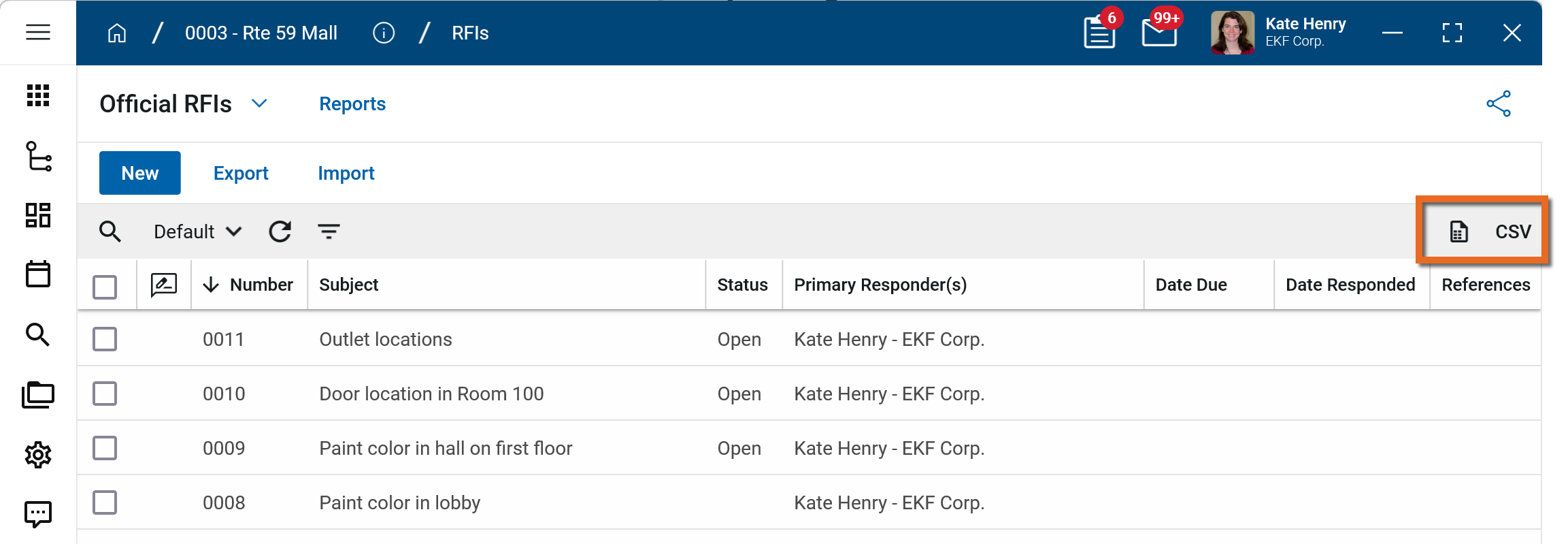
To generate a report from a log view with up to 10,000 records, click the More icon  and select Print. If your log view contains more than 10,000 records, the Print option will be disabled and you can select
  to download the records to a CSV file instead.
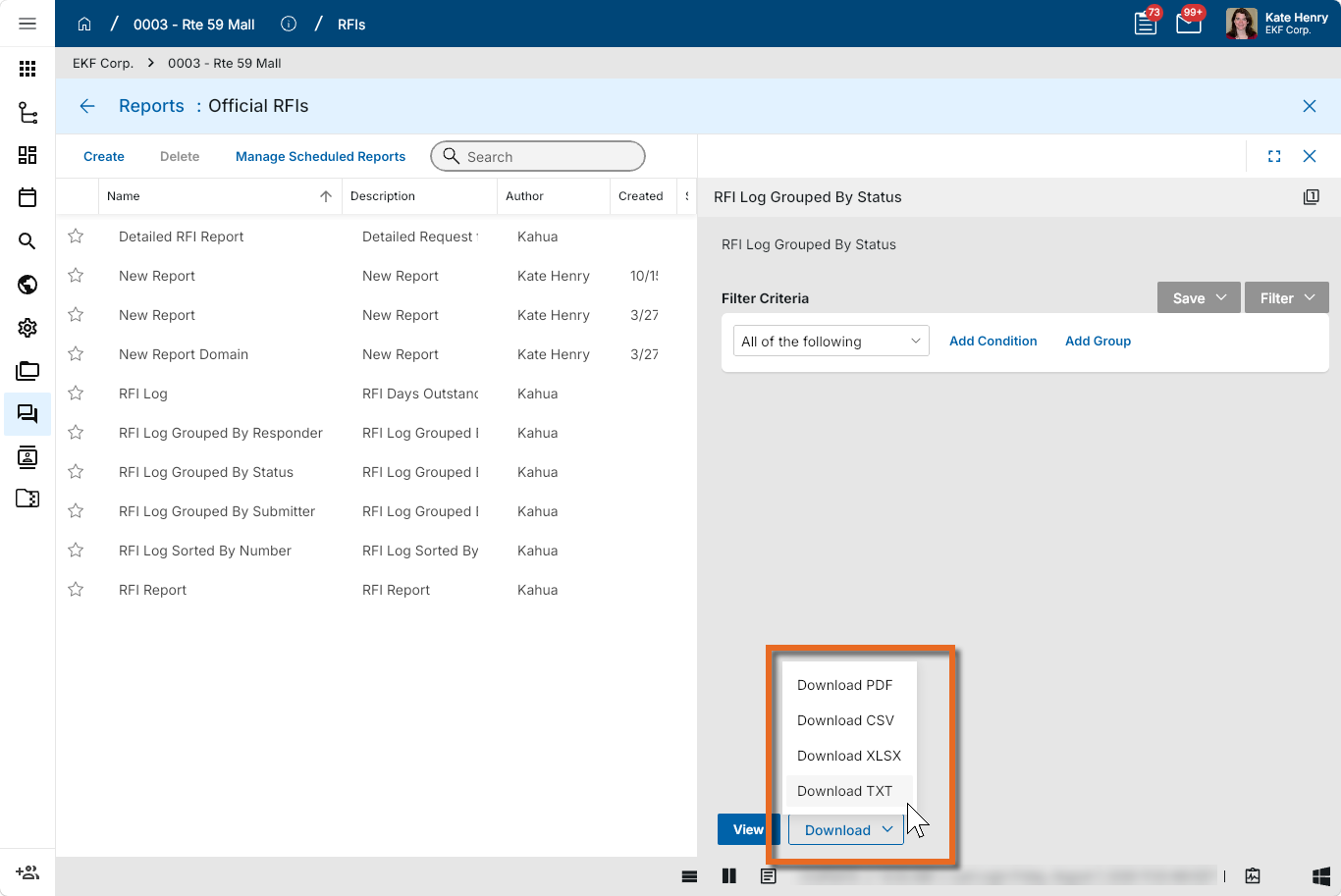
To generate an application report, complete the following steps:
-
Navigate to the application.
-
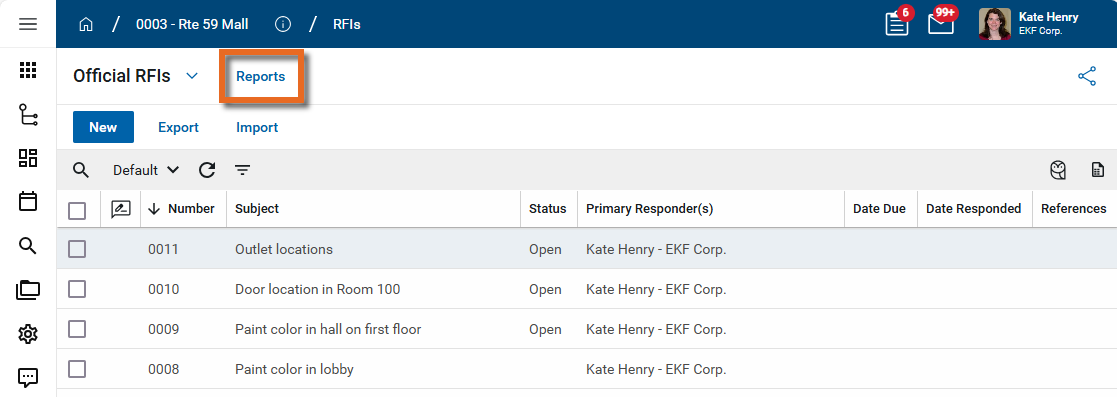
Select Reports in the application title bar.
-
Select the report you want to run.
-
Apply any desired filters.
-
Select View or Download as appropriate. For more information, refer to Viewing Reports.
-
Click the Close icon
 when you are done.
Move an RFI to a different list
By default, RFIs have a Pre-Construction list and a Construction list. Your domain administrator can create new lists or disable existing ones. Refer to Lists.
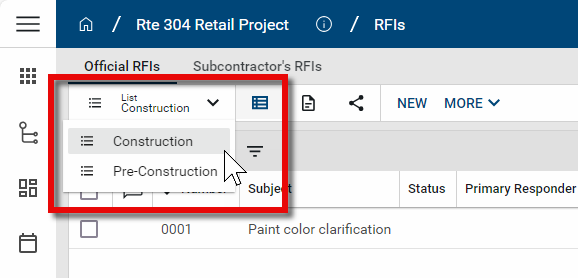
If you want to move an RFI from one list to another list within the same project, complete the following steps:
- Review the header to ensure that you are in the correct project or partition.
-
Navigate to the RFIs application (Apps > Document Management > RFIs).
-
Click on the appropriate RFI from the log view. To move multiple RFIs, select the check boxes next to the RFIs.
-
Select Move from the action bar. Alternatively, right-click on the RFI and select Move.
-
The selection box appears. Select the list you want to move the RFI to and click Move. Click Ok on the confirmation message.
-
The RFI is moved to the selected list. Any existing tasks related to that RFI remain valid and are not impacted.
Important When moved, the RFI Number does not change. If the move would result in a duplicate number, Kahua will prevent the move from happening, unless the project's configuration permits duplicate RFI numbers.
Perform standard actions on a single record (print, send, view history, delete, etc.)
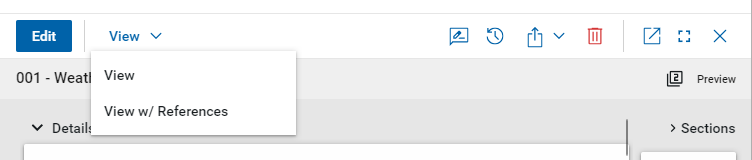
From the detail view of a record, there are several standard actions you can take. Depending on your permissions, some or all of the following options may be available to you:
-
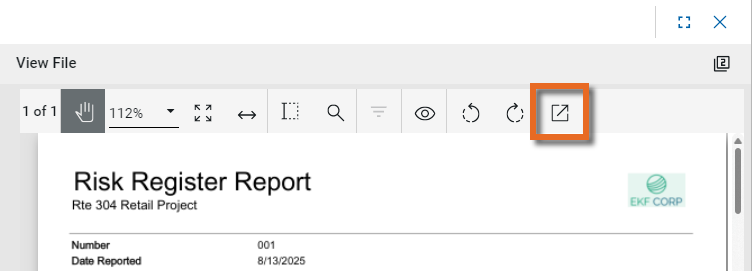
View and View w/References - Select View or View w/References to open a PDF view of the current record. The PDF file can be printed or shared from the viewer by clicking on the Open PDF icon
 .
.
Note Only references where the Include on Send value is set to "Yes" are included in the View w/References.
Additionally, if Include Markup on Send is set to "Yes", any markups on the file are included. -
Discussions
 - Select this icon to open the Discussions panel. If enabled in your domain, the discussions feature allows you to participate in public or private conversations associated with specific records. For more information, refer to Discussions.
 -
View History
 - Select this icon to open the History page for the record. The history page provides details regarding all activity (creation, edits, saves, etc.) performed on the record. Click view edit to drill down into more detail on a specific action. Click hide edit to close the action detail. Click the Close icon
  to close the history page.
 -
Send actions
 - Click this icon to select an appropriate Send action for the record. The following options may be available to you:
-
Copy Link and Copy Portable View Link - Select this option to copy a URL link for the record or record's portable view to your clipboard. This link can be sent outside of Kahua. Users with the appropriate permissions will be able to open Kahua directly to that record or portable view by using the link.
-
Copy QR Code and Copy Portable View QR Code - Select this option to generate a QR code for the currently open record or record's portable view. The QR code can be shared directly from your screen, or copied to your clipboard to be shared as appropriate. This QR code can be shared outside of Kahua. Users with the appropriate permissions will be able to open Kahua directly to that record or portable view by using the link.
-
Send - Select this option to open a new Kahua message with the open record included as an attachment. References with the Include on Send value set to "Yes" are also included. For more information, refer to Messages app.
-
-
Delete
 - Select this option to delete the open record. You must agree to the confirmation message before the record is deleted.
Alternatively, right-click on the record in the log view and select Delete, or select multiple records from the log view and select Delete.
Note If a record is deleted in error, your domain administrator may be able to recover it through the Recycle Bin app. For more information, refer to Using the Recycle Bin.
-
Open in a new window
 - Select this option to open the current record as read-only in a new window (desktop host) or browser tab (web host). This allows you to navigate to other records in the original Kahua instance while keeping the read-only window or tab open for reference. To re-open the record on the read-only window or tab in Kahua, select Open in the header.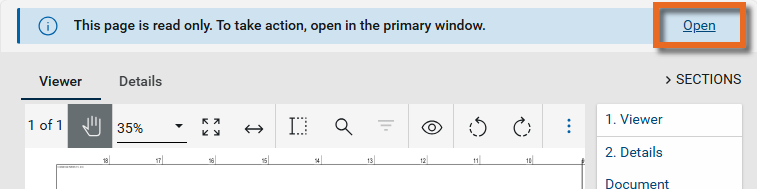
-
Maximize
 and Minimize
  - Select Maximize to open the record to a full screen view. From the full screen view, select Minimize
  to return to the original view.
 -
Close
- Select the close icon to close the currently open item.
Configure the RFIs app
Your domain administrator or another user with the appropriate permissions can configure the RFIs app in the Configuration application.
Important When working in the Configuration app, it is important to review the header and ensure that you are working at the correct level in the hierarchy, either the root domain or at a partition or project level.
Settings that you establish at the root domain or lower levels will inherit down the hierarchy until they are overridden. For more information on the hierarchical structure of Kahua, refer to Understanding the hierarchical structure of Kahua.
The Configuration app can be accessed directly through the apps list (Apps > Administration > Configuration), or, in some applications, by right-clicking on an application in the launch bar and selecting Configure. When you select Configure for an app from the launch bar, the detail view of the configuration page for that application opens automatically.
For general information on configuring this app in Configuration, refer to Application configuration.
The following items are specific to the RFI application:
| Options | Description |
|---|---|
| Number tab | |
| Type |
If you enable the Allow RFI Revisions feature, you should review this selection. The recommended settings are "Auto-Suggest" or "Auto-Suggest Next Whole".
|
| Fields tab | |
| Auto Send to Primary Responder / Owner Remarks / Owner's Representative / Owner Responded | If using the Kahua RFI Workflow with Owner, review the visibility of these fields. |
| Defaults tab | |
| You can set a default value for a field that does not appear on records in the app (i.e. Is Visible is cleared). The default value is then applied to all newly created records in this app in the project or partition. | |
| Display Secondary Responses Upon Completion | If using the Kahua RFI Workflow with Owner, select "True" as a default to have secondary reviewer responses be visible on the source record when the RFI is complete. |
| Display Secondary Responses Upon Secondary Response | If using the Kahua RFI Workflow with Owner, select "True" as a default to have secondary reviewer responses visible on the source record immediately when the responses are saved. |
| PrimaryReviewPeriod / SecondaryReviewPeriod | If desired, enter default values for the allowed review period. This selection is used in conjunction with the Primary Response Period Calendar / Secondary Response Period Calendar settings to determine due dates for primary and secondary reviewers. |
| Revision Number Separator / Prefix |
If you enable the Allow RFI Revisions feature, you can control the separator value here. By default, RFI revisions are denoted by a period "." character. For example, the first revision to RFI 1004 is numbered 1004.1, a second would be 1004.2, etc. You can use any character or combination of characters as desired. Example If you select "-", then the revisions to RFI 1004 would be 1004-1, 1004-2, 1004-3, etc. |
| Workflow | |
| Active |
Select from the following workflow options:
|
| Settings tab | |
| Enable Collaboration |
Select this option to allow subcontractors to submit RFI's directly to this project in your domain. When the subcontractor selects your company in the RFI in their My RFIs app, you will receive a Kahua task to agree to receive their RFIs into your Subcontractor's RFIs app in a project that you select. You can respond directly to their RFIs, or promote them to your Official RFIs sub-app for response from the appropriate consultant. |
| Primary Response Field Required? | Select this option to require the Primary Responder to enter a response in the Primary Response field. |
| Secondary Response Field Required? | Select this option to require all selected Secondary Responders to enter a response in the Secondary Response field. |
| Owners Rep Remarks Required? | Select this option to require the Owner's Rep to enter a response in the Owners Rep Remarks field. |
| Limit Management of Secondary Responders to Primary Responders | Select this option to only allow the Primary Responder to add to and manage the list of Secondary Responders on RFIs. |
| Primary Response Period Calendar / Secondary Response Period Calendar |
Select the appropriate option for the calculation of the allowed response period:
The days are configured on the Work Days tab of the Configuration application. Refer to Work Days. |
| Include Originator in Distribution | If using workflow, select this option to include the RFI Author when the response is distributed. |
| Hide Assign to Coordinator | Clear this selection to allow the Assign to Coordinator action button to appear on an unsubmitted RFI. This functionality allows your organization to have a designated RFI Coordinator who reviews and edits RFIs as necessary before they are submitted for a response. Refer to Include an RFI Coordinator in the workflow. |
| Allow RFI Revisions |
Select this option to allow revisions to be created from completed RFIs. If you select this option, you should additionally review the following configuration settings:
|
Available application roles
Application roles determine which actions users can perform in the app. Roles are assigned to groups in the Groups app > Permissions tab. Members of the group then have the permissions associated with the roles assigned to the group.
The following roles are available for this application:
| Role | Details |
|---|---|
| Administrator |
Full administration, including add, configure, create lists, edit, import, export, share, view, send, process, remove, and edit view templates. |
| Contributor |
Can add, edit, open, view, send, and process records. |
| Moderator |
Can add, edit, import, export, remove, share, open, view, send, and process records. |
| Observer |
Can open, view, send, and process records. |
| Referencer |
View-only access to records. |
| TemplateEditor |
Can edit view templates. |
Note To manage these permissions, open the Groups app and assign the appropriate application role to the group. Only users with the appropriate permissions can manage application roles. For more information, refer to Managing Permissions.